
The Salesforce Account Calendar: Every Related Record in One View
Tasks on the account's contacts. Milestones on its opportunities. Visits on its projects. Put all of them on the account's calendar with one setting, at any depth, without writing Apex.
"How do I see every task for this account, including the ones logged on its contacts?" "Can the account page show the opportunity's milestones too?" "How do I show grandchild records on a record page?" The work for one customer is spread across many records. The account page should show all of it in one place.
MultiDatePick does that with a Rollup Field. A calendar on the Account page loads the records linked straight to the account, plus every record that points to the account from further away: through a contact, an opportunity, a project, or a chain of lookups up to five levels deep. One field in the Setup Wizard. No Apex required.
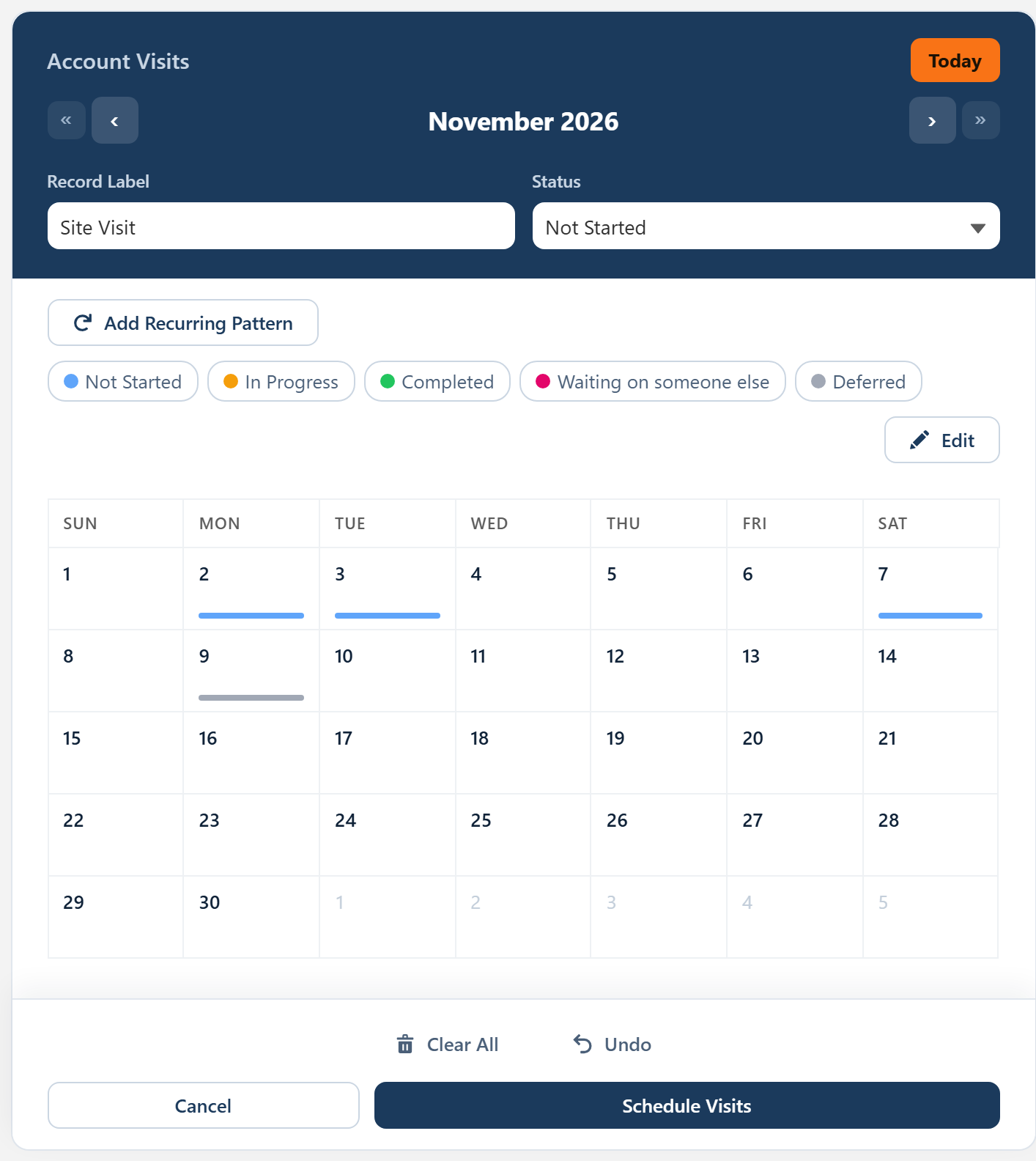
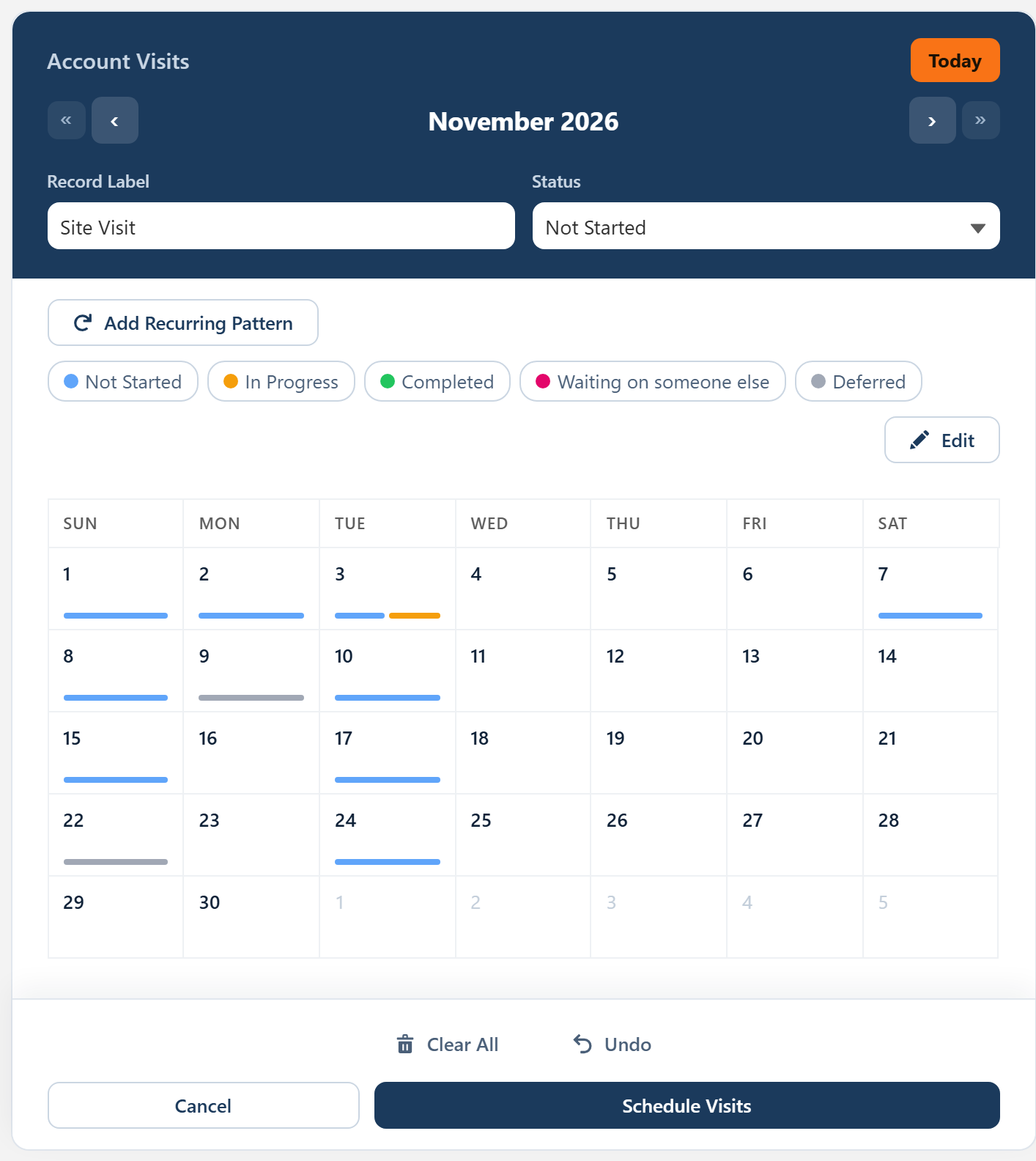
What you get on the account page
The whole relationship
Tasks and records on the account, its contacts and its opportunities, on one calendar when the page opens.
Any object, any depth
Standard or custom objects, linked directly or through a path of up to five lookups.
Saving stays simple
New days save to the page record through the usual Relationship Field. Related records keep their own parents.
Status colors
Every record, direct or rolled up, takes its status color, and the pills above the calendar filter by status.
Hover for details
Point at a day to see which call, milestone or visit it is, and open the record behind it.
Each user's own access
Records load as the person viewing the page, so sharing and field-level security apply as usual.
Why the account page shows only part of the schedule
A calendar on a record page normally loads the records that look up to that record. On an Account page with a Task calendar, that is the tasks whose Related To is the account. But most of the work is logged somewhere else: a check-in call on the contact, a pilot kickoff on the opportunity, a site visit on a project. Each of those records belongs to the account, one level or more away, and a one-level calendar leaves them out.
The Rollup Field closes that gap. It names a second field, or a path through lookups, that also leads back to the page record. The calendar shows every record that matches either one. In the Northwind Logistics example above, the account's own visits fill four days in November; with Rollup Field set to AccountId, the contact's calls and the opportunity's milestones join them and the month shows eleven.
How the Rollup Field works
Two fields do two jobs. The Relationship Field is where a new record is saved: pick a day on the account page and the record links to that account. The Rollup Field is a second way to match: any record whose rollup value equals the page record shows on the calendar too. A few setups that work this way:
| Page | Calendar records | Relationship Field | Rollup Field and what it adds |
|---|---|---|---|
| Account | Task | WhatId | AccountId: tasks on the account's contacts and opportunities |
| Account | Event | WhatId | AccountId: meetings with the account's contacts and on its opportunities |
| Account | Project Task (custom) | Account__c | Project__r.Account__c: the tasks of every project the account owns |
| Account | Site Visit (custom) | Account__c | Location__r.Region__r.Account__c: visits to every location in every region of the account |
| Opportunity | Milestone (custom) | Opportunity__c | Quote__r.OpportunityId: milestones logged against the opportunity's quotes |
A path is written the way Salesforce writes relationships: the relationship name of each lookup, a dot, and the field at the end. Custom lookups end in __r along the way (Project__r), standard ones drop the Id (Contact.AccountId). Up to five levels, the same depth a Salesforce query allows.
Set it up in the Setup Wizard
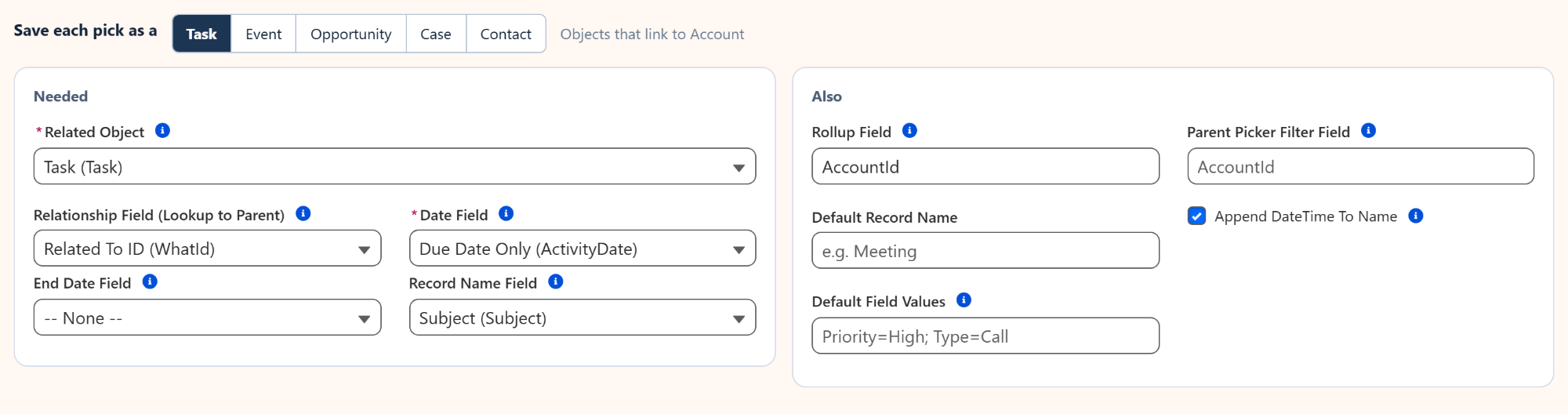
Rollup Field sits on the wizard's Fields screen, in the Also box next to the fields you already pick:
- Choose where the calendar goes. Open the MultiDatePick Setup Wizard tab, pick the Account record page and the shape of the calendar (one record per date for a Dates calendar).
- Pick what each day saves as. On the Fields screen choose Task, then Related To ID (WhatId) as the Relationship Field and Due Date Only (ActivityDate) as the Date Field.
- Enter the Rollup Field. Type
AccountId, or a lookup path such asProject__r.Account__cfor a custom object. Save the config under a name likeAccount_Visits. - Drop the component on the Account page. In Lightning App Builder, add the MultiDatePick Dates component and enter the name in Config Name. Every account now shows its whole schedule.
Already have a calendar on the page? Open its config in the wizard, add the Rollup Field and save. Every page that uses the config picks it up on the next load. The same Rollup Field property is also on the component in Lightning App Builder.
Who rolls records up to the parent
Anywhere the work for one record is logged on the records around it:
The settings that shape it
Each one is a field in the Setup Wizard and a property on the component, so nothing here needs code:
| Setting | What it does | API name |
|---|---|---|
| Related Object | The object the calendar shows and saves, such as Task or a custom Site Visit object. | relatedObjectApiName |
| Relationship Field | The lookup to the page record. New records save through it. | relationshipFieldApiName |
| Rollup Field | A second field or lookup path that also leads to the page record. Matching records show on the calendar too. | rollupField |
| Date Field | The Date field that places each record on the calendar, such as ActivityDate. | dateFieldApiName |
| Status Field and Status Colors | The status picklist and a color per value, such as Completed:#22C55E. | statusField, statusColors |
| Hover Popover Fields | The fields shown when you point at a day, such as Subject and Status. | hoverFields |
| Config Name | The config saved by the Setup Wizard. Set this and leave the rest blank. | configName |
Questions people ask
How do I show contact and opportunity tasks on a Salesforce account calendar?
Put the MultiDatePick Dates component on the Account record page with Task as the related object and WhatId as the Relationship Field, then enter AccountId in Rollup Field. Salesforce stores the account on tasks logged against the account's contacts and opportunities, so those tasks show on the account calendar next to the account's own.
Can a Salesforce calendar show grandchild records?
Yes. Rollup Field accepts a path through lookups, such as Project__r.Account__c, so a calendar on the Account page shows the records of every project that belongs to the account. A path can be up to five levels deep, which is as far as Salesforce lets a query follow lookups.
Where are new records saved when Rollup Field is set?
Through the Relationship Field, exactly as before. Rollup Field only adds records to what the calendar shows. A day you pick on the Account page saves a record linked to that account, and the related records keep their own parents.
Does the rollup respect sharing and field-level security?
Yes. The calendar loads its records as the person viewing the page, so record sharing and field-level security apply. A user sees the related records they already have access to in Salesforce, and nothing more.
Which MultiDatePick components support Rollup Field?
The Dates and Date Time components, for any object they save to, standard or custom. The Booking component uses the same Rollup Field with This Record Only, so its Timeline, Week, Utilization and Agenda views show the bookings tied to the page record through the lookup path.
The whole account, on the account.
Click around the live demo, or start from a ready-made config in the Config Library.
- $20/user/month, every feature
- 30-day free trial, no card
- 100% native Salesforce
- No Apex
- Coming soon to the Salesforce AppExchange