
Date: Salesforce Multi-Date and Range Picker
Click as many dates as you need, drag a date range, or add a recurring pattern. Every date saves to your Salesforce records.
Or try MultiDatePick live now, no login →- Passed Salesforce Security Review
- 100% native: your data stays in Salesforce
- Screen Flows
- Record pages
- App & Home pages
- Experience Cloud
- 5 views
- 9 languages
- No Apex
Try MultiDatePick live in your browser
The real component on a public Salesforce site, the fictional ACME Financial. Pick dates and open slots, see status colors and the back office. Resets every hour.
Allow multiple date selections in Salesforce
A standard Salesforce date field holds one date. The Date component holds as many as your users pick.
| You need | Standard date field | MultiDatePick Date |
|---|---|---|
| Many separate dates | ✗One field per date | ✓Click any number of days |
| A start and end date | ✗Type two dates | ✓Drag across the calendar |
| Every other Monday | ✗Enter each one | ✓One recurring pattern |
| Status per date | ✗Not possible | ✓Colored by any picklist |
| Change dates later | ✗Edit record by record | ✓Edit mode, right on the calendar |
| Use it in a Screen Flow | ✗One date input per date | ✓A Text collection or range JSON |
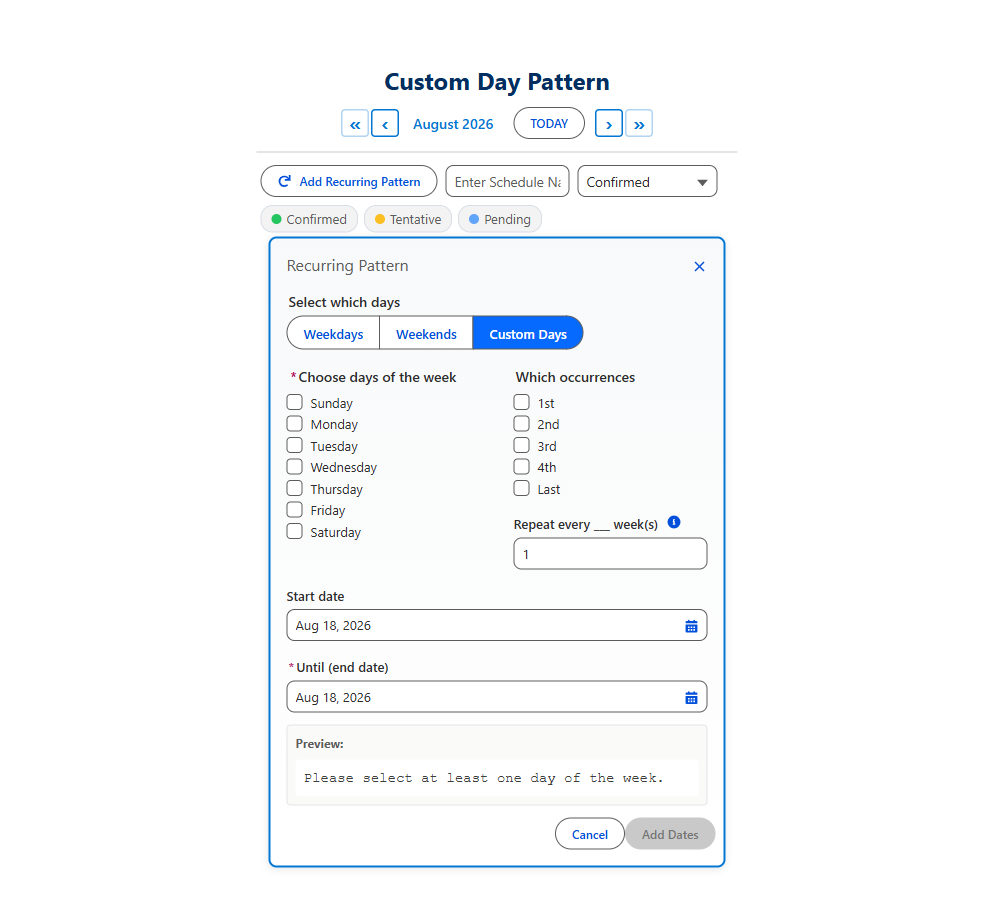
Click, drag or repeat: three ways to pick dates
Mix all three in one selection. Undo and Clear All are always one click away.
More than a date picker
60+ properties, all set by clicks. The standouts:
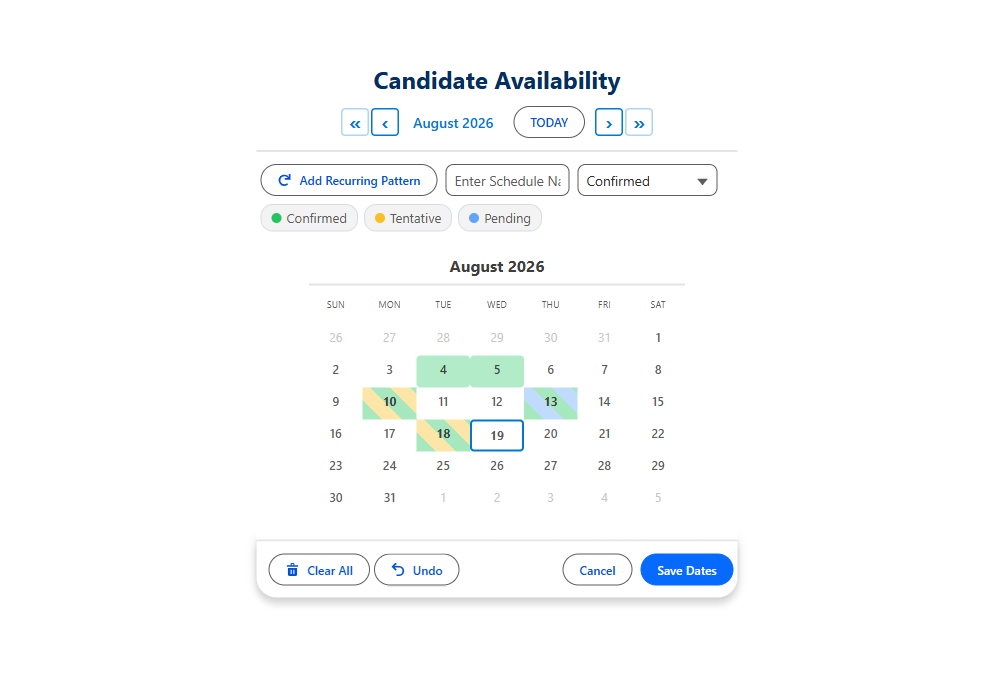
Status colors
Map any picklist value to a color. Days with two statuses get stripes.
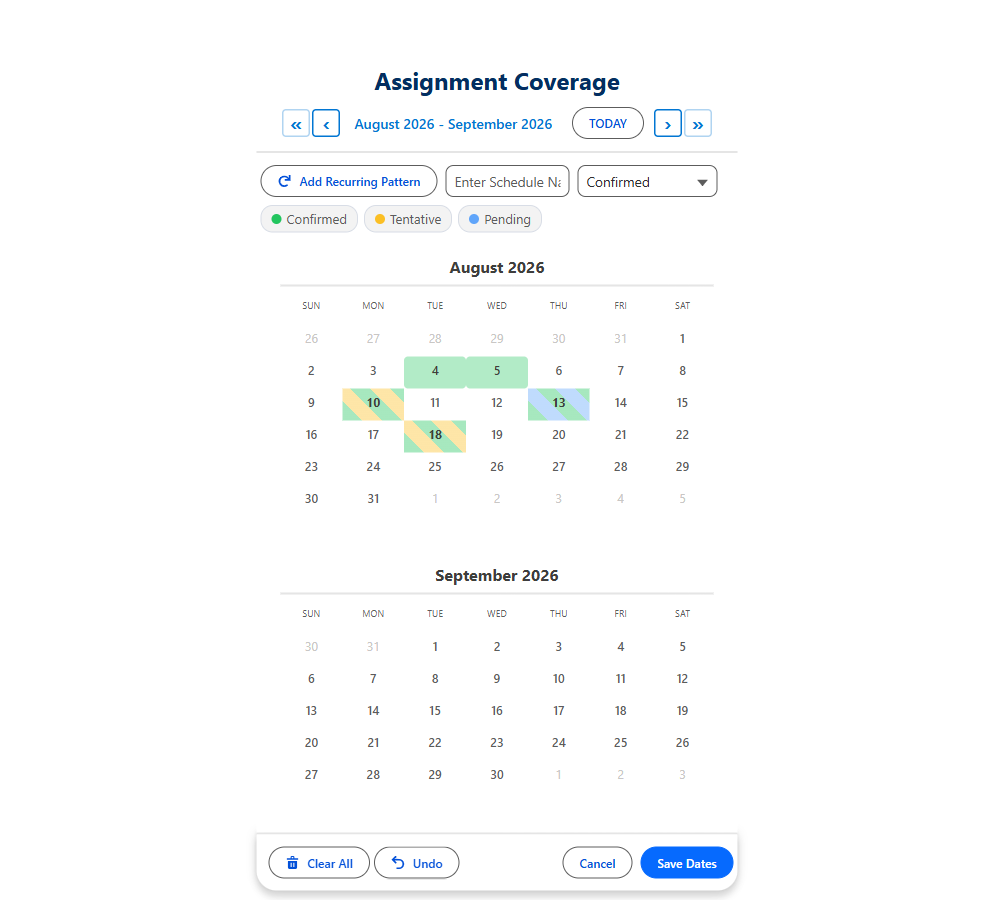
Two-month view
Two months side by side for long ranges and quarter planning.
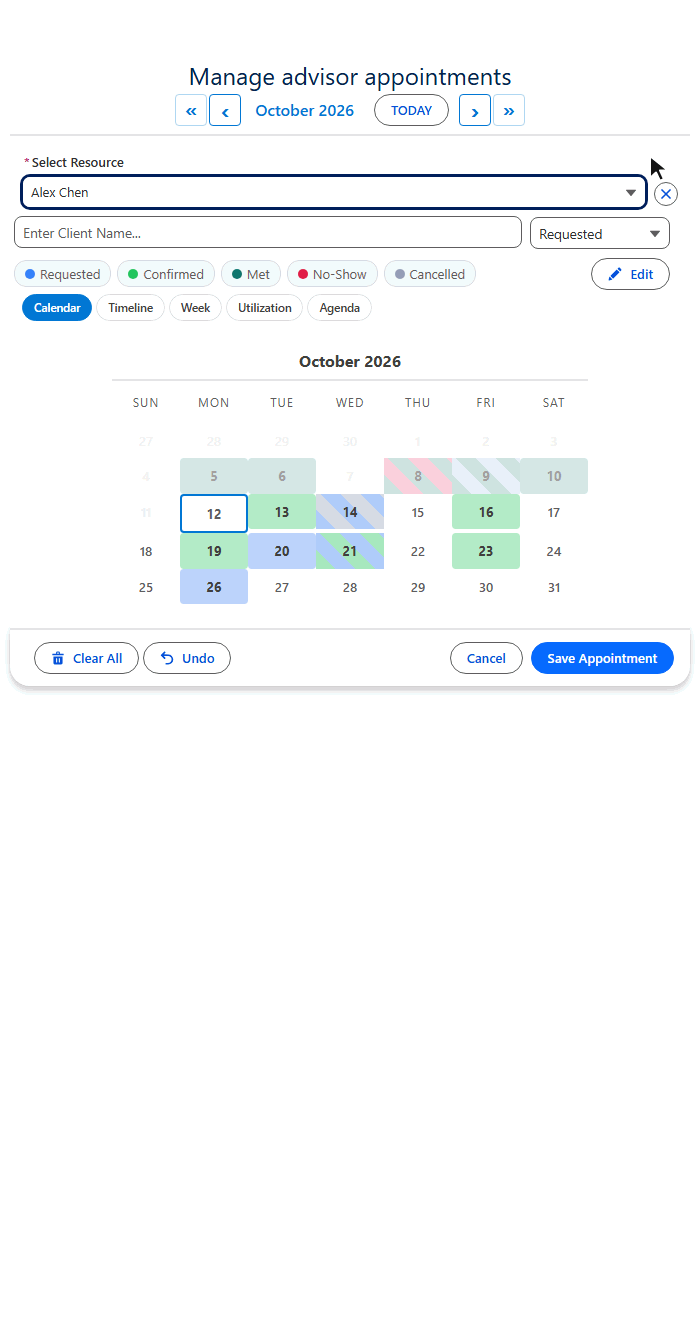
Edit mode
Approve, move or delete saved dates in bulk, right on the calendar.
- Hover popovers with your fields
- Blocked dates from any object
- Earliest and latest date
- Max dates allowed
- Pre-selected dates
- Only these dates selectable
- Second picklist on save
- Auto-named records
- Week starts Monday
- Small, medium, large
- 9 languages
- WCAG 2.1 AA
Five views of the same date records
Same records, same save. Set the default with View; offer the rest with Available Views.
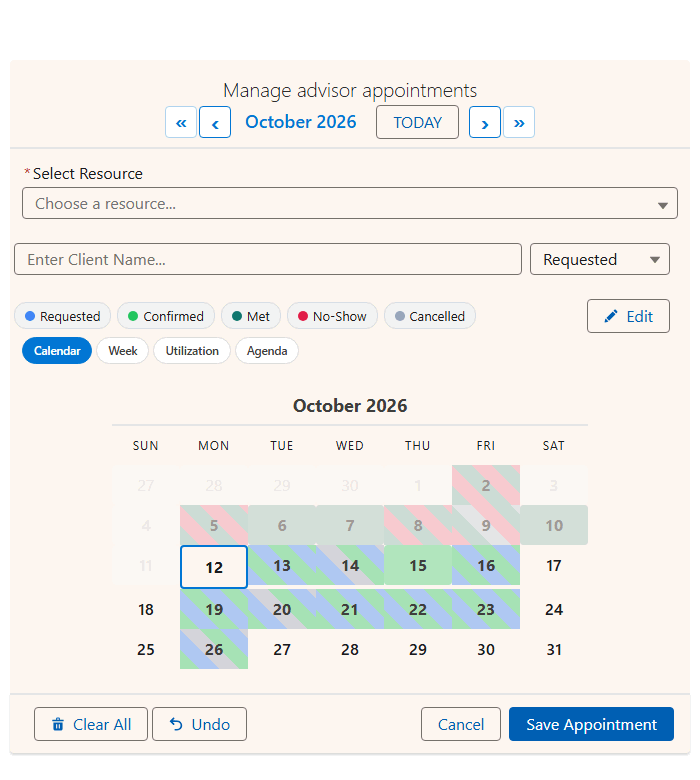
Which days?
- A month at a time, status color on every day
- Click or drag to pick
- Hover a day to see its records
- The default
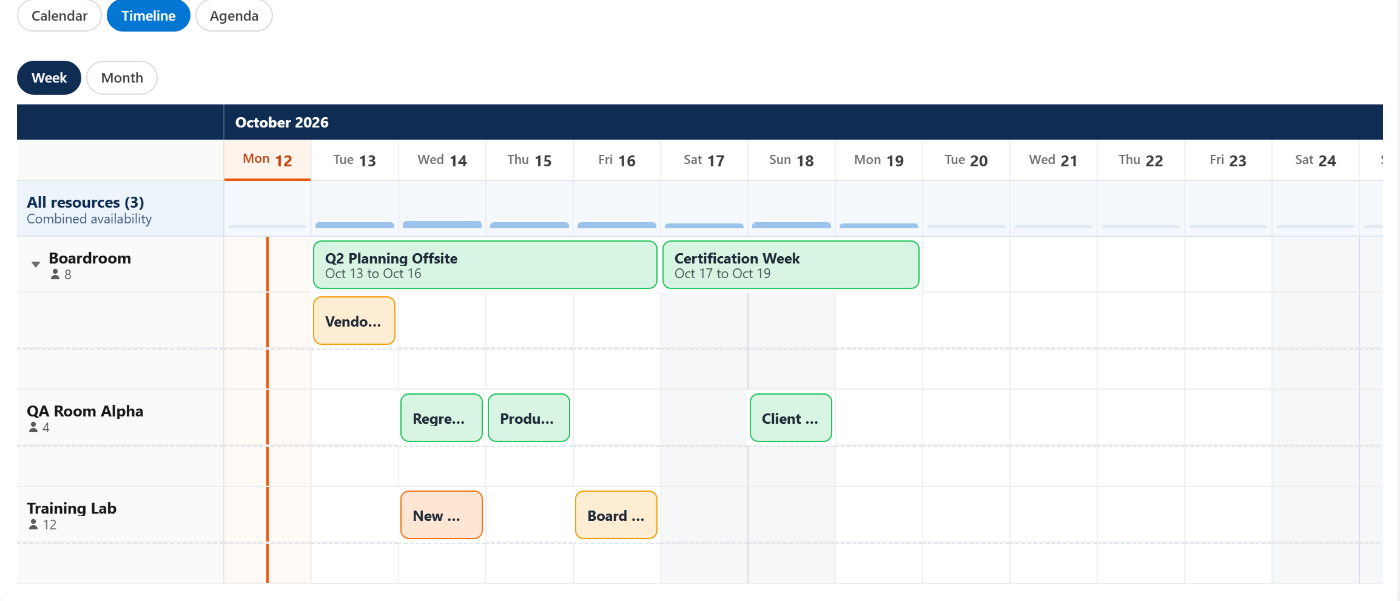
How long does each range run?
- Dates across the top
- A date range draws as one continuous bar
- Week or Month zoom; window set by Timeline Window (Days)
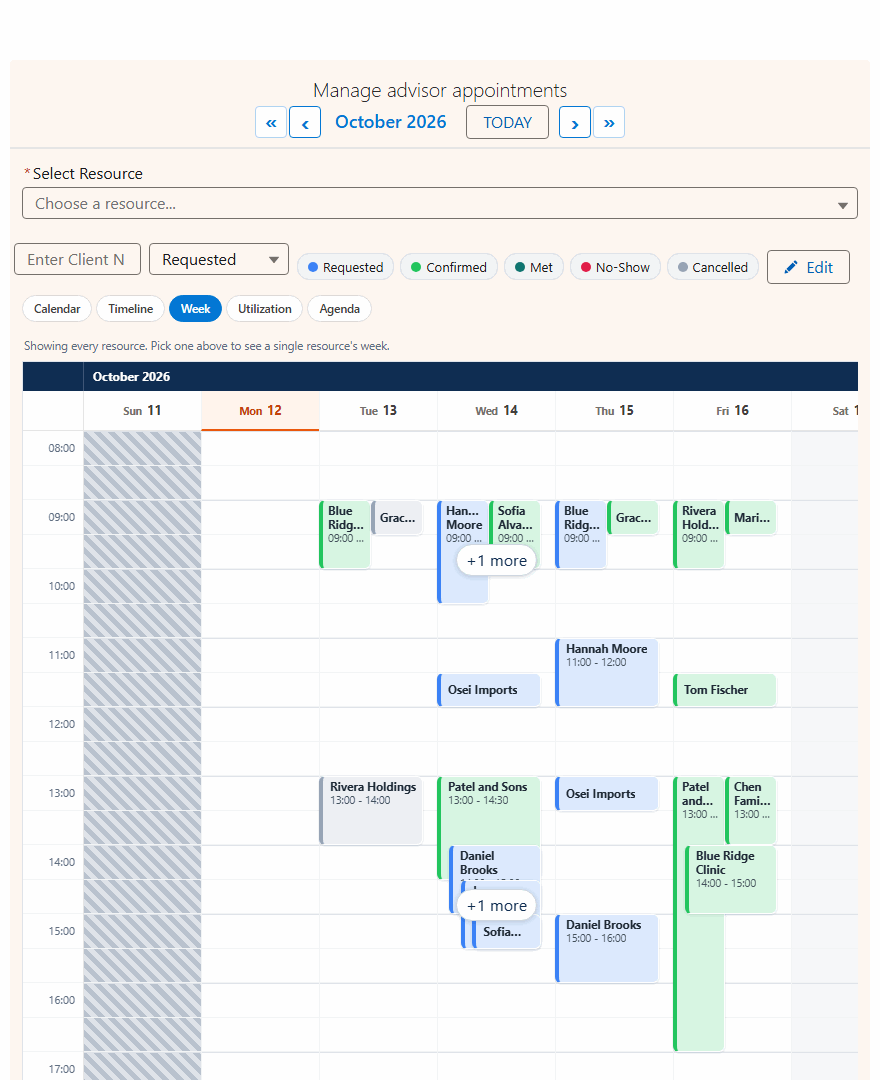
What is on this week?
- Seven days side by side
- Date records sit in an all-day strip
- Add times with the Date Time component
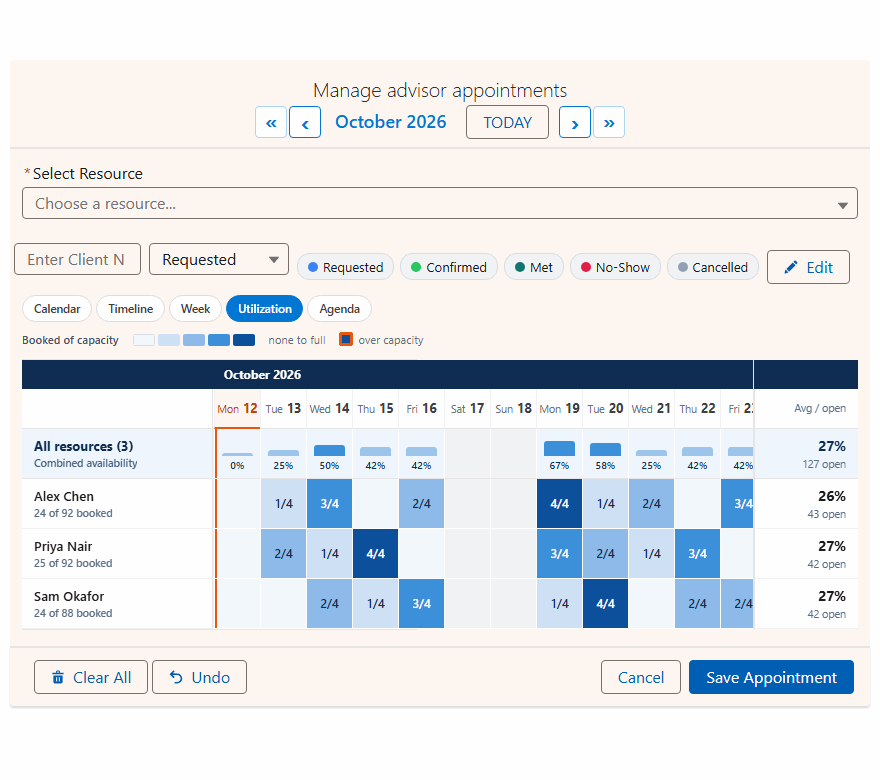
Which days are busiest?
- A heatmap of records per day
- Spot crowded weeks at a glance
- Click a day to open that week
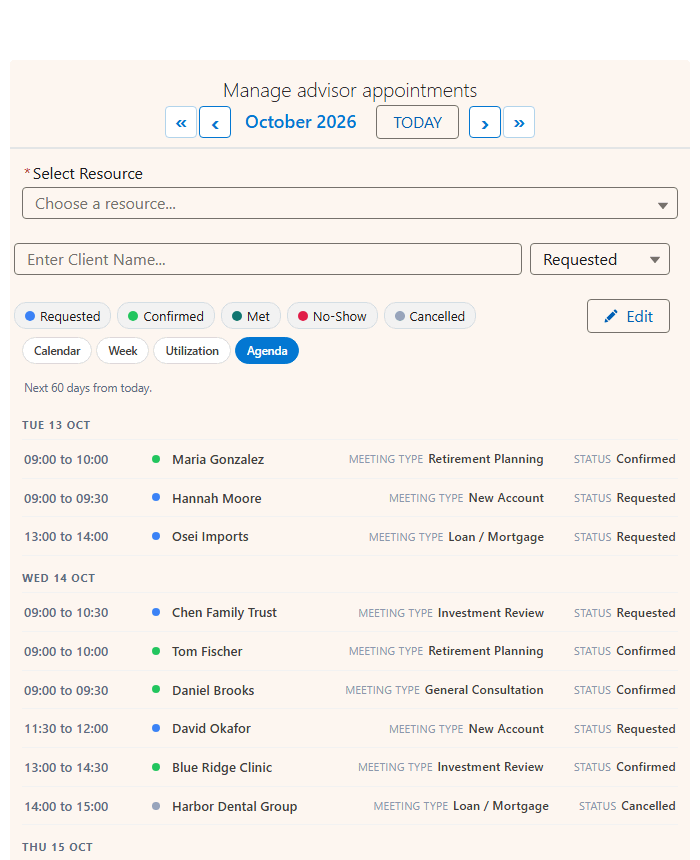
What is coming up?
- The next 60 days in date order
- Any fields you choose with Agenda Fields
- Great on a phone or a summary panel
One component, five layouts. Demos use sample appointment data; a Date calendar draws the same views from its own date records.
How it saves records: object and field mapping
Pick a record shape. Saving only adds records; it never deletes the ones already there.
| Your child object | Setting | Example |
|---|---|---|
| The object that stores dates | Child Object API Name | Trip_Date__c |
| Date (or range start) | Date Field API Name | Date__c |
| Lookup to the parent | Relationship Field API Name | Trip__c |
| Range end Optional | End Date Field API Name | End_Date__c |
| Status picklist Optional | Status Field + Status Colors | Status__c, Approved:green,Pending:orange |
| Hover details Optional | Hover Popover Fields | Name,Status__c |
| Blocked dates Optional | Blocked Dates Object, Date Field, Filter Field | Holiday__c, Date__c |
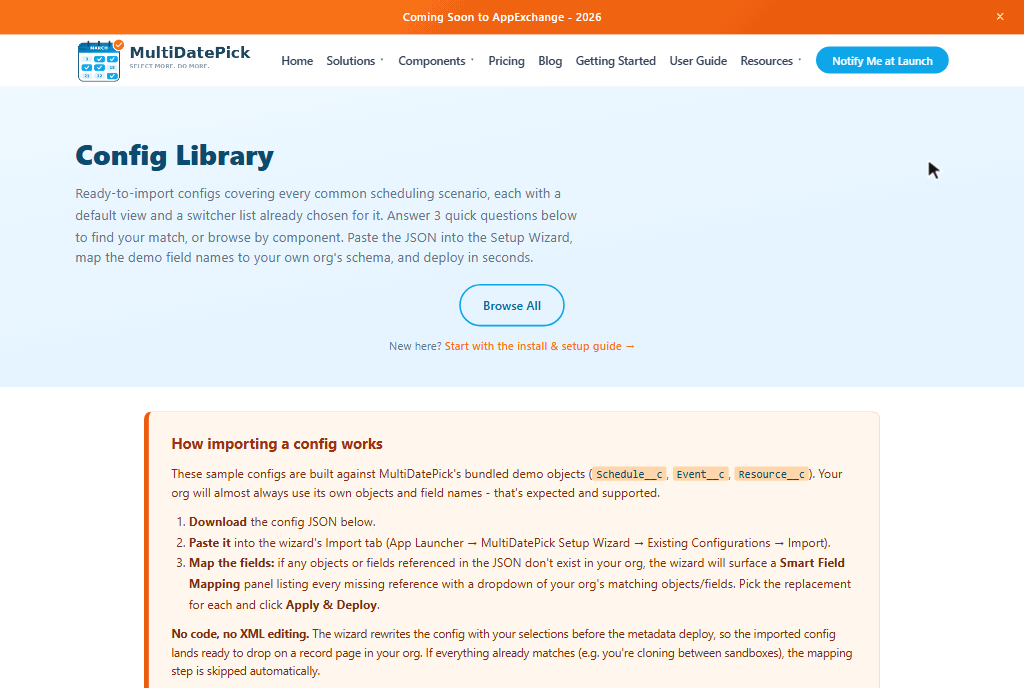
No API names to type. In the Setup Wizard every object and field is a dropdown.
Use cases for the Salesforce multi-date picker
15 ways teams use Date. Most have a ready-made config in the Config Library.
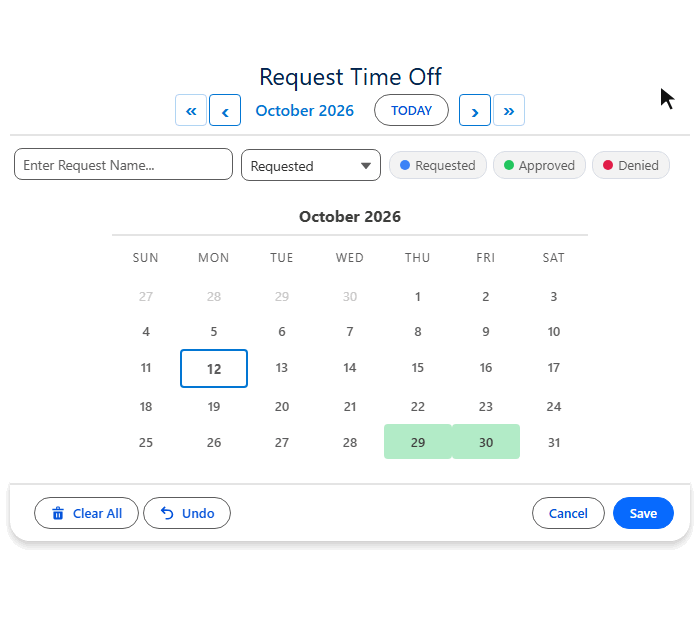
PTO and vacation requests
Mon to Fri saves as one range. Pending, Approved, Denied at a glance.
- Date range
- Status colors
- Recurring
On-call rotation
Every other Monday for a quarter in two clicks. Primary, Backup, Swapped.
- Every N weeks
- 1st to last
- Load existing
Event attendance and RSVP
One RSVP record per event date. Saved RSVPs show, so no duplicates.
- One per date
- Load existing
- Status colors
Project milestones and deadlines
Milestones and review dates on the project record, each with a label.
- Two-month view
- Record name
Facility blackout dates
Mark holidays and closures. Other calendars grey them out automatically.
- Blocked dates
- Any object
Content publishing calendar
Every Tuesday and Thursday in one pattern. Reschedule by moving dates.
- Recurring
- Hover popovers
- Edit mode
Field service multi-day jobs
Drag Mon to Fri for one job record. Existing jobs show to prevent overlap.
- Date range
- Load existing
- Status colors
Training and course enrollment
Pick the days of a multi-week course. Days the class is off are greyed out.
- Blocked dates
- Recurring
Subscription and renewal tracking
Bulk-record renewal dates, auto-named like "Q3 Renewal".
- Two-month view
- Default record name
Audit and compliance schedules
The 1st Monday of every month, all fiscal year, tracked by status.
- Monthly occurrence
- Status colors
Equipment inspection and maintenance
Inspection dates on each asset record, skipping facility closures.
- Record page
- Hover popovers
- Blocked dates
Real estate showing availability
Open-house dates on the listing. A read-only public calendar on your site.
- Experience Cloud
- Read only
Sales territory visit planning
Which days each rep is in which territory, multi-day visits as one record.
- Date range
- Recurring
Event venue booking dates
Multi-day events, setup and tear-down days as single records.
- Date range
- Status colors
Recurring task due dates
Every Wednesday in October, or the last business day of each month.
- Recurring
- One per date
Need times or resources too? Date Time adds a time grid; Booking adds rooms, people and capacity.
Put it on a Lightning page
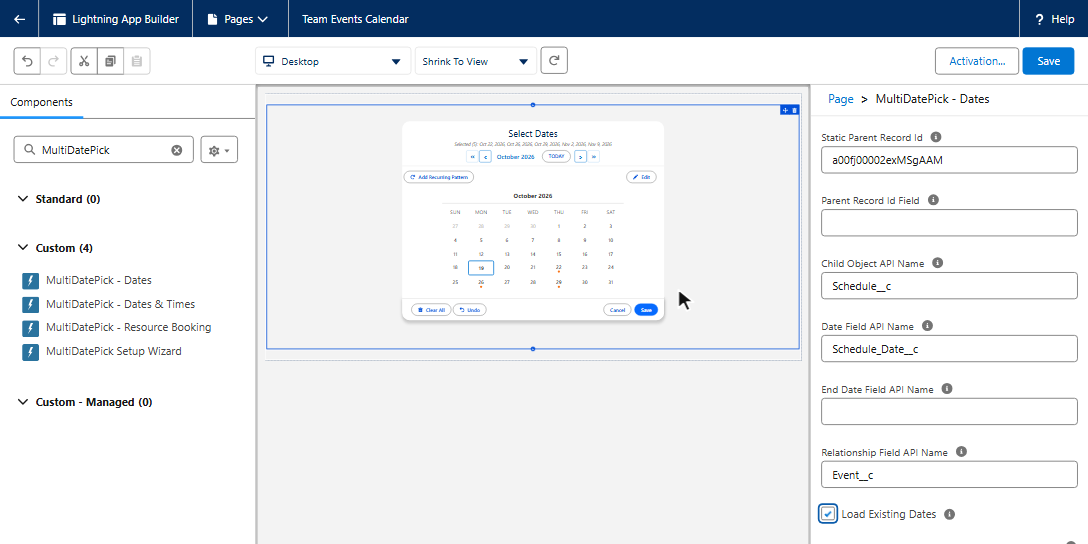
Record, App, Home and Experience Cloud pages. Dates save as child records with no Flow at all.
| Page | What you set |
|---|---|
| Record page | Config Name. The page record is the parent automatically. |
| App and Home pages | Config Name plus Static Parent Record Id. |
| Experience Cloud | Config Name plus Static Parent Record Id. Turn on Show In-Component Toast. |
| A related record's page | Parent Record Id Field: the lookup that points to the real parent. |
Pick multiple dates in a Screen Flow
Drag Dates onto a screen and set Config Name. Every checkbox comes from your Setup Wizard config.
| Output | What the flow gets |
|---|---|
| Selected Dates (Output) | Text collection of ISO dates: ["2026-07-10","2026-07-14"] |
| Date Ranges JSON (Output) | Adjacent dates grouped into ranges. Needs Output Date Ranges as JSON on. |
| Parse Date Entries from JSON | Included Flow action: turns the JSON into loopable fromDate / toDate entries. |
Flow-only settings stay off unless you turn them on: Required, Show Inline (No Button) and Output Date Ranges as JSON. Full patterns on the Flow Cheat Sheet.
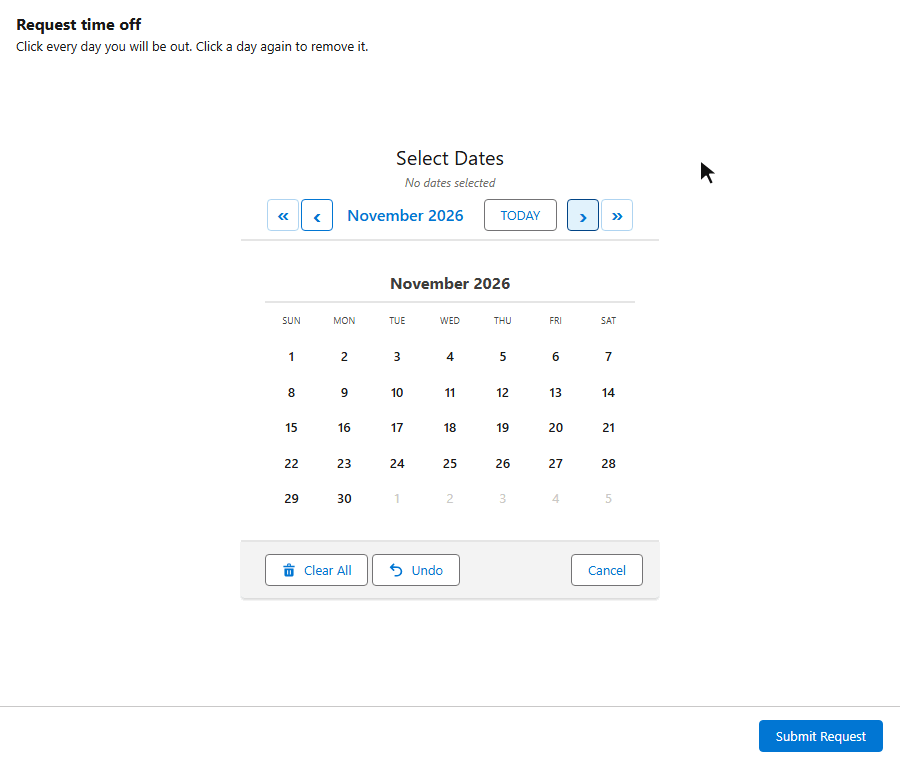
Specifications
The Date component at a glance.
| Security | Passed Salesforce AppExchange Security Review |
| Data | 100% native: your data stays in Salesforce. No external servers, no callouts. |
| Salesforce editions | Enterprise, Unlimited, Performance, Developer and Salesforce Platform, plus industry clouds. Not Essentials or Professional. |
| Where it runs | Screen Flow, Lightning Record Page, App Page, Home Page, Experience Cloud site |
| Selection | Click single dates, drag date ranges, recurring patterns |
| Recurring patterns | Weekdays, weekends, custom days; every N weeks; 1st, 2nd, 3rd, 4th or last occurrence |
| Saves as | One record per date, or one per date range with an End Date field. Additive save. |
| Flow outputs | Selected Dates (Text collection of ISO dates), Date Ranges JSON + Parse Date Entries from JSON |
| Limits | Max dates allowed, earliest and latest date, allow past dates, blocked dates from any object |
| Views | 5: Calendar, Timeline, Week, Utilization, Agenda. Plus a two-month layout. |
| Languages | 9: English, Spanish, French, German, Italian, Japanese, Hindi, Brazilian Portuguese, Chinese Simplified |
| Properties | 60+, all set by clicks. Full reference |
| Setup | Setup Wizard, Lightning App Builder or Flow Builder. No Apex required. |
| Salesforce API version | 63.0 |
One plan, every component
Date, Date Time and Booking are all in the same seat.
Multi-date picker questions
Short answers. More on the FAQ page.
Can a Salesforce date field hold multiple dates?
No. A standard Date field holds one date, and a pair of fields holds one range. MultiDatePick saves every date the user picks as a related child record of the parent, so one record can have any number of dates, each with its own status.
How do I select a date range in an LWC?
Drop the MultiDatePick Date component on the page and drag across the days. Set End Date Field API Name and adjacent days save as one record with a start and an end date, so Monday to Friday is one record, not five. No custom LWC to build.
Can I pick multiple dates in a Screen Flow?
Yes. Drag the Date component onto a Flow screen and set Config Name. Selected Dates (Output) returns every picked date as a Text collection of ISO dates. Turn on Output Date Ranges as JSON and the Parse Date Entries from JSON action gives you loopable from and to dates.
Can users pick recurring dates, like every other Monday?
Yes. The Add Recurring Pattern button selects weekdays, weekends or custom days, repeats every N weeks, and can limit to the 1st, 2nd, 3rd, 4th or last occurrence in the month, between a start and an end date.
Can I show a public calendar of dates on an Experience Cloud site?
Yes. Place the Date component on an Experience Cloud page and set Static Parent Record Id. Set Existing Dates Mode to readonly to show saved dates without letting visitors change them, and turn on Show In-Component Toast for save messages.
How much does the MultiDatePick Date component cost?
MultiDatePick is $20 per user per month with a 30-day free trial and no card required. The Date, Date Time and Booking components are all included.
Properties reference
By the label you see in App Builder and Flow Builder. With Config Name set, the wizard fills all of these.
All Properties Reference
Setup
| Config Name | configName | A saved Setup Wizard config. Loads every other setting. |
Views
| View | view | Opening layout: calendar (default), timeline, week, utilization, agenda. |
| Available Views | availableViews | Views in the switcher, e.g. calendar,timeline,agenda. Blank offers all five. |
| Timeline Window (Days) | timelineWindowDays | Days Timeline shows at once. Default 14; 0 for the full month. |
| Timeline Zoom | timelineZoom | Starting zoom: day, week (default) or month. |
| Agenda Fields | agendaFields | Extra fields on each Agenda row. Blank reuses Hover Popover Fields. |
Display
| Button Label Flow | label | Text on the button that opens the picker. Default "Select Dates". |
| Calendar Title | modalTitle | Title at the top of the calendar. Default "Select Dates". |
| Show Inline | showInline | Calendar always visible, no button. On by default on pages, off in Flow. |
| Two-Month View | twoMonthView | Two months side by side. |
| Calendar Size | calendarSize | small, medium (default) or large. |
| Day Header Format | dayHeaderFormat | 3 = SUN MON, 2 = SU MO, 1 = S M. |
| Week Starts on Monday | weekStartsOnMonday | Weeks begin Monday instead of Sunday. |
| Show Recurring Pattern Button | showRecurringPattern | The Add Recurring Pattern button. On by default. |
| Show Selection Summary | showSelectedSummary | Count and ranges of the picked dates. On by default. |
| Show Done Button in Inline Mode | showDoneButtonInline | Done folds the calendar into a summary card. On in Flow, off on pages by default. |
| Required Flow | required | At least one date before the Flow can advance. |
Limits
| Max Dates Allowed | maxSelections | Most dates a user can pick. 0 = unlimited. |
| Allow Past Dates | allowPastDates | Off = only today and later. On by default. |
| Earliest Selectable Date Flow | minDate | First date that can be picked. |
| Latest Selectable Date Flow | maxDate | Last date that can be picked. |
| Pre-Selected Dates Flow | defaultDates | Dates already selected when it opens (YYYY-MM-DD). |
| Blocked Dates Flow | disabledDates | Dates that cannot be picked, shown greyed out. |
| Only These Dates Are Selectable Flow | availableDates | Every other date is disabled. Court dates, sessions. |
| Auto-Jump to First Available Date Flow | autoJumpToFirstAvailable | Opens on the month of the first selectable date. |
Status and colors
| Status Field | statusField | Picklist or text field that colors each date. |
| Status Colors | statusColors | e.g. Approved:green,Pending:orange,Denied:red. Names or hex codes. |
| Status Color Display | statusColorDisplay | calendar: date cells take the status color. |
| Status Field Label | statusFieldLabel | Label for the status picker. Blank uses the field name. |
| Selectable Statuses (Status Picker) | selectableStatuses | Values users may set, e.g. Requested on a public site. One value hides the picker. |
| Hide Records With Status | hideBookingsWithStatus | Status to leave off the calendar, e.g. Cancelled. |
| Second Picklist Field | secondStatusField | A second picklist chosen on save, e.g. Reason__c. Not color-coded. |
| Second Picklist Label | secondStatusFieldLabel | Label for the second picklist. |
| Selectable Second-Picklist Values | selectableSecondStatuses | Allowed values. One value is auto-applied and hidden. |
| Hover Popover Fields | hoverFields | Fields in the hover card, e.g. Name,Status__c. |
| Show In-Component Toast | showSuccessToast | Save message drawn inside the component. Use on Experience Cloud. |
| Success Toast Message (optional) | successToastMessage | Custom save message. |
Edit mode
| Enable Edit Mode | enableEditMode | The Edit button: change status, move or delete saved dates. On by default. |
| Edit Button Label | editButtonLabel | Custom text for the Edit button. |
| Edit Record Display | editRecordDisplay | Details per row, in order: name, status, date. Default name, status, time. |
Record name
| Record Name Field | recordNameField | Text field that stores a name for each record. |
| Default Record Name | defaultRecordName | e.g. "Vacation Day" or "On-Call". |
| Append Date to Record Name | appendDateTimeToName | "Vacation Day - 2026-07-10". On by default. |
Saving records
| Child Object API Name | relatedObjectApiName | Object where each date is saved. |
| Date Field API Name | dateFieldApiName | Date field on that object. |
| End Date Field API Name | endDateField | Adjacent dates save as one record with a start and an end. |
| Relationship Field API Name | relationshipFieldApiName | Lookup from each record to the parent. |
| Parent Record Id Flow | recordId | Parent to save against, e.g. {!recordVar.Id}. Blank = outputs only. |
| Static Parent Record Id Pages | staticRecordId | Parent for App, Home and Experience pages. |
| Parent Record Id Field | parentRecordIdField | When the page belongs to a different record: the lookup to the real parent. |
| Load Existing Dates | preloadExistingDates | Shows saved dates on load. On by default. |
| Existing Dates Mode | preloadMode | editable (default) or readonly. |
| Save Button Label | saveButtonLabel | Text on the Save button. Default "Save". |
Blocked dates object
| Blocked Dates Object | blockedDatesSourceObject | Object whose dates are blocked, e.g. holidays. |
| Blocked Dates Date Field | blockedDatesDateField | Date field on that object. |
| Blocked Dates Filter Field | blockedDatesFilterField | Lookup to this record, or a field to filter by. Blank blocks for everyone. |
| Blocked Dates Filter Value | blockedDatesFilterValue | Value the filter field must match, e.g. Holiday. |
Flow outputs
| Output Date Ranges as JSON Flow | outputAsJson | Fills Date Ranges JSON (Output). |
| Selected Dates (Output) | selectedDates | Every picked date, ISO format (YYYY-MM-DD). |
| Date Ranges JSON (Output) | selectedDateRangesJson | Adjacent dates grouped as fromDate / toDate. |
Give your users every date they need
Coming soon to the Salesforce AppExchange. Get notified the day it launches.
Questions or a feature request? Support@MultiDatePick.com