
MultiDatePick User Guide
Every component, setting and gotcha, in the order an admin meets them. No Apex required.
- Passed Salesforce Security Review
- 100% native: data stays in your org
- 3 components
- 5 views
- 100+ properties
- 40+ ready-made configs
Contents
- The three components
- Record shapes
- Setup Wizard walkthrough
- Permission sets & access
- Click to Save vs Flow-Managed Save
- Status colors & edit mode
- Views: five layouts, one component
- Resource booking & capacity
- Limiting what users select
- Blocking dates, times & resources
- Public guest pages
- Common gotchas (FAQ)
- Flow recipes
- Object & field mapping
- All properties reference
- Security & accessibility
- Questions / bugs
1. The three components: when to use each
MultiDatePick ships three Lightning Web Components on one shared base. Pick the one that matches your data.
Date
In the builders: MultiDatePick - Dates
Pick many dates at once. Best for RSVPs, attendance, time off, blackout dates and holiday calendars.
Date Time
In the builders: MultiDatePick - Dates & Times
Dates plus time slots. Best for classes, appointments, training blocks and shifts.
Booking
In the builders: MultiDatePick - Resource Booking
Dates, times and a resource. Best for rooms, equipment, people and anything with capacity.
Feature comparison
Features stack. Everything on Date is also on Date Time and Booking. Date Time adds times. Booking adds resources and capacity.
| Feature | Date | Date Time | Booking |
|---|---|---|---|
| Available on all three components | |||
| Date selection | ✓ | ✓ | ✓ |
| Five views | ✓ | ✓ | ✓ |
| Status colors | ✓ | ✓ | ✓ |
| Blocked dates | ✓ | ✓ | ✓ |
| Load existing records | ✓ | ✓ | ✓ |
| Edit mode | ✓ | ✓ | ✓ |
| Recurring patterns | ✓ | ✓ | ✓ |
| Date Time & Booking only | |||
| Time slots | ✓ | ✓ | |
| Sub-block records | ✓ | ✓ | |
| Booking only | |||
| Resource picker | ✓ | ||
| Capacity badges | ✓ | ||
2. Record shapes: when to use each
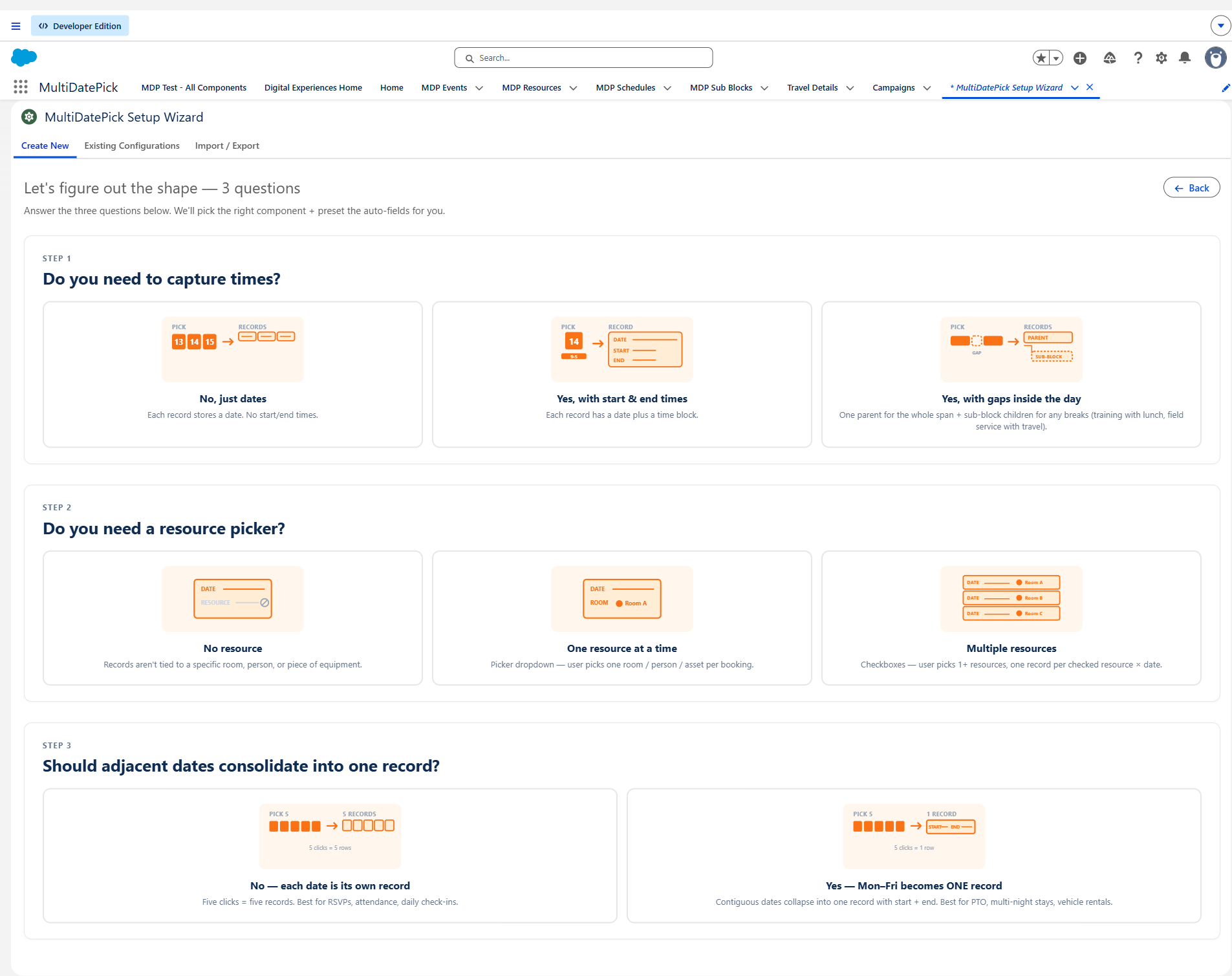
A record shape is how a selection turns into records. It comes from three independent choices, and every combination works.
Date: just dates, no times.
Date Time / Booking: each record has a start and end time.
Add-on: turn on Consolidate Time Span for one parent record across the whole time range, plus a sub-block child for each gap inside it.
None: Date, Date Time, or Booking without a resource.
Single resource: Booking with a resource dropdown.
Multiple resources: Booking with checkboxes, one record per checked resource.
Per click: each selected date is its own record. Five clicks, five records.
Per range: back-to-back dates become one record with a start and end. Set End Date Field API Name.
The Setup Wizard names six shapes: one record per date, one per date range, one per time block, parent plus sub-blocks, single resource and multiple resources.
Worked examples: answer the 3 questions
Answer three questions per scenario to land on a shape. The Setup Wizard asks the same three.
PTO request
Do you need times? No, just dates.
Do you need a resource picker? No.
Should adjacent dates merge? Yes. Mon to Fri PTO should be ONE record.
→ Per range: one record, start Mon, end Fri.
Conference room reservation
Do you need times? Yes, each booking has a start and end.
Do you need a resource picker? Yes, pick one room.
Should adjacent dates merge? No, each booking is its own record.
→ Single resource: one record per date × time block, tied to the room.
Training across 3 rooms
Do you need times? Yes, the same start and end each day.
Do you need a resource picker? Yes, several rooms with checkboxes.
Should adjacent dates merge? Yes, it runs Mon to Fri.
→ Multiple resources, per range: one record per room covering the full week.
Full-day training with a lunch break
Do you need times? Yes, 9 AM to 5 PM with a lunch gap.
Do you need a resource picker? No.
Should the gap be tracked? Yes, as its own child record.
→ Parent plus sub-blocks: one parent from 9 AM to 5 PM, one sub-block for lunch.
The grid: every combination
Pick the row for your time and resource needs. The column depends on whether End Date Field API Name is set. Every cell is a valid setup.
| Time + resource | Per click (no End Date Field) |
Per range (End Date Field set) |
|---|---|---|
| Date No time. Date component. |
One record per date 1 date → 1 record. Use for: RSVPs, attendance, daily check-ins. |
One record per date range Back-to-back dates → 1 record with start and end. Use for: PTO, travel, multi-night stays. |
| Date Time A time block per record. Date Time component. |
One record per time block 1 date × 1 time block = 1 record. Use for: timesheets, shift segments, training blocks. |
Range with a shared time block. Back-to-back dates with the same times → 1 record. Use for: multi-day training with the same hours each day. |
| Date Time + Consolidate Time Span Parent record plus sub-block children for gaps |
Parent plus sub-blocks One parent spans the full time range. Each gap inside it becomes a sub-block child. Use for: training with lunch breaks, field routes with travel between stops. |
|
| Booking, single resource One resource dropdown. Booking component. |
Single resource 1 record per date × time block, tied to the resource. Use for: conference rooms, trainer scheduling. |
Single resource range. Back-to-back dates on one resource → 1 record per range. Use for: multi-night room stays, multi-day equipment checkout. |
| Booking, multiple resources Resource checkboxes (Allow Multiple Resources) |
Multiple resources 1 record per resource × date × time block. Use for: parallel team meetings, multi-room training. |
Multiple resource range. Back-to-back dates across N resources → N records, one per resource. Use for: a week of training in 3 rooms at once. |
| Booking + Consolidate Time Span Parent booking plus sub-block gap children |
Booking parent plus sub-blocks. A resource booked all day with its breaks on record. Use for: lab equipment with maintenance windows. |
|
Bottom line: any combination of the three choices works. If your scenario is not a named pattern, set each choice on its own and the component does the rest.
3. Setup Wizard walkthrough
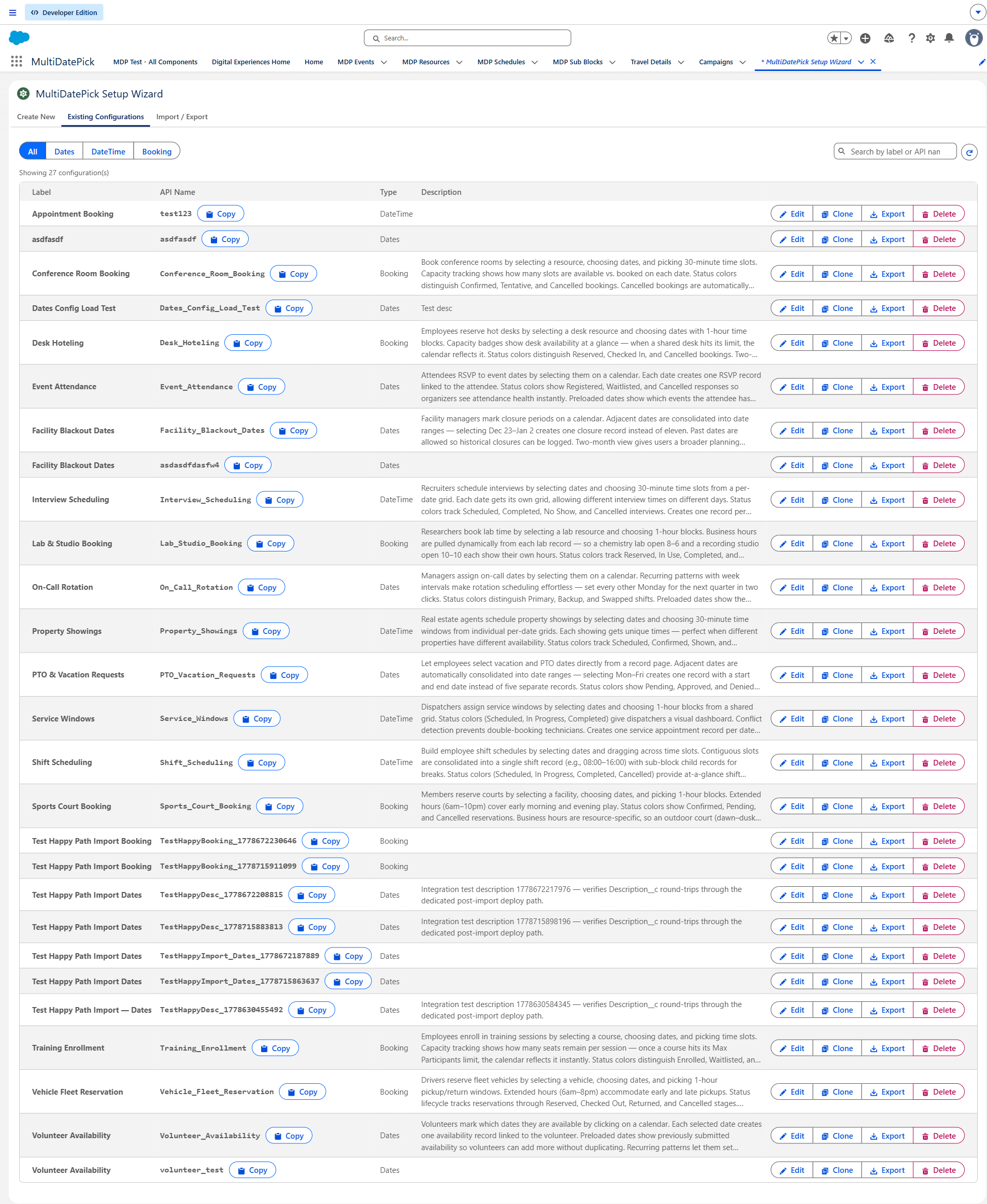
The Setup Wizard saves a configuration once. Type its name into Config Name on any page or Flow screen and that placement uses it. Change the config and every placement follows.
- 1 Name & Type
- 2 Object & Fields
- 3 Time Fields
- 4 Status & Display
- 5 Review & Save
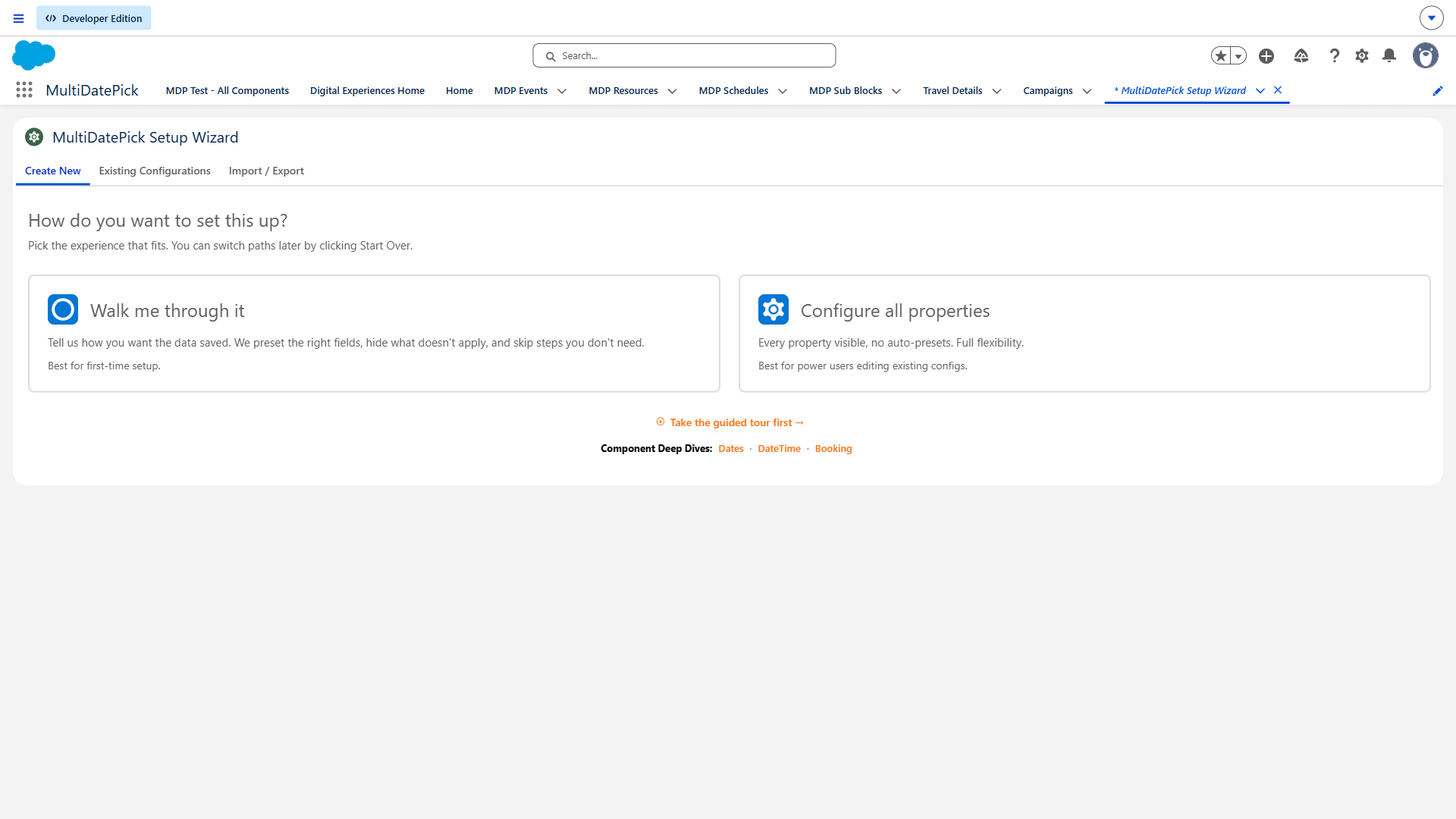
Choose a start
The Create New tab offers two paths. Walk me through it asks three questions and picks the component and shape. Configure all properties opens every setting. Two more tabs sit beside it: Existing Configurations to edit a saved config, and Import to paste one from the Config Library.
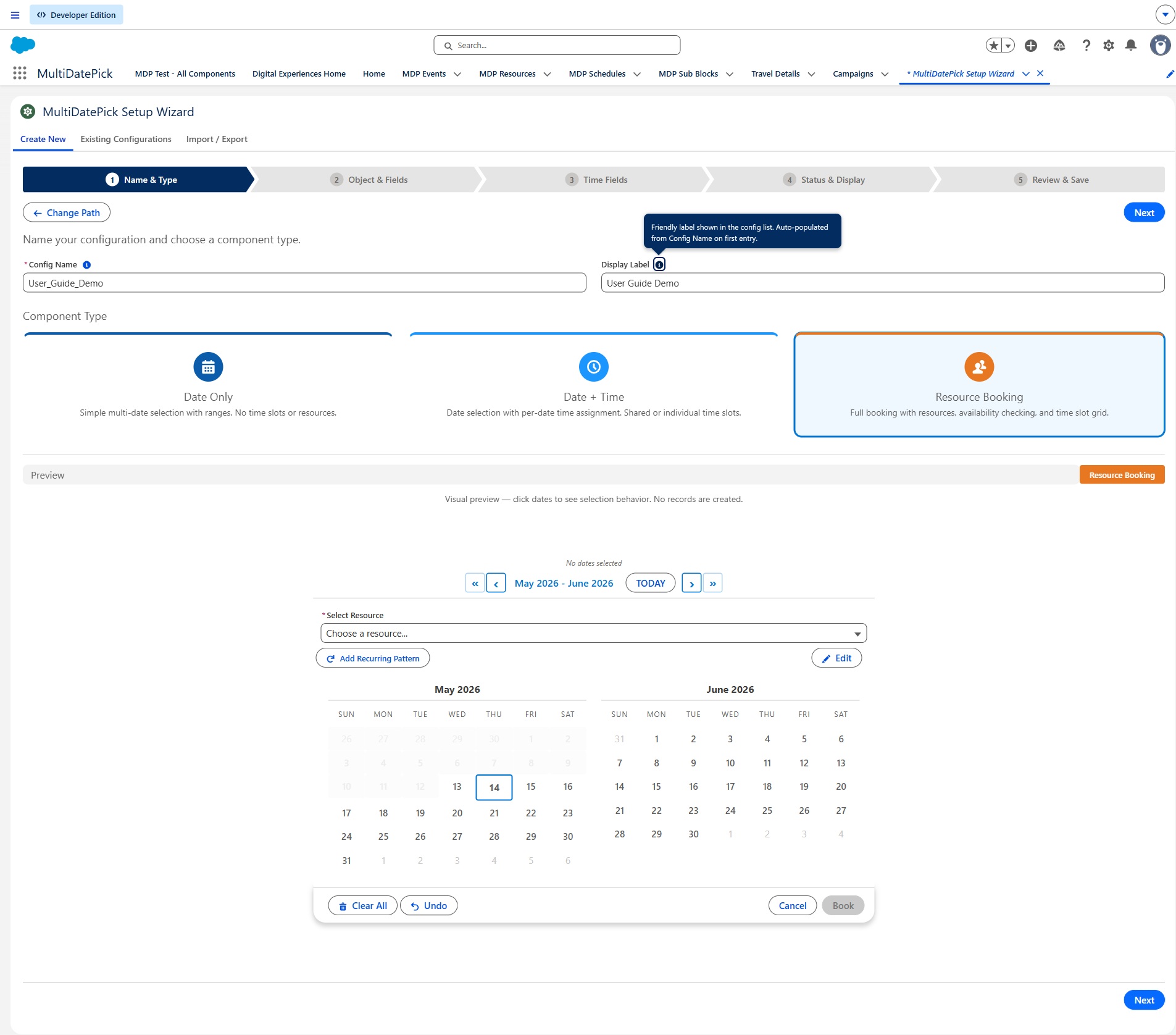
Step 1: Name & Type
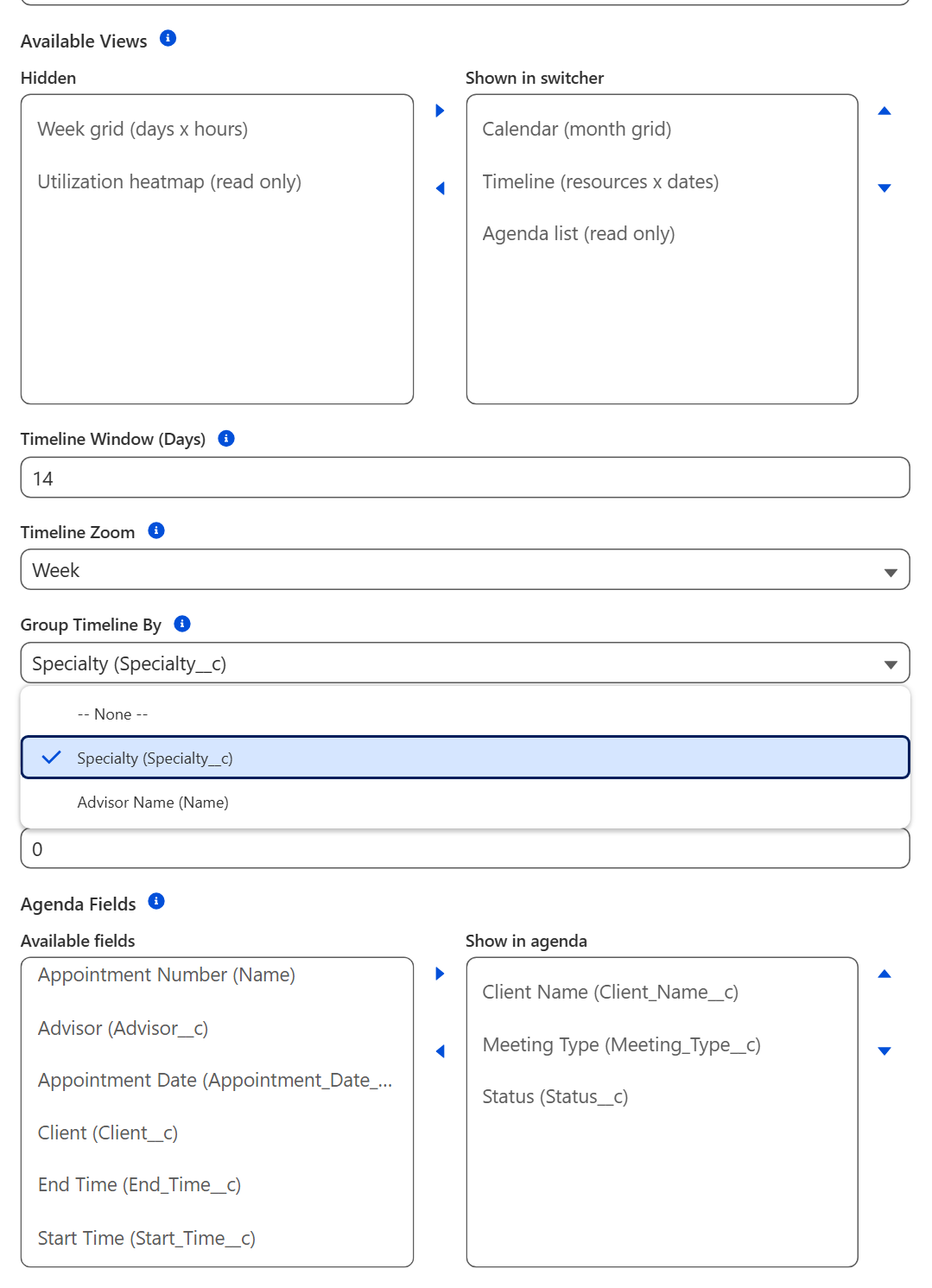
Pick the component (Date, Date Time or Booking) and name the config. The name is what you type into Config Name later. This step also sets the views: the default view, which views the switcher offers, and the Timeline and Agenda options.
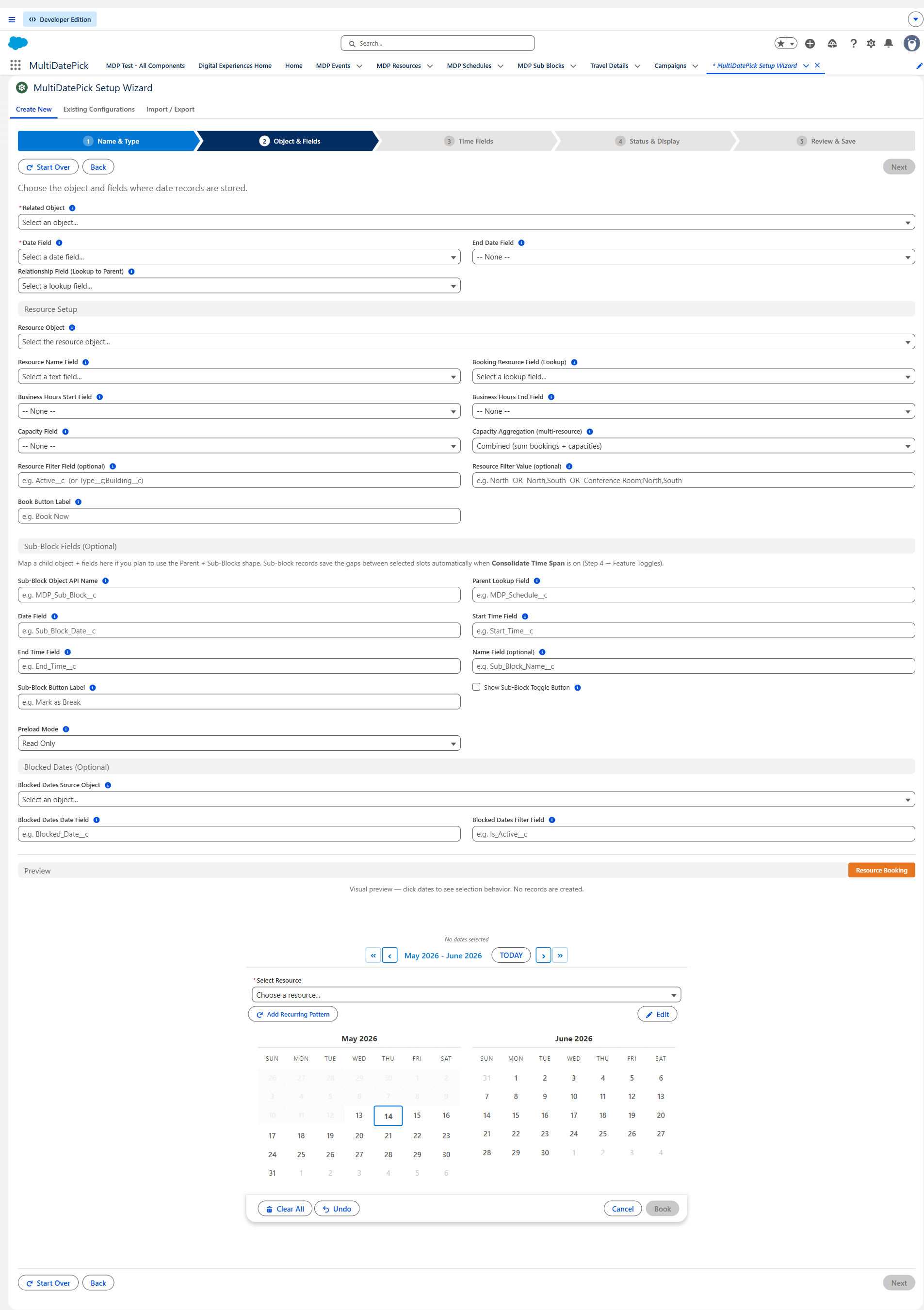
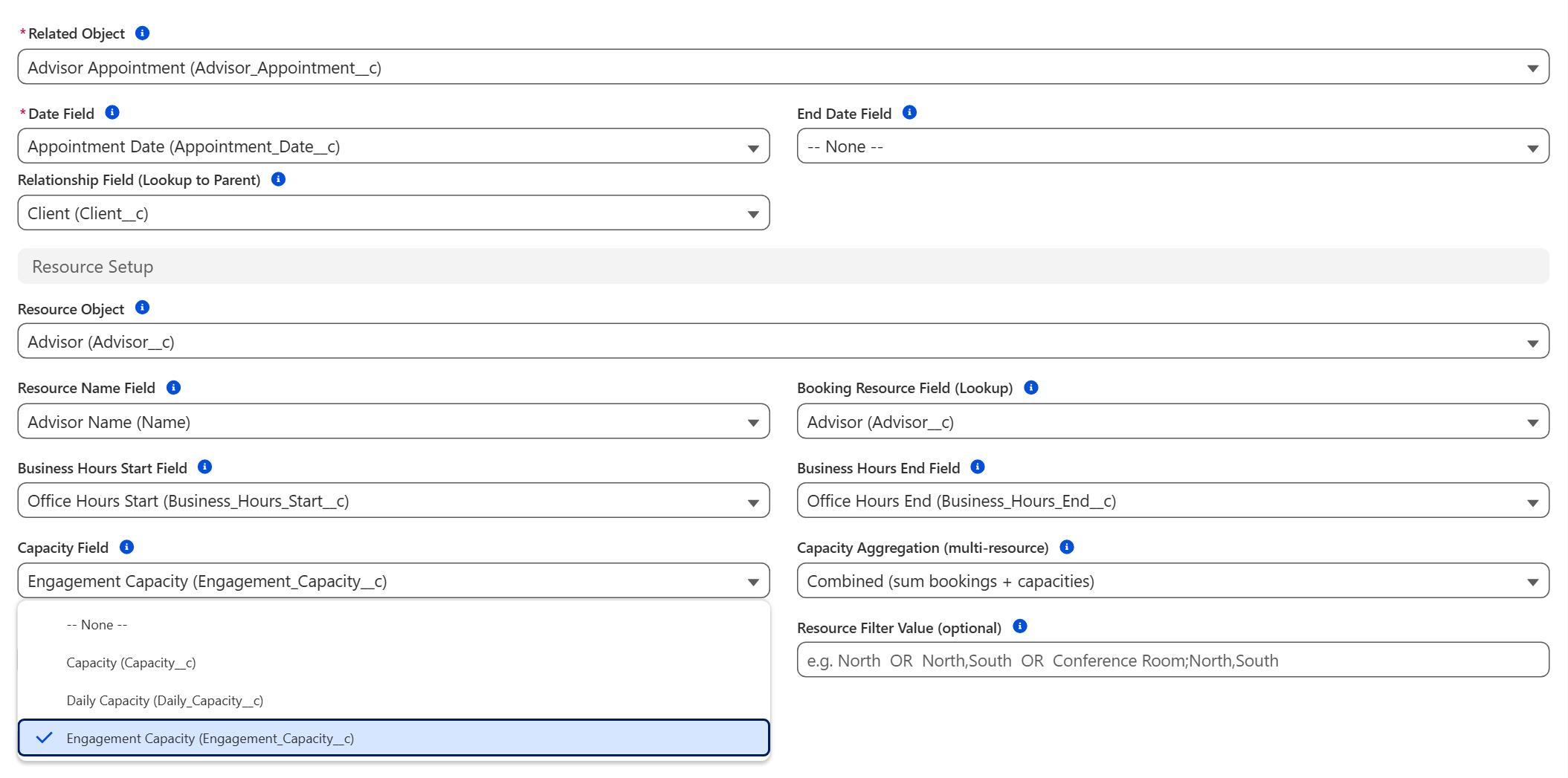
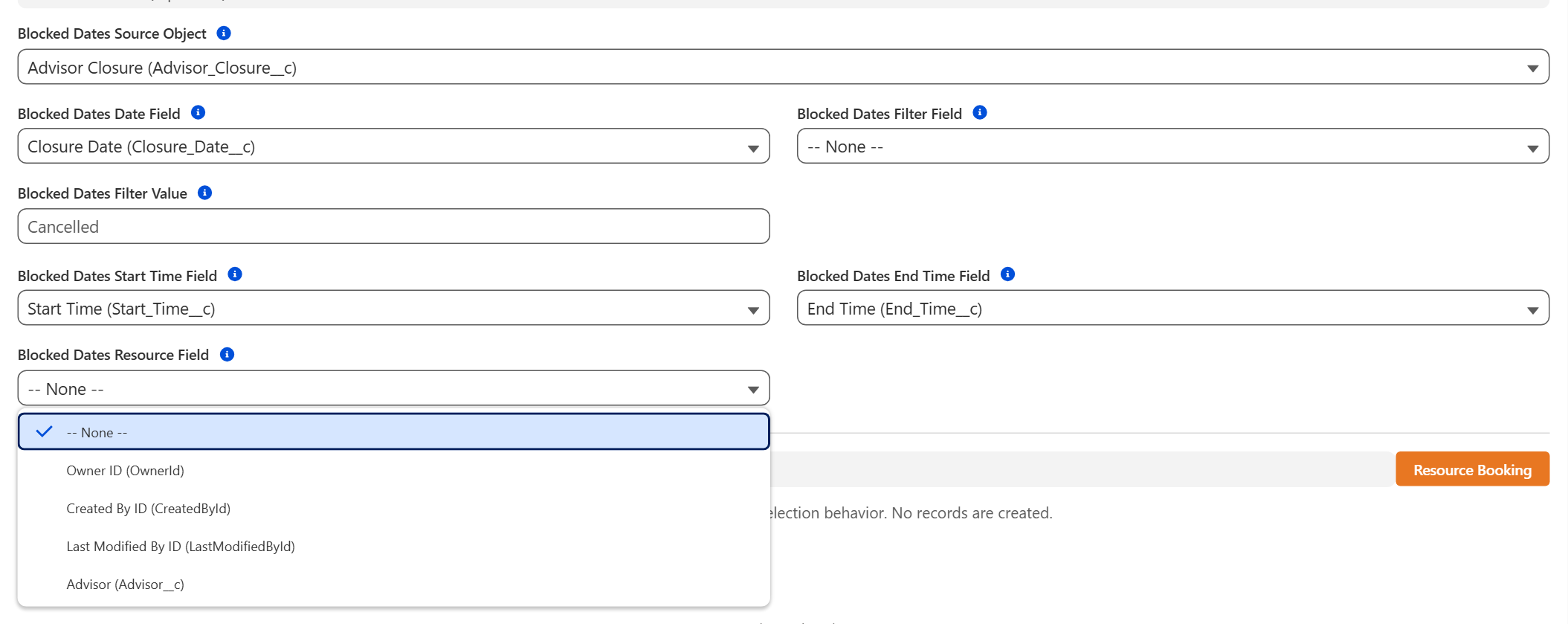
Step 2: Object & Fields
The big one. Pick the object that holds the records, its date field, and the relationship field back to the parent. Optional fields add ranges, resources, capacity, sub-blocks and blocked dates. Booking configs set the resource object, capacity field and business hours here too.
Step 3: Time Fields
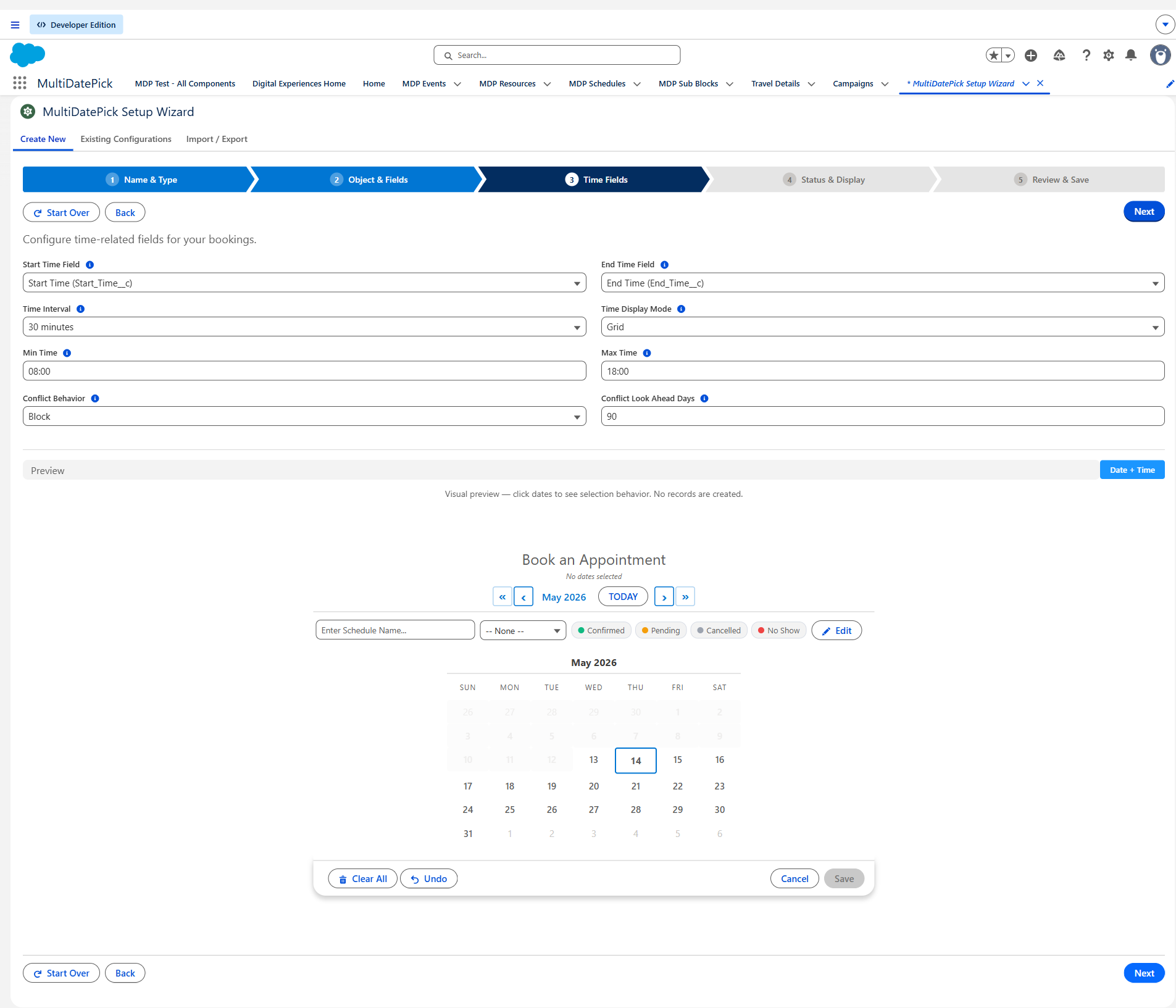
Date Time and Booking only. Map the start and end time fields, then set the Time Interval (any interval works; 15, 30 or 60 minutes are typical), the earliest and latest time, the display mode, and what happens on a conflict.
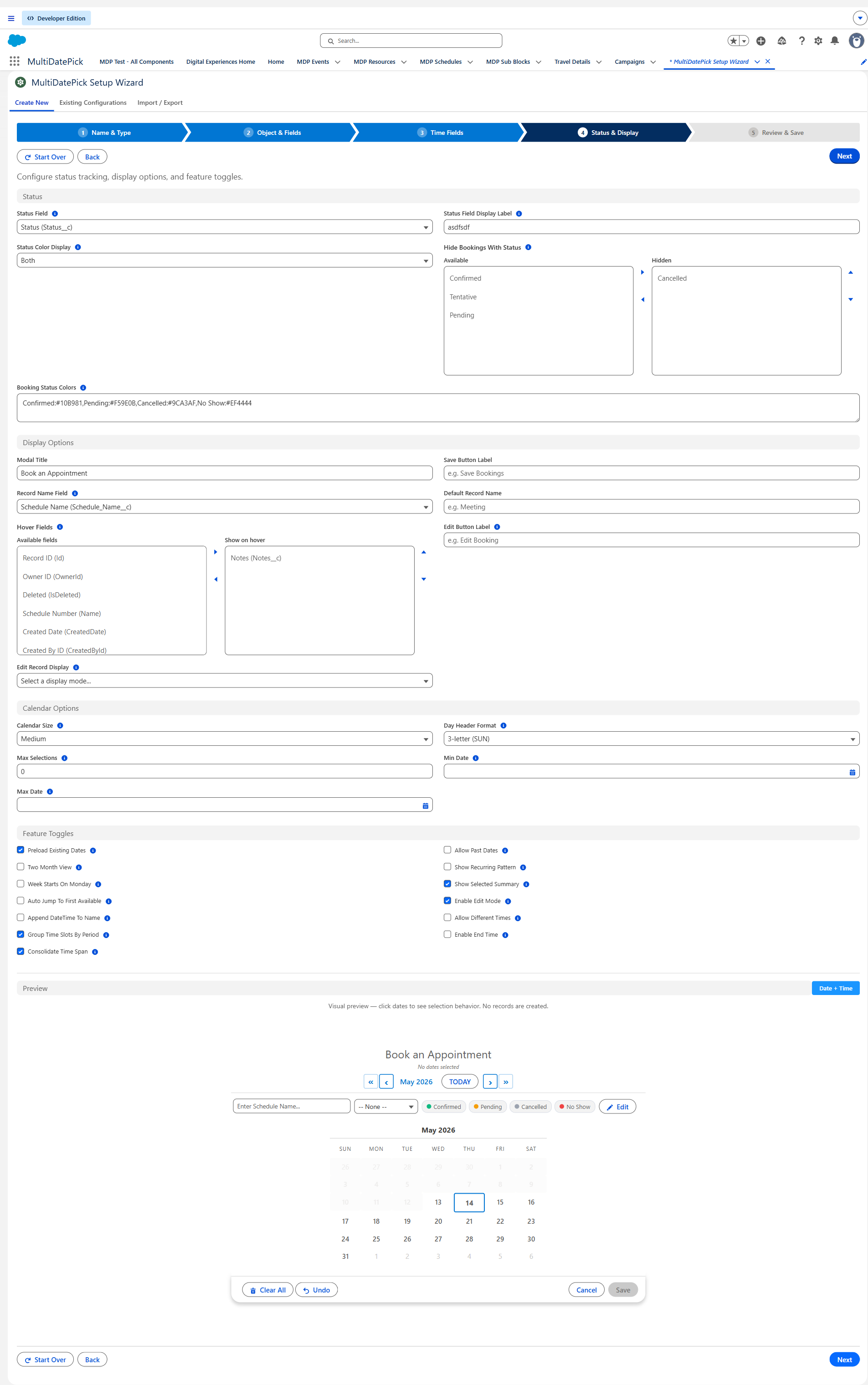
Step 4: Status & Display
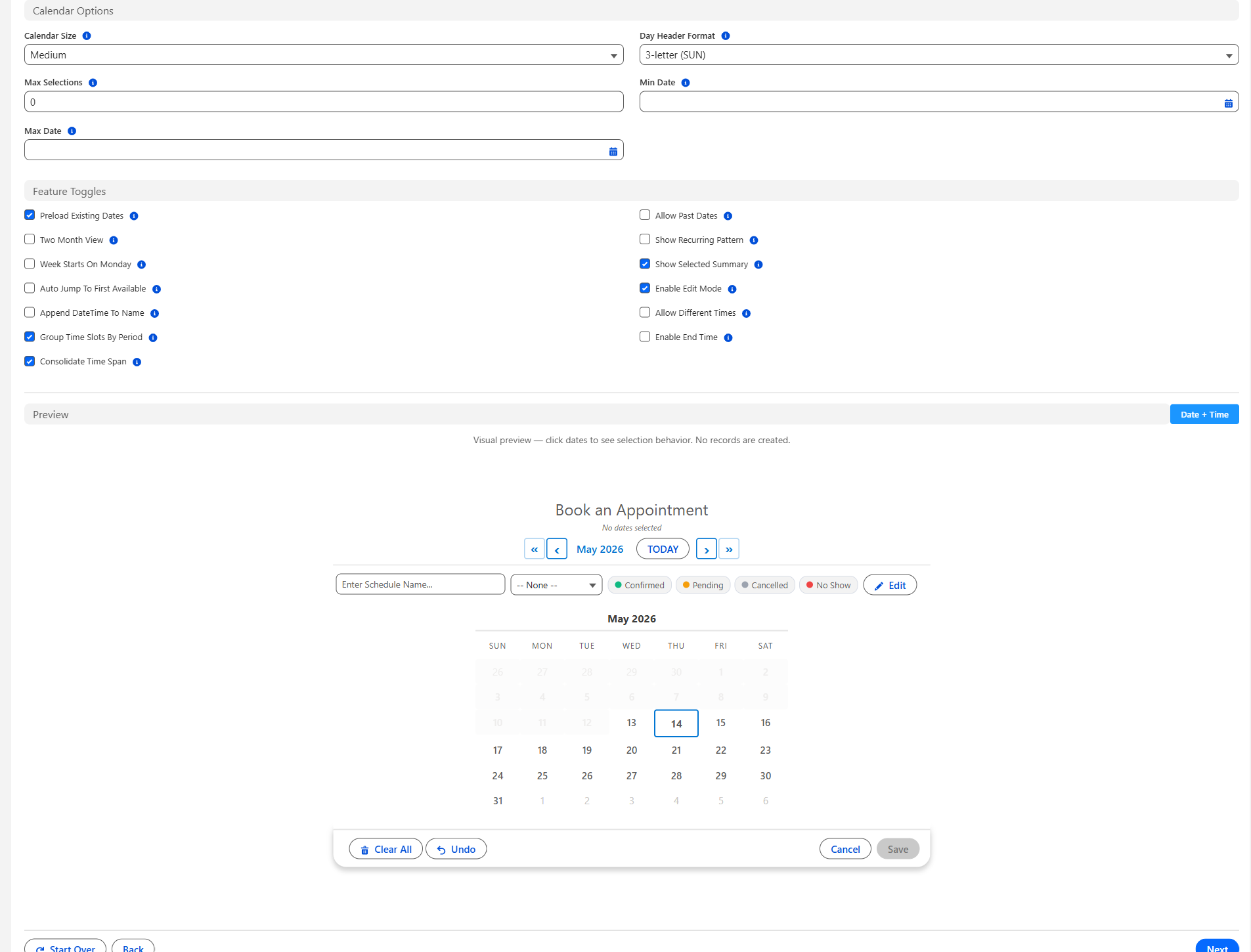
Status field and colors, statuses to hide, statuses users may pick, hover fields, Edit Mode, record naming, button labels, calendar size and limits such as Max Dates Allowed.
Step 5: Review & Save
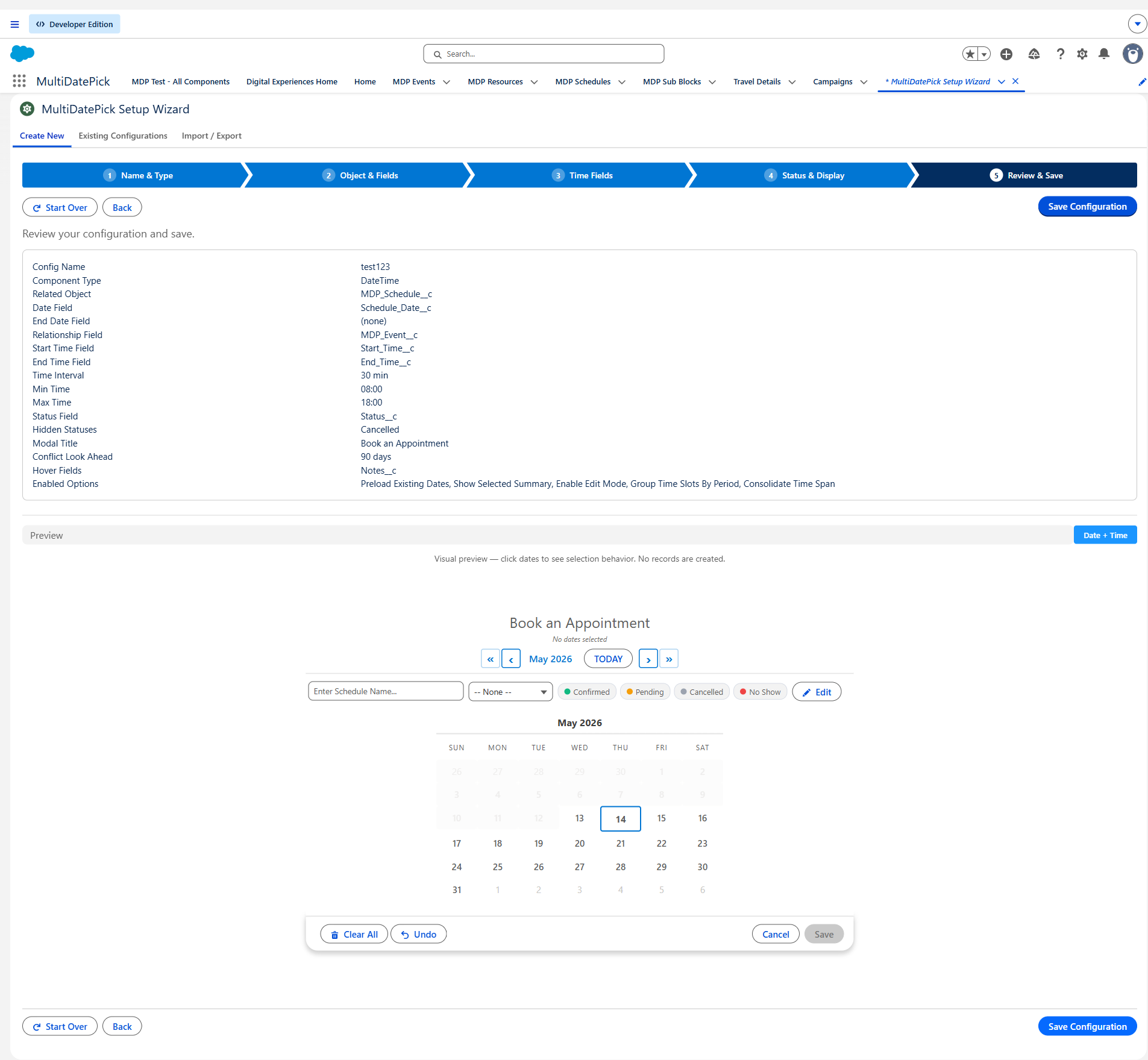
Check the summary, try the live preview, then click Save Configuration. The wizard deploys the config for you in 30 to 60 seconds. Add an optional description when it finishes.
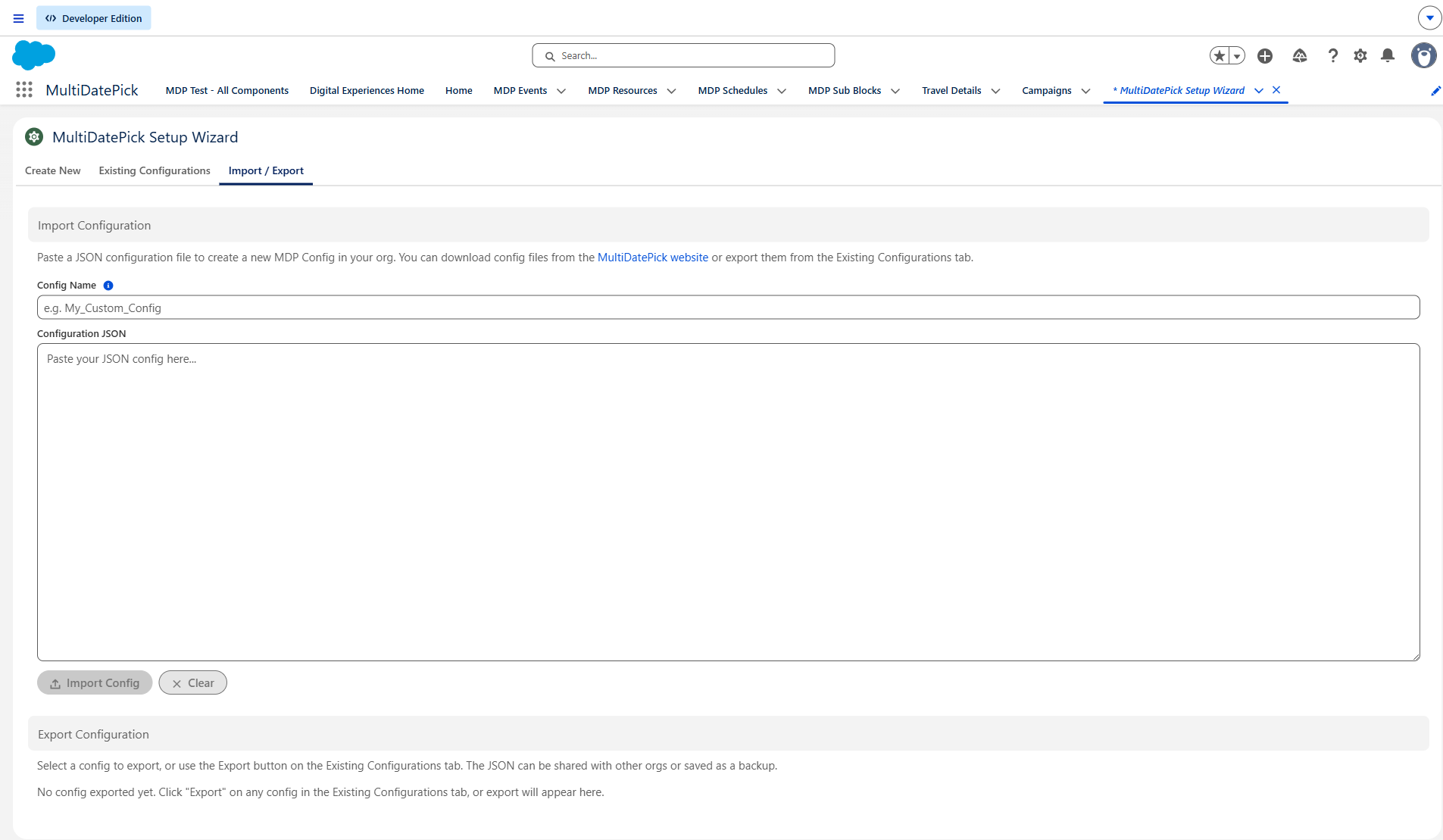
Existing Configurations and Import
Saved configs list on Existing Configurations: click one to edit or export it. The Import tab takes the JSON from any Config Library card, or an export from another org.
4. Permission sets & access
The package ships three permission sets. Assign them in Setup, Permission Sets.
| Permission set | Who gets it | Setup Wizard | Use calendars |
|---|---|---|---|
| MultiDatePick - Setup | The admins who build configs | ✓ Yes | No |
| MultiDatePick - User | Everyone who uses the calendars | No | ✓ Yes |
| MultiDatePick - All Access | Admins who build and use them | ✓ Yes | ✓ Yes |
The components run in each user's own permissions, so users also need access to your objects and fields:
- Objects: Read and Create on the object the records save to, plus Read on any resource, closure or child object the calendar reads.
- Fields, read: every field the calendar shows (date, status, hover fields).
- Fields, edit: every field it writes (date, times, status, second picklist, name field, the parent lookup). A field the user cannot edit fails the save, even when reads work.
- Referenced records: at least Read on the parent and resource the new record points to.
Each error message and its cause is on Troubleshooting: access errors. Guest sites need a few extra steps: see Public guest pages.
5. Click to Save vs Flow-Managed Save
There are two ways to save. Pick the one that fits the placement.
Click to Save
The component writes the records itself. Fill in four settings and its own Save button appears. Click it and the child records are created. No Flow elements, no code.
Use on: Record Pages, App Pages, Home Pages, Experience sites and Flow screens with a parent record.
Flow-Managed Save
The component hands the selection to your Flow. Use the bundled Parse Date Entries from JSON action, then your own Loop and Create Records elements.
Use on: Flow screens where you want full control: approvals, conditional records, extra validation.
Click to Save: the four settings
The Setup Wizard fills these in. When all four have a value, the Save button appears.
| Setting | What it holds | API name |
|---|---|---|
| Child Object API Name | The object the records save to | relatedObjectApiName |
| Date Field API Name | The date field on that object | dateFieldApiName |
| Relationship Field API Name | The lookup back to the parent record | relationshipFieldApiName |
| Parent Record Id or Static Parent Record Id | The parent. Filled in automatically on a Record Page. In a Flow, bind Parent Record Id. On App, Home and Experience pages, type the Id into Static Parent Record Id. | recordId / staticRecordId |
Which parent record a page uses, and when to pick it in a Flow instead, is covered on App, Home & Experience Pages.
Flow-Managed Save: the outputs
Leave the four settings blank. The Save button hides and the selection comes out through these Flow outputs:
| Output | Contains | Components |
|---|---|---|
| Selected Dates (Output) | A text collection of dates (YYYY-MM-DD) | Date, Date Time |
| Date Ranges JSON (Output) | Back-to-back dates grouped into ranges | Date, Date Time |
| Dates With Times JSON (Output) | Each date with its times | Date Time |
| Successful Bookings Count / Conflict Dates | Results after Booking's own save | Booking |
Pass the JSON to Parse Date Entries from JSON. It returns a list you can Loop over, with a from date, to date, start time, end time and resource Id on each item. Step by step: Flow recipes.
Saving only adds
Click to Save only creates new records. Deselecting a date never deletes a saved record, so a wrong click cannot lose data. To change or remove records, use Edit Mode or the related list.
6. Status colors & edit mode
Status colors and filtering
Color records by any picklist on your object, hide some values, and limit what end users can pick.
| Setting | What it does | API name |
|---|---|---|
| Status Field | The picklist that drives colors, for example Confirmed / Tentative / Cancelled. | statusField |
| Status Colors | A color per value, like Confirmed:#22C55E, Tentative:#fbbf24. Leave blank for an automatic palette. | statusColors |
| Status Color Display | Where colors show: calendar, grid or both. Leave it empty for a clean customer page with no colors. | statusColorDisplay |
| Hide Records With Status | Hides records with these values (for example No-Show,Cancelled) from the calendar and from capacity counts. | hideBookingsWithStatus |
| Selectable Statuses | Limits which values an end user can choose, for example only Requested, while staff see them all. | selectableStatuses |
Edit mode
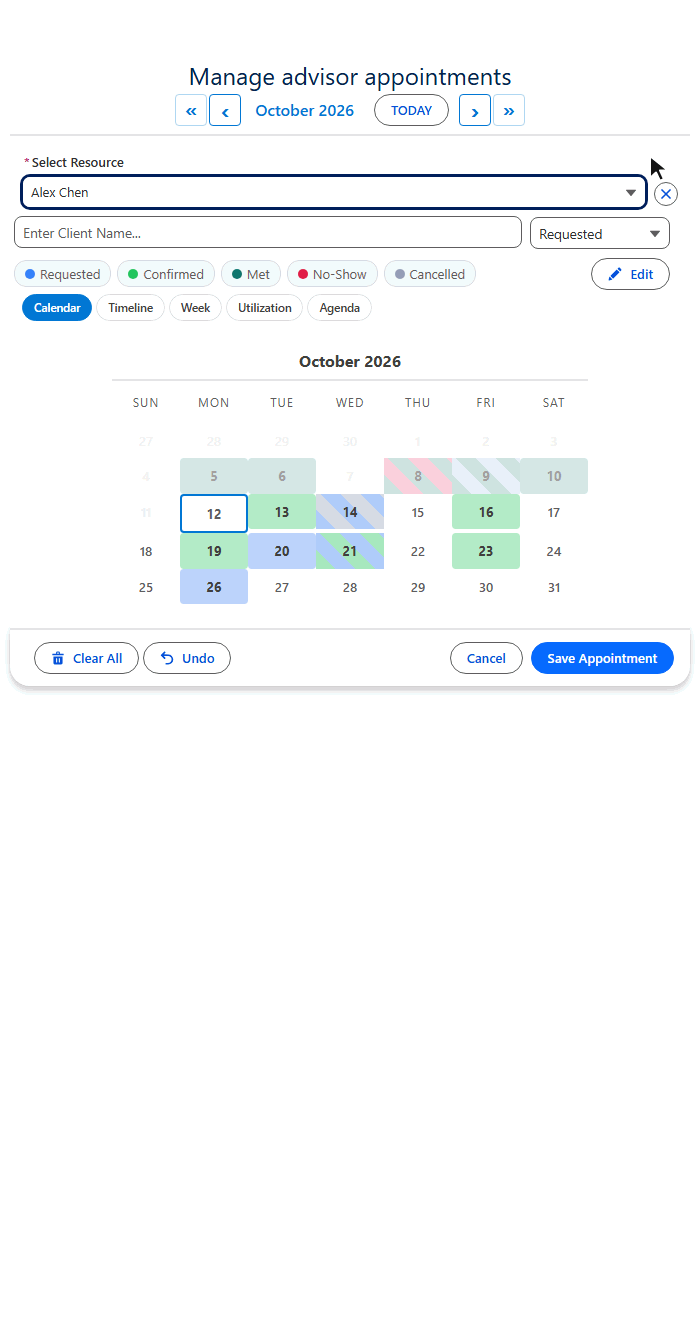
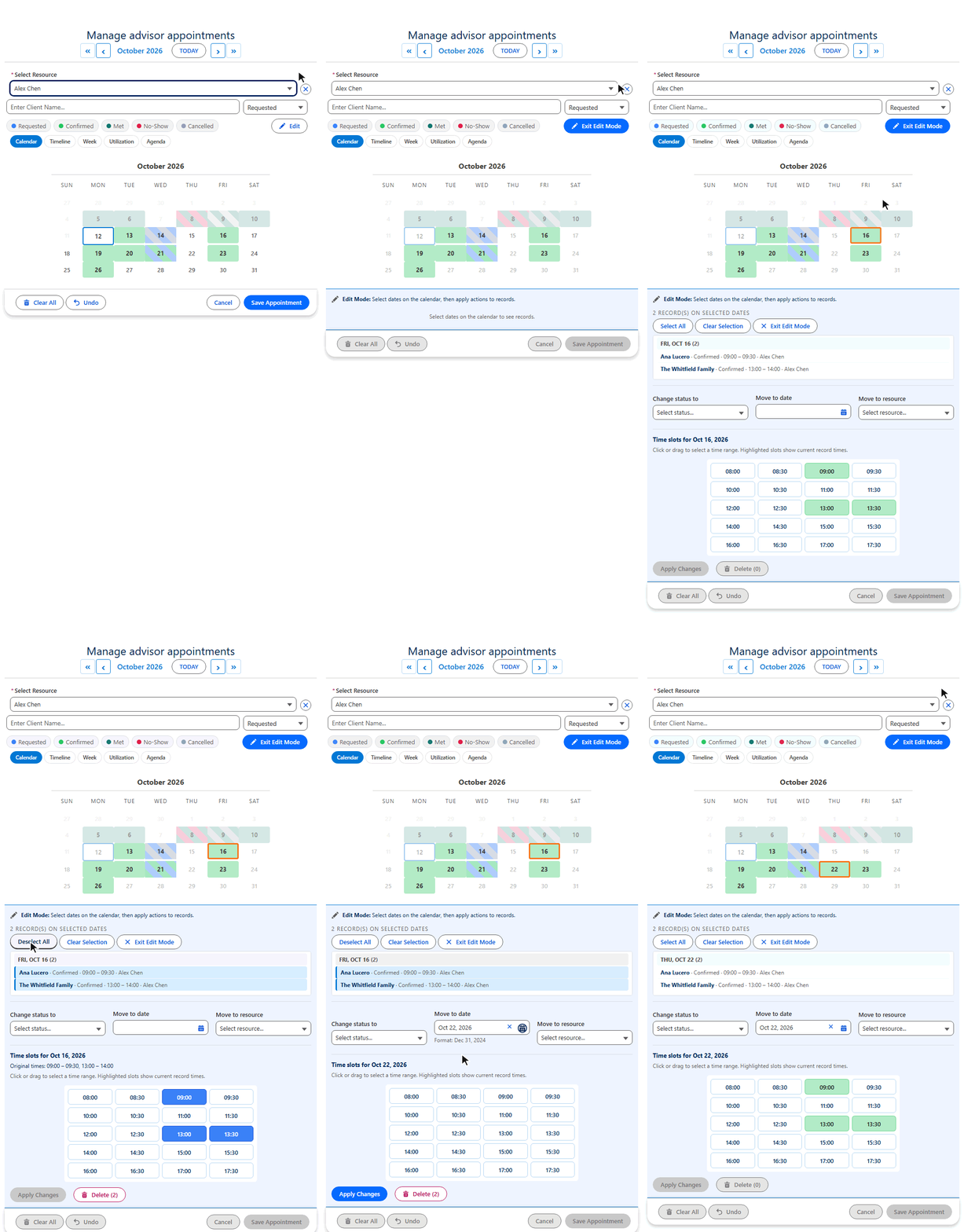
Turn on Enable Edit Mode and an Edit Dates button appears. In edit mode users can:
- See existing records as cards with their date and status
- Click dates to add their records to the edit set
- Change the date, times, resource or status, and the record updates
- Delete with a two-click confirm, so nothing goes by accident
7. Views: five layouts, one component
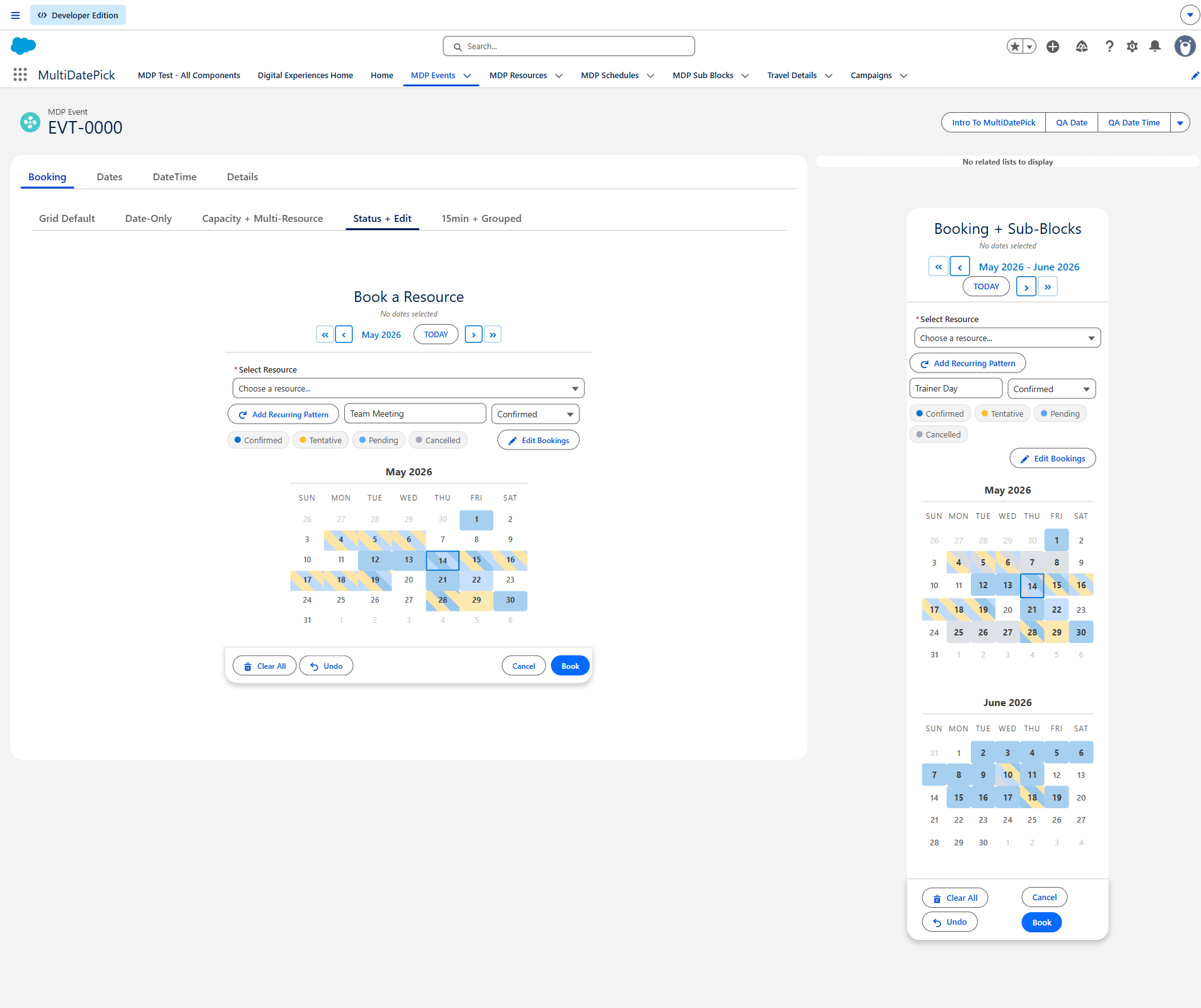
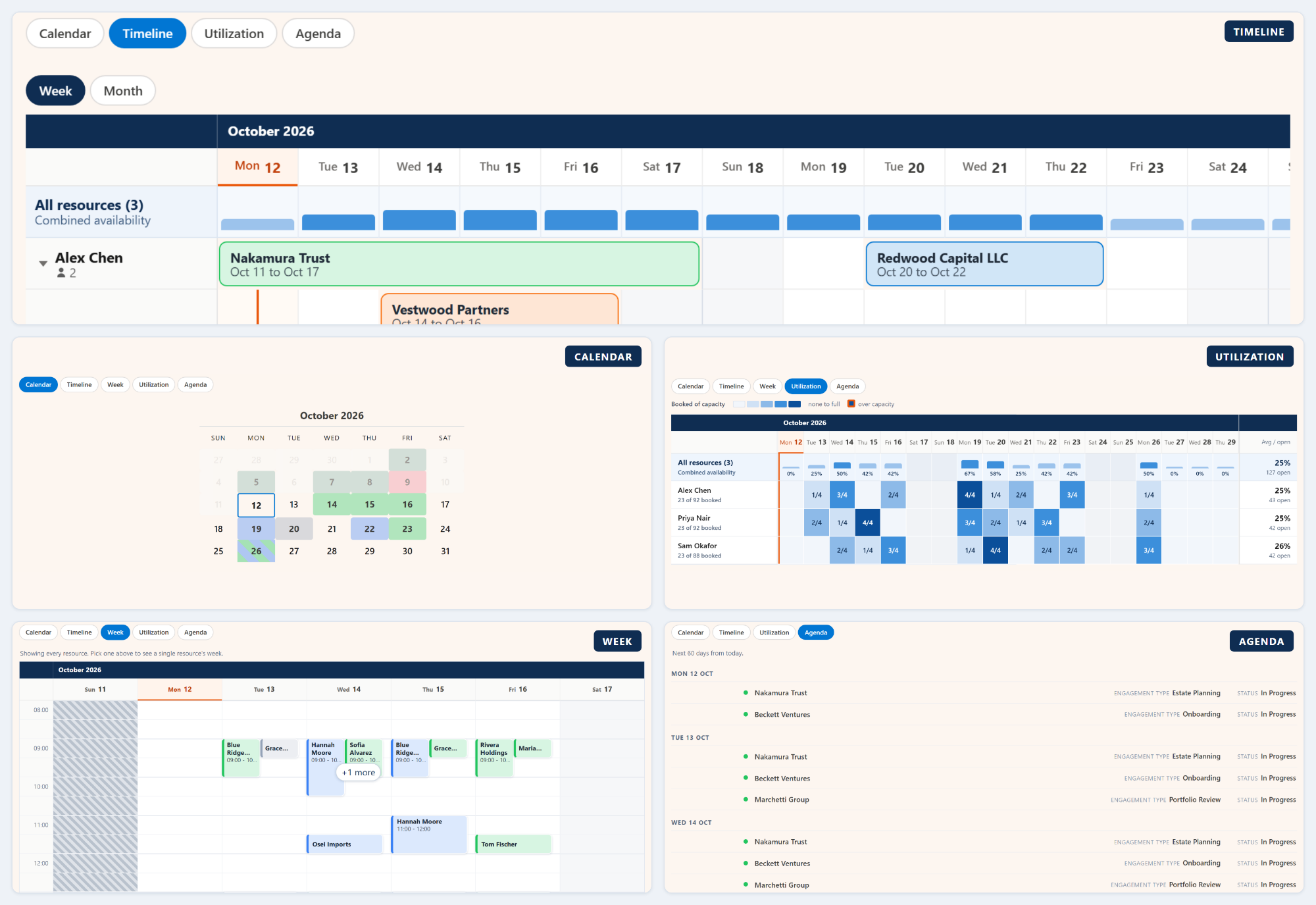
Every component draws five layouts. They read the same records through the same field mappings, follow the same conflict rules, blocked dates and business hours, and save the same way. Switching views changes how records look, never what they mean.
The five, and the question each answers
| View | The question | Layout | Writable? |
|---|---|---|---|
| Calendar | What is happening on the 14th? | A month at a time, status colors per day. | Yes. The default. |
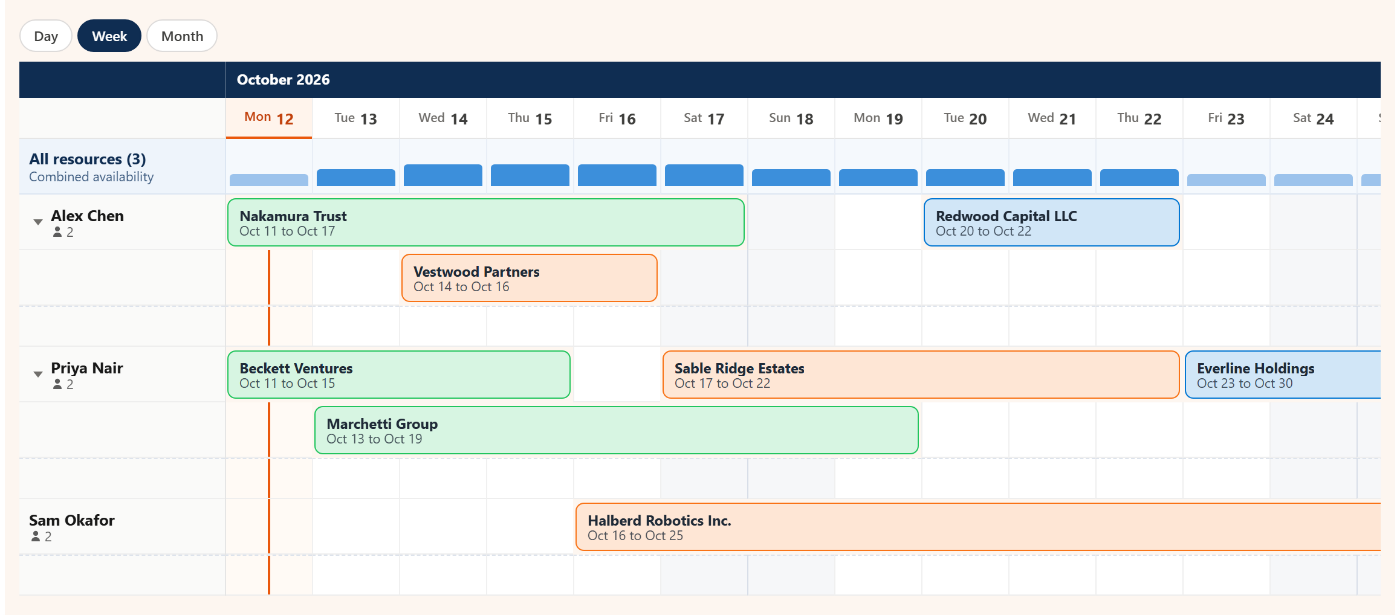
| Timeline | Which resource is free, and when? | Resources down the side, dates across the top. Multi-day records draw as one bar. | Yes |
| Week | Who is free Thursday at 2pm? | Seven days across, business hours down. Drag across days and hours at once. | Yes |
| Utilization | Who is over capacity? | Heatmap of capacity used, per resource per day. | No, read only |
| Agenda | What is next? | A list of the next 60 days in order. | No, read only |
Settings
| Setting | Default | What it does |
|---|---|---|
| Viewview | Calendar | The layout the component opens on. |
| Available ViewsavailableViews | blank | Views the switcher offers, for example calendar,timeline,agenda. Blank offers all five. Your default view is always included, so list only the extras. |
| Timeline Window (Days)timelineWindowDays | 14 | Days Timeline shows at once. A full month leaves each booking about twenty pixels wide and clips its label. Set 0 for the full month. The inner arrows step one window, the outer arrows one month. |
| Resource RowsresourceViewFilter | all | booked draws only resources with a booking in view. The best way to shorten a long list, because an empty row carries no information. Shows every resource again when nothing is booked anywhere. |
| Max View ResourcesmaxViewResources | 0 (all) | Caps how many resource rows Timeline and Utilization draw, busiest first. Everything is still counted. Prefer Resource Rows, which only hides empty rows. |
| Agenda FieldsagendaFields | blank | Extra fields on each Agenda row, up to four. Blank reuses Hover Popover Fields. Date, time and name are already on the row. |
| Capacity FieldcapacityField | blank | Not a view setting, but Utilization needs it to show percentages instead of raw counts. |
A different view per page
The view is a setting on each placement, so the same records can look different wherever they appear. One install, one set of field mappings.
| Placement | View | Available Views |
|---|---|---|
| Recruiter's interview page | Week | calendar,agenda |
| Facilities room booking page | Calendar | timeline,utilization |
| Shift manager's roster | Timeline | week,agenda |
| Operations wall display | Agenda | utilization,timeline |
| Public Experience Cloud page | Calendar | blank, or keep it short |
Edit mode works in every view
With Enable Edit Mode on, the Edit button shows in every view. Click a record in Timeline, Week or Agenda to add it to the edit set, just like a date on the month calendar. A bulk status change from Timeline works exactly like one from the calendar.
Timeline: collapsed rows
When a resource has overlapping bookings, its row collapses to one strip with an N at once chip. A twisty opens one lane per booking. Collapsed rows still accept drag, hover and click.
Timeline: drag to reschedule
With Enable Edit Mode on, Timeline bars drag. Grab the middle to move a booking to other days. Grab an edge to change its start or end. The bar shows where it will land and saves when you let go. In Day zoom the same gestures change the times.
Schedule people, not just rooms
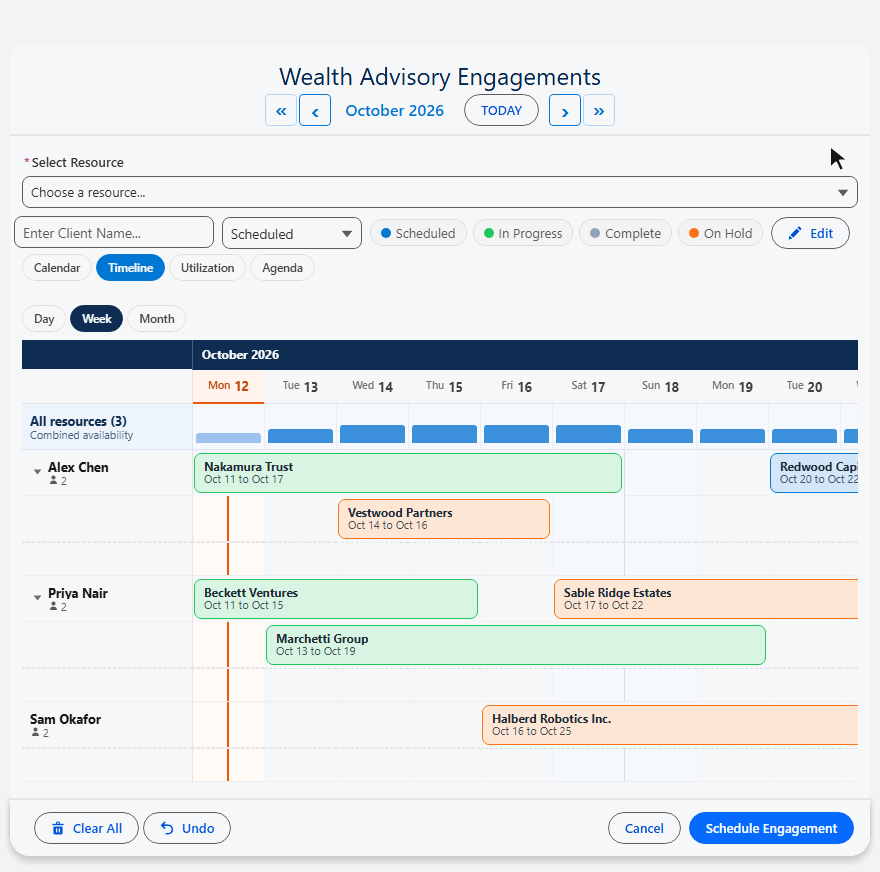
Resource Object API Name takes any object. Set it to User and Timeline becomes a roster, Week a shift grid and Utilization a team capacity dashboard.
- User has no standard capacity field. Add a custom one (for example Daily Capacity) to see Utilization in percentages.
- Map Business Hours Start Field and Business Hours End Field to User fields and the Week grid follows each person's own hours.
The Config Library has two ready-made examples: Team Capacity Planning and Staff Shift Roster.
8. Resource booking & capacity (Booking component)
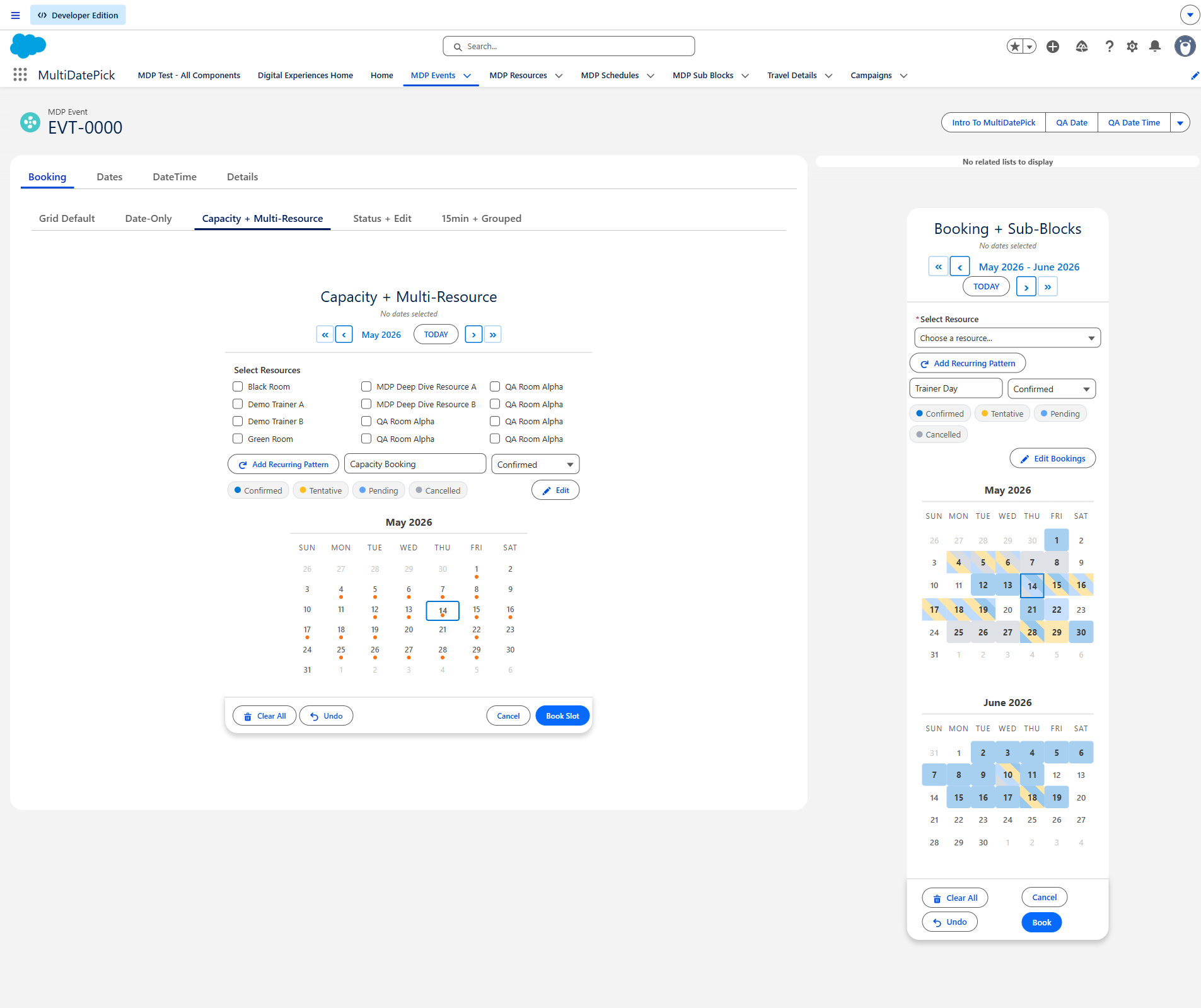
Single resource
Users pick one resource from a dropdown. The time grid loads that resource's bookings and capacity.
Multiple resources
Turn on Allow Multiple Resources and the dropdown becomes checkboxes. The grid shows only slots open on every checked resource, and Save books them all at once.
Capacity
Let several bookings share a slot, with live 3/5 badges. A full slot stops taking bookings.
| Setting | What it does | API name |
|---|---|---|
| Capacity Field | A number field on the resource, for example Capacity = 5. | capacityField |
| Show Availability Count | Shows the X/Y badges. | showAvailabilityCount |
| Capacity Aggregation | Combined (default) adds bookings and capacities across checked resources: two rooms of 5 read 0/10. Distinct counts one event booked across several resources once and uses the largest single capacity: a class in 4 rooms reads 1/5, not 4/20. | capacityAggregation |
Conflicts
Conflict Behavior decides what happens when a picked slot is already taken. Conflict Look-Ahead Days sets how far ahead to check (default 360).
| Value | What happens | Best for |
|---|---|---|
| Block (default) | A taken slot cannot be picked, and the save stops with the conflicts highlighted. | Most booking pages |
| Skip | Saves the open slots and skips the taken ones. The skipped dates come back in Conflict Dates (Output). | Grabbing whatever is still open across many dates |
| Allow | No conflict check. Bookings can go past capacity. | Deliberate overbooking |
A closure always wins. Nothing saves onto a blocked slot, even with Allow.
9. Limiting what users select
Cap how much one person can pick, by dates or by time slots.
| Setting | What it does | API name |
|---|---|---|
| Max Dates Allowed Booking: Max Dates Per Booking | Most dates a user can pick. 0 means no limit. | maxSelections |
| Max Time Slots | Most time slots in total, across all dates. 0 means no limit. Use 1 for one appointment per person. | maxTimeSlotSelection |
| Earliest / Latest Selectable Date | Greys out dates outside the window. | minDate / maxDate |
| Allow Past Dates | Off means today and later only. On by default for Date and Date Time, off for Booking. | allowPastDates |
10. Blocking dates, times & resources (closures)
Any calendar can read closures from another object and grey out the dates, time slots or resources they cover, so users only book when you are open. Point a few settings at the closure object and the component does the rest. Whole-day blocks work on all three components. Time and resource blocks need the time grid of Date Time or Booking.
Blocking vs. hiding: what's the difference?
The two sound alike but do opposite things. Blocking takes availability away: the slot shows but cannot be booked. Hiding takes records out of view, which frees their slots.
| Blocking (closures) | Hiding (by status) | |
|---|---|---|
| What it controls | Which dates, times and resources can be booked | Which saved records appear |
| Setting | Blocked Dates Object and its date, time and resource fields | Hide Records With Status |
| Driven by | A closure or holiday list: its own object, or your booking object filtered | A status value on the records themselves |
| What users see | The slot is there but struck through, greyed and unclickable | The record is gone from the calendar |
| Effect on capacity | Removes availability | Frees availability: the hidden record stops counting |
| The data | No booking exists; you are marking it off-limits | Records still exist in Salesforce |
| Use it for | Holidays, maintenance windows, a closed room or region | Cancelled or Rejected bookings that should not clutter the grid or count against capacity |
- Hide Records With Status = Cancelled → the booking disappears and its slot opens up.
- Blocked Dates Object = your booking object, filtered to Status = Cancelled → the booking blocks its date so nobody rebooks it.
The blocked-dates settings
| Setting | What it does | API name |
|---|---|---|
| Blocked Dates Object | The object holding closures, such as an Office Closure object or your booking object. Setting it turns blocking on. | blockedDatesSourceObject |
| Blocked Dates Date Field | The date field on that object. | blockedDatesDateField |
| Blocked Dates Start / End Time Field | Optional time fields. Set both for partial-day blocks; leave them blank for whole-day. Date Time and Booking. | blockedDatesStartTimeField / blockedDatesEndTimeField |
| Blocked Dates Resource Field | Optional lookup that narrows a closure to one resource. Blank means the closure applies to every resource. Booking. | blockedDatesResourceField |
| Blocked Dates Filter Field / Value | Optional scope, such as Region = North or Status = Cancelled. This is how one closure table serves many calendars. | blockedDatesFilterField / blockedDatesFilterValue |
Three levels of blocking
- Whole day: a closure with no times greys out the whole date. All three components. A closed date stays closed even if it already has bookings.
- Part of a day: a closure with a start and end time blocks just those slots. The rest of the day stays bookable. Blocked slots show once a date is selected.
- One resource: a closure pointing at a resource closes only that resource. In a single-resource view the slot is struck through. In the combined view it gets a small corner flag and stays bookable on the open resources.
Using the time grid? You want part-of-day blocks. Whole-day blocks suit date-only pickers.
Two patterns for the closure object
- Same object, flagged by status: point Blocked Dates Object at your booking object and filter Status = Cancelled, so cancelled bookings double as closures. Simplest, but every calendar on that object shares them. See the Holiday Aware Appointment Booking config in the Config Library.
- A dedicated closure object: an Office Closure object with a date, optional start and end times, a Region field and an optional resource lookup. Each calendar filters by its region, and a closure can target one resource. See the Time-Aware Resource Closures config.
To let people block their own time (an owner blocking a morning, say), place a Date Time component that saves to the closure object on an internal page or site.
How blocked slots behave
- Look: a fully closed slot is struck through and greyed. A slot closed for only some of the picked resources gets a corner flag.
- Selection: a fully closed slot cannot be clicked or dragged over.
- Save: nothing saves onto a closed resource, date and time. With multiple resources, only the closed one is left out; the open ones still book.
One closure table, many calendars
Give the closure object a tag field (Region, Location, Building) and put the same field on your resources. Each calendar then uses Resource Filter Field / Value to show its own resources and Blocked Dates Filter Field / Value to read its own closures.
11. Public guest pages (Experience Cloud)
Put a component on an Experience Cloud site and anyone can book without logging in. Do all five steps before testing as a guest.
- Object permissions. Give the site's guest user Read, plus Create if guests submit, on each object. Salesforce never lets guests edit or delete records, so keep edit, cancel and delete pages for logged-in users.
- Field-level security on every field the component touches, including resource business-hours fields and closure time fields. One missing field stops the resource or closure query.
- A guest sharing rule (Read) so the guest can see the records. The object's external org-wide default must be Private for the rule to apply. A rule deployed as metadata needs one click on Recalculate in Setup, Sharing Settings.
- Apex class access to
MultiDatePickControlleron the guest profile. The component loads its data through it. - Activate the site. Publishing and activating are separate steps.
- Which record guests see: a public page uses Static Parent Record Id, so every guest books against the same parent (one office, location or resource). For a record per visitor, drive it from a Flow with a URL parameter. True per-user calendars need logged-in users.
- Contacts and Accounts: Salesforce restricts guest access to them heavily. Book guests against a custom object, or use an authenticated site.
- Several components on one page: they do not live-sync. Add a refresh prompt between them so a block made in one shows in the next.
Placement steps are on App, Home & Experience Pages. A full worked site is on Experience Cloud Booking.
12. Common gotchas (FAQ)
Seeing a banner, a missing Save button or an empty calendar? Troubleshooting shows each message with a screenshot and the fix.
- My status colors aren't applying
- Check three things. (a) Is Status Field the exact picklist API name? It is case sensitive. (b) Does Status Colors use the format
Value:#hex, Value:#hexwith no quotes?'Confirmed':'#22C55E'breaks it silently. (c) Do the records actually have a value in that picklist? - Records save with unexpected names
- Check Record Name Field: if the field is short, long names get cut. Check Append Date to Record Name: when on, the selected date and time are added to every name.
- How do I hide Cancelled records from the capacity grid?
- Set Hide Records With Status to
Cancelled, or a list such asCancelled,Rejected. They drop out of the calendar and the capacity count. - What's the difference between blocking and hiding?
- Blocking (closures) keeps a date, time or resource visible but unbookable: holidays, maintenance, a closed room. Hiding removes records such as Cancelled from the calendar and capacity, which frees the slot. See Blocking vs. hiding.
- The Edit button isn't appearing
- Turn on Enable Edit Mode. That is the only requirement, on all three components. A Status Field is optional; it only adds a status dropdown in the editor. If the button is still missing, the page or the config has Enable Edit Mode off.
- I only want some resources (rooms, not equipment)
- Use Resource Filter Field and Resource Filter Value. One value: field
Active__c, valuetrue. Several values (OR):North,South. Several fields (AND): fieldType__c;Active__c, valueConference Room;true. - Time Display Mode is the setting to use: Grid or Dropdown. In Grid mode every date shares the grid. For a separate time per date, choose Dropdown and turn on Allow Different Times Per Date.
- How do I move from Flow-Managed Save to Click to Save?
- Fill in Parent Record Id, Child Object API Name, Date Field API Name and Relationship Field API Name. Remove the Parse Date Entries from JSON action and the loop that created records. The component's own Save button now writes them.
- I get an error toast with no detail
- Open the browser's developer console and look for lines starting
[MDP:ERROR]. The full error is always logged there, even when the toast is short.
13. Flow recipes
Everything here is built in Flow Builder. No Apex.
Loop over the selected dates
- Add a Screen with the Date Time component. Leave the Click to Save settings blank.
- After the screen, add the Parse Date Entries from JSON action. Pass it Dates With Times JSON (Output).
- Loop over the action's list. Each item has a from date, to date, start time and end time.
- Inside the loop, assign the values to a record variable and add it to a collection. Create the records once, after the loop.
Roll the first and last date up to the parent
Want the parent to show the earliest and latest child date? Pick the no-code route that fits your data.
| Your setup | Do this |
|---|---|
| Master-detail relationship | Add two Roll-Up Summary fields on the parent: MIN of the date field and MAX of the date field. Done. |
| Lookup relationship | A Record-Triggered Flow on the child (after save). Get Records on the child object for the same parent, sorted by date ascending, first record only. Do the same sorted descending. Update the parent's start and end date with the two dates. |
More Flow patterns: Screen Flow Guide.
14. Object & field mapping
Each component page has a full object and field mapping diagram:
The components work with any object. The sample objects in the package (Schedule, Event, Resource, Sub Block) are only defaults. Point the settings at your own custom or standard objects with the right fields.
15. All properties reference
Every setting on the three components, by the label you see in Lightning App Builder, Experience Builder and Flow Builder. The API name sits under each label.
All properties 100+ properties Click to expand: searchable
| Property | Date | Date Time | Booking | Type | Default | Description |
|---|---|---|---|---|---|---|
| Setup | ||||||
Config NameconfigName | ✓ | ✓ | ✓ | String | blank | Optional: DeveloperName of a Config__mdt record created by the Setup Wizard. When set, all field/object settings from that config are applied as defaults. Text and number properties you set here override the config. Checkboxes always come from the config: an unticked box is indistinguishable from one never set. |
| Views | ||||||
Viewview | ✓ | ✓ | ✓ | String | calendar | Which renderer to use. calendar is the month grid (default). timeline shows resources as rows and dates as columns. week is a day-by-hour grid. utilization is a capacity heatmap, read only. agenda is a chronological list, read only. |
Available ViewsavailableViews | ✓ | ✓ | ✓ | String | blank | Comma-separated list of views to offer in the switcher, e.g. calendar,timeline,agenda. Leave blank to offer all five. The default View above is always included. |
Timeline Window (Days)timelineWindowDays | ✓ | ✓ | ✓ | Integer | 14 | How many days the Timeline view shows at once. A whole month leaves each booking about twenty pixels wide and clips every label, so 14 is the default. Set 0 to show the full month instead. |
Timeline ZoomtimelineZoom | ✓ | ✓ | ✓ | String | week | Starting zoom for the Timeline view: day (hours of one day), week (the Timeline Window) or month. Users can switch zoom while viewing. |
Timeline Group By FieldtimelineGroupByField | ✓ | ✓ | ✓ | String | blank | API name of a field on the resource object (for example Building__c) to group Timeline rows under headers with a capacity strip. Leave blank for one flat list. |
Max View ResourcesmaxViewResources | ✓ | ✓ | ✓ | Integer | 0 | Most resource rows the Timeline and Utilization views draw, busiest first. Keeps a large resource list from turning either view into an unreadable wall. |
Agenda FieldsagendaFields | ✓ | ✓ | ✓ | String | blank | Comma-separated fields to show on each row of the Agenda view, after the record name. Leave blank to reuse Hover Fields. The date, time and record-name fields are skipped automatically because the row already prints them. |
Resource RowsresourceViewFilter | ✓ | ✓ | ✓ | String | all | Which resources get a row in Timeline and Utilization. all draws every resource; booked draws only those with a booking in the current window, which is the better way to shorten a long resource list because hiding an empty row loses nothing. |
| Display and layout | ||||||
Button Labellabel | ✓ | ✓ | ✓ | String | Date: Select Dates; Date Time: Select Dates & Times; Booking: Book Resource | Text shown on the button that opens the date picker. Example: 'Choose Dates' or 'Add Dates' |
Calendar TitlemodalTitle | ✓ | ✓ | ✓ | String | Date: Select Dates; Date Time: Select Dates & Times; Booking: Book Resource | Title displayed at the top of the calendar modal. |
Show Inline (Always Visible)Also shown as Show Inline (No Button)showInline | ✓ | ✓ | ✓ | Boolean | true | When ON, the calendar is always visible without needing to click a button. When OFF, a button opens the calendar in a popup. |
Two-Month ViewtwoMonthView | ✓ | ✓ | ✓ | Boolean | false | When ON, shows two side-by-side months for easier range selection. When OFF, shows one month at a time. |
Calendar SizecalendarSize | ✓ | ✓ | ✓ | String | medium | Controls the overall size of the calendar. Valid values: small, medium, large. Default is medium. Use small for tight spaces, medium for most layouts, large for touch-friendly experiences. |
Day Header FormatdayHeaderFormat | ✓ | ✓ | ✓ | String | 3 | Length of day-of-week headers. Valid values: 3, 2, 1. Default is 3. 3 = SUN MON TUE, 2 = SU MO TU, 1 = S M T. |
Week Starts on MondayweekStartsOnMonday | ✓ | ✓ | ✓ | Boolean | false | When ON, the calendar week begins on Monday (ISO standard). When OFF, the week begins on Sunday (US standard). |
Show Recurring Pattern ButtonshowRecurringPattern | ✓ | ✓ | ✓ | Boolean | true | When ON, shows a button that lets users quickly select all weekdays, weekends, or specific days of the week up to an end date. |
Show Selection SummaryshowSelectedSummary | ✓ | ✓ | ✓ | Boolean | true | When ON, displays a summary showing how many dates are selected and which ones. |
Show Done Button in Inline ModeshowDoneButtonInline | ✓ | ✓ | ✓ | Boolean | false | When ON and Show Inline is enabled, shows a Done button that collapses the calendar to a summary view. |
Show In-Component ToastshowSuccessToast | ✓ | ✓ | ✓ | Boolean | false | Draw a success/error toast inside the component (needed on Experience sites, where the standard toast does not show). Also works on record pages. |
Success Toast Message (optional)successToastMessage | ✓ | ✓ | ✓ | String | blank | Optional custom message on a successful save. Blank uses the default. |
| Selection rules | ||||||
Requiredrequired | ✓ | ✓ | ✓ | Boolean | false | When ON, the user must select at least one date before the Flow can advance to the next screen. |
Max Dates AllowedAlso shown as Max Dates Per BookingmaxSelections | ✓ | ✓ | ✓ | Integer | 0 | Maximum number of dates a user can select. 0 = unlimited. |
Max Time SlotsmaxTimeSlotSelection | ✓ | ✓ | Integer | 0 | Maximum number of time slots a user can select in total (across all dates). 0 = unlimited. | |
Allow Past DatesallowPastDates | ✓ | ✓ | ✓ | Boolean | Date: true; Date Time: true; Booking: false | When ON, users can select any past date. When OFF, only today and future dates are selectable. |
Earliest Selectable DateAlso shown as Earliest Bookable DateminDate | ✓ | ✓ | ✓ | Date | blank | The earliest date users can select. Dates before this are greyed out. |
Latest Selectable DateAlso shown as Latest Bookable DatemaxDate | ✓ | ✓ | ✓ | Date | blank | The latest date users can select. Dates after this are greyed out. |
Pre-Selected DatesdefaultDates | ✓ | ✓ | ✓ | String[] | blank | Dates that are already selected when the calendar opens. Provide as ISO format (YYYY-MM-DD). |
Blocked DatesdisabledDates | ✓ | ✓ | ✓ | String[] | blank | Specific dates that cannot be selected (shown greyed out). Use for holidays or blackout dates. Provide as ISO format (YYYY-MM-DD). |
Only These Dates Are SelectableavailableDates | ✓ | ✓ | ✓ | String[] | blank | When set, ONLY these dates are selectable: all others are greyed out. Provide as ISO format (YYYY-MM-DD). Useful when valid dates come from another source in your Flow. |
Auto-Jump to First Available DateautoJumpToFirstAvailable | ✓ | ✓ | ✓ | Boolean | false | When ON and 'Only These Dates Are Selectable' is set, the calendar automatically opens to the month of the first available date. |
Allow Whole-Day (No Times)allowWholeDayNoTimes | ✓ | ✓ | Boolean | false | When on, selecting a date with no time slots saves a whole-day record (blocks or books the entire day). Dates with time slots save as timed records. | |
| Records and saving | ||||||
Parent Record IdrecordId | ✓ | ✓ | ✓ | String | blank | When set, the component runs in Click to Save mode and writes child records linked to this parent. Pass in a record Id from a Get Records or recordCreate output (e.g. {!recordVar.Id}). Leave blank to use the standard parser+loop+create pattern. |
Static Parent Record IdstaticRecordId | ✓ | ✓ | ✓ | String | blank | Edge case: hardcode a Record Id to pin this calendar to a single parent record. Works on Record Page, App Page (requires static id), Home Page (requires static id), and Experience Site (requires static id). On a Record Page, leave blank: the page's record is auto-injected. |
Parent Record Id FieldparentRecordIdField | ✓ | ✓ | ✓ | String | blank | Only needed when this component lives on a DIFFERENT object's record page than the parent. Enter the API name of the lookup field that points to the real parent. Leave blank when this component is on the parent object's page. |
Child Object API NameAlso shown as Related Booking Object API Name; Child Object API Name (for preload)relatedObjectApiName | ✓ | ✓ | ✓ | String | blank | API name of the object where each selected date is saved as a record. Example: Appointment__c, Schedule_Entry__c. Required for Click to Save. |
Date Field API NameAlso shown as Date Field API Name (for preload)dateFieldApiName | ✓ | ✓ | ✓ | String | blank | API name of the Date field on the child object that stores the selected date. Example: Event_Date__c, Start_Date__c |
End Date Field API NameAlso shown as End Date FieldendDateField | ✓ | ✓ | ✓ | String | blank | API name of an End Date field on the child object. When set, adjacent selected dates are consolidated into a single record with start and end dates instead of one record per date. Example: End_Date__c |
Relationship Field API NameAlso shown as Parent Record Relationship FieldrelationshipFieldApiName | ✓ | ✓ | ✓ | String | blank | API name of the lookup field on the child object that links back to the parent record. Example: Account__c, Contact__c, Order__c |
Load Existing DatesAlso shown as Load Existing BookingspreloadExistingDates | ✓ | ✓ | ✓ | Boolean | true | When ON, queries existing child records and shows their dates in the calendar on load. Requires Child Object, Date Field, and Relationship Field. |
Existing Dates ModeAlso shown as Existing Bookings ModepreloadMode | ✓ | ✓ | ✓ | String | editable | Controls how loaded dates appear. Only applies when Load Existing Dates is ON. Valid values: editable, readonly. Default: editable. editable = dates are selected and can be changed. readonly = dates appear greyed out and cannot be removed. In Flow this renders as a free-text input, so type one of these exact values. |
Save Button LabelsaveButtonLabel | ✓ | ✓ | ✓ | String | Save | Text on the save button when in Click to Save mode. Example: 'Save Dates', 'Confirm Selection' |
Record Name FieldrecordNameField | ✓ | ✓ | ✓ | String | blank | API name of a text field on the child object where a record label is saved. When set, a text input appears for users to enter a label. |
Default Record NamedefaultRecordName | ✓ | ✓ | ✓ | String | blank | Pre-fills the record name input. Users can change it at runtime. Example: 'PTO Day', 'Team Meeting'. |
Append Date/Time to Record NameAlso shown as Append Date to Record NameappendDateTimeToName | ✓ | ✓ | ✓ | Boolean | true | When ON, appends the date to the record name. |
| Status and edit | ||||||
Status FieldstatusField | ✓ | ✓ | ✓ | String | blank | API name of a picklist/status field on the child object. When configured, a status dropdown appears alongside the record name input so users can assign a status when selecting dates. Required for Status Colors, Hide Records With Status, Status Field Label, and Enable Edit Mode. Example: Status__c |
Status ColorsstatusColors | ✓ | ✓ | ✓ | String | blank | Comma-separated mapping of status values to hex colors. Format: Value:#hex. Status colors are shown on calendar date cells. Requires Status Field. Example: Confirmed:#22C55E, Tentative:#fbbf24, Pending:#60a5fa, Cancelled:#a1a8b5 |
Status Color DisplaystatusColorDisplay | ✓ | ✓ | ✓ | String | Date: calendar; Date Time: both; Booking: both | Where status colors are rendered. For the Dates component, only 'calendar' is available: date cells on the calendar are colored by their status. |
Hide Records With StatusAlso shown as Hide Bookings With StatushideBookingsWithStatus | ✓ | ✓ | ✓ | String | blank | Comma-separated list of status values whose records are hidden from the calendar. Hidden records are excluded from visual rendering. Records remain in Salesforce. Requires Status Field. Example: Cancelled, Rejected |
Selectable Statuses (Status Picker)selectableStatuses | ✓ | ✓ | ✓ | String | blank | Comma-separated status values the booking status picker may set. Leave blank to allow all (back-office). e.g. 'Scheduled' for a customer site. When exactly one status is selectable it is auto-selected and the picker is hidden. Requires Status Field. |
Second Picklist FieldsecondStatusField | ✓ | ✓ | ✓ | String | blank | Optional second picklist field API name the user picks on save (e.g. Reason__c). Not color-coded: statusField owns calendar colors. Add it to Hover Popover Fields to show it. Works in Flow, App Builder, and Communities. |
Second Picklist LabelsecondStatusFieldLabel | ✓ | ✓ | ✓ | String | blank | Optional display label for the second picklist dropdown. If blank, the component humanizes the field API name. |
Selectable Second-Picklist ValuesselectableSecondStatuses | ✓ | ✓ | ✓ | String | blank | Optional comma-separated whitelist of values the user may pick for the second picklist. Leave blank to allow all. When exactly one is listed it is auto-selected and the picker is hidden. |
Status Field LabelstatusFieldLabel | ✓ | ✓ | ✓ | String | blank | Optional display label for the status dropdown shown to end users. Do NOT enter a field API name here: this is a display label only. If blank, the component auto-humanizes the Status Field API name. |
Hover Popover FieldshoverFields | ✓ | ✓ | ✓ | String | blank | Comma-separated list of field API names to display when hovering over a calendar date that has existing records. Fields are queried from the Child Object. Supports relationship fields. Only shows data when existing records are loaded (via Load Existing Dates). Example: Name, Status__c, Notes__c. Leave blank to disable hover popovers. |
Enable Edit ModeenableEditMode | ✓ | ✓ | ✓ | Boolean | true | When ON, users can click existing dates to edit the date value or status, or delete the record. Requires Status Field AND Status Colors to be configured. |
Edit Button LabeleditButtonLabel | ✓ | ✓ | ✓ | String | blank | Custom label for the Edit Mode toggle button. Defaults to 'Edit Dates' if left blank. |
Edit Record DisplayeditRecordDisplay | ✓ | ✓ | ✓ | String | blank | Comma-separated keywords controlling which fields show in the edit mode record list and in what order. Keywords: name, status, time, date, resource. Default when blank: name, status, time. Example: name, date, status |
| Time slots | ||||||
Time Display ModetimeDisplayMode | ✓ | String | grid | How time is presented. Valid values: grid, dropdown. Default: grid. grid = visual slot grid where users click or drag to select time blocks. dropdown = lightning-input time pickers. Use Allow Different Times Per Date to control shared vs. per-date pickers in dropdown mode. In Flow this renders as free text, so type one of these exact values. | ||
Time Interval (Minutes)Also shown as Time Slot Interval (Minutes)timeInterval | ✓ | ✓ | Integer | 30 | Minutes between time slots. Any whole number works; 15, 30 or 60 minutes are typical. Example: 30 shows 9:00, 9:30, 10:00. | |
Earliest TimeminTime | ✓ | String | 09:00 | Earliest time shown in the time selector. Use 24-hour format (HH:mm). Examples: 08:00 = 8:00 AM, 13:00 = 1:00 PM. Leave blank to start at 12:00 AM. | ||
Latest TimemaxTime | ✓ | String | 18:00 | Latest time shown in the time selector. Use 24-hour format (HH:mm). Examples: 17:00 = 5:00 PM, 20:00 = 8:00 PM. Leave blank to end at 11:30 PM. | ||
Start Time FieldAlso shown as Start Time Field API NamestartTimeField | ✓ | String | blank | API name of a Time field on the child object for the slot start time. Example: Start_Time__c | ||
End Time FieldAlso shown as End Time Field API NameendTimeField | ✓ | String | blank | API name of a Time field on the child object for the slot end time. Example: End_Time__c | ||
Allow Different Times Per DateallowDifferentTimes | ✓ | ✓ | Boolean | false | When ON and Time Display Mode is 'dropdown', each date gets its own time picker (grouped by week). When OFF, all dates share one time. Has no effect when Time Display Mode is 'grid'. | |
Enable End TimeenableEndTime | ✓ | Boolean | true | When ON, shows a separate End Time dropdown alongside Start Time. Outputs both startTime and endTime in the JSON output. Only applies in dropdown mode (Time Display Mode = 'dropdown'). Has no effect in grid mode. | ||
Group Time Slots by PeriodgroupTimeSlotsByPeriod | ✓ | ✓ | Boolean | false | When ON, time slots are grouped into Morning, Afternoon, and Evening sections. When OFF (default), shows a flat grid. Only applies when Time Display Mode is 'grid'. | |
Time Grid OnlytimeGridOnly | ✓ | ✓ | Boolean | false | When ON, hides the calendar entirely and shows ONLY the time-slot grid for one implied date. The user picks time slots; records save to the host record via Click to Save (no date-picking step). The implied date comes from Time Grid Date, else Time Grid Date Field, else today. | |
Time Grid DatetimeGridDate | ✓ | ✓ | String | blank | Optional explicit ISO date (YYYY-MM-DD) for the implied date when Time Grid Only is ON. Highest priority. Leave blank to read from Time Grid Date Field or fall back to today. | |
Time Grid Date FieldtimeGridDateField | ✓ | ✓ | String | blank | Optional API name of a Date field on the host record to read the implied date from when Time Grid Only is ON (record-page context). Used only when Time Grid Date is blank. Example: Appointment_Date__c | |
Disable Time Slot Grid (Full-Day Mode)disableTimeSlotGrid | ✓ | Boolean | false | When ON, hides the time slot grid for full-day booking scenarios where only the date matters. When OFF (default), shows the time slot grid for granular time-based booking. | ||
| Resources and capacity | ||||||
Resource Object API NameresourceObjectApiName | ✓ | String | blank | API name of the object storing your bookable resources. Each record = one bookable resource shown in the dropdown. Example: Room__c, Equipment__c, Vehicle__c, Staff__c | ||
Resource Name FieldresourceNameField | ✓ | String | Name | API name of the field containing the resource's display name. Usually 'Name'. | ||
Resource Filter Field (optional)resourceFilterField | ✓ | String | blank | API name of a field on the resource object used to limit which resources appear in the picker. Pair with Resource Filter Value. Use ';' to combine multiple fields (AND). Examples: 'Active__c' (one boolean field), 'Type__c' (one picklist), 'Type__c;Building__c' (TWO fields combined with AND). Leave blank to show every resource. | ||
Resource Filter Value (optional)resourceFilterValue | ✓ | String | blank | Value(s) the filter field must equal. ',' between values within ONE field = OR (IN clause). ';' between values = AND across multiple fields (must match the field count in Resource Filter Field). Examples: 'true': Active=true. 'Conference Room': Type=Conference Room. 'North,South': Building IN North or South. 'Conference Room;North': Type=Conference Room AND Building=North. 'Conference Room;North,South': Type=Conference Room AND Building IN North or South. | ||
Business Hours Start FieldbusinessHoursStartField | ✓ | String | blank | API name of the Time field on the resource object defining when it becomes available each day. Example: Business_Hours_Start__c (set to 08:00:00.000Z for 8:00 AM). Leave blank to use time slots for the full configured interval. | ||
Business Hours End FieldbusinessHoursEndField | ✓ | String | blank | API name of the Time field on the resource object defining the last available time each day. Example: Business_Hours_End__c (set to 18:00:00.000Z for 6:00 PM). | ||
Allow Multiple ResourcesAlso shown as Allow Booking Multiple ResourcesallowMultipleResources | ✓ | Boolean | false | When ON, users can select multiple resources with checkboxes and book all of them simultaneously. The time grid shows only slots available for ALL selected resources. Example: Book a room AND a projector at the same time. | ||
Allow No ResourceAlso shown as Allow Save Without Picking a ResourceallowNoResource | ✓ | Boolean | false | When ON, users can Save without picking any resource: the saved record's resource lookup is left null. Intended for closure or blackout writers where a blank resource means 'applies to everyone.' Downstream calendars that read closures with a per-resource filter (blockedDatesResourceField) treat a null resource as region-wide, so paired with allowNoResource it delivers the 'optional advisor scoping' pattern. Leave OFF (default) for normal booking scenarios where a resource must always be chosen. | ||
Booking Object API NameresourceBookingObject | ✓ | String | blank | API name of the object where booking records are created. One record per date per resource. Example: Room_Booking__c, Equipment_Reservation__c | ||
Booking Date FieldbookingDateField | ✓ | String | blank | API name of the Date field on the booking object. Must be a Date type (not DateTime). Example: Booking_Date__c | ||
Booking Resource FieldbookingResourceField | ✓ | String | blank | API name of the lookup field on the booking object that points to the resource. Example: Room__c (lookup from Room_Booking__c to Room__c) | ||
Booking Start Time FieldbookingStartTimeField | ✓ | String | blank | API name of the Time field on the booking object for the start time. Example: Start_Time__c. Leave blank for date-level bookings without time slots. | ||
Booking End Time FieldbookingEndTimeField | ✓ | String | blank | API name of the Time field on the booking object for the end time. Example: End_Time__c. The system calculates end time based on selected slots. | ||
Book Button LabelresourceBookButtonLabel | ✓ | String | Book | Text on the button that confirms the booking. Example: 'Book Now', 'Reserve', 'Confirm Booking' | ||
Capacity FieldcapacityField | ✓ | String | blank | API name of a Number field on the resource object defining the maximum concurrent bookings per time slot. When set, slots display an X/Y badge and stay available until full. Ideal for training rooms, hot desks, or class registrations. Leave blank for one-booking-per-slot behavior. Example: Capacity__c | ||
Capacity Aggregation (multi-resource)capacityAggregation | ✓ | String | Combined | CAPACITY BOOKING MODE ONLY (requires Capacity Field). Controls how X/Y capacity is calculated when multiple resources are selected. COMBINED (default) sums bookings AND capacities: best when each resource is independent inventory (e.g. 4 records across 4 rooms with capacity 5 each = 4/20). DISTINCT counts unique events (records sharing the same date + start time + end time across resources count as ONE) and uses the MAX single-resource capacity: best when one event spans multiple resources simultaneously (4 records across 4 rooms = 1/5). | ||
Show Availability CountshowAvailabilityCount | ✓ | Boolean | true | When ON, shows availability details in the resource panel (e.g. '3/5 days available'). Helps users choose the best resource before booking. Requires Resource Object API Name to be configured. | ||
| Conflicts | ||||||
Conflict BehaviorconflictBehavior | ✓ | ✓ | String | block | Controls what happens when selected dates have time conflicts with existing records. 'block' (default): save is blocked and conflicting dates are highlighted. 'skip': save proceeds but conflicting dates are skipped. 'allow': no conflict checking. Only applies in grid-shared mode (Time Display Mode='grid' + Allow Different Times Per Date=OFF). | |
Conflict Look-Ahead DaysconflictLookAheadDays | ✓ | ✓ | Integer | 360 | Number of days ahead to check for time slot conflicts and load availability. Default: 360. Reduce for better performance on high-volume objects. | |
| Sub-blocks | ||||||
Consolidate Time SpanconsolidateTimeSpan | ✓ | ✓ | Boolean | false | When ON, selected time slots output as a single span from first slot start to last slot end. Gaps between selected slots auto-turn orange and are tracked as sub-blocks. Use for scheduling scenarios where you need a full shift span (e.g. 9 AM-5 PM) while separately tracking breaks. Only applies in grid mode. | |
Sub-Block Button LabelsubBlockModeButtonLabel | ✓ | ✓ | String | blank | When set, adds a toggle button letting users manually mark slots as sub-blocks (orange). Useful for sub-blocks at the edge of the work span. Leave blank to use auto-orange only. Example: 'Mark as Break', 'Mark as Lunch'. Requires Consolidate Time Span to be ON. | |
Show Sub-Block Toggle ButtonshowSubBlockButton | ✓ | ✓ | Boolean | false | When ON, displays the sub-block toggle button in the time grid header. Requires Consolidate Time Span to be ON and Sub-Block Button Label to be set. | |
Sub-Block Object API NamesubBlockObjectApiName | ✓ | ✓ | String | blank | API name of the child object for sub-block records. Example: Work_Break__c. Requires Consolidate Time Span to be ON and Click to Save mode (Parent Record Id set). | |
Sub-Block Parent Lookup FieldsubBlockParentLookupField | ✓ | ✓ | String | blank | Lookup field on the sub-block object linking to the parent record. Example: Shift__c. Required when Sub-Block Object is set. | |
Sub-Block Date FieldsubBlockDateField | ✓ | ✓ | String | blank | Date field on the sub-block object. Example: Break_Date__c. Required when Sub-Block Object is set. | |
Sub-Block Start Time FieldsubBlockStartTimeField | ✓ | ✓ | String | blank | Start Time field on the sub-block object. Example: Break_Start__c. Required when Sub-Block Object is set. | |
Sub-Block End Time FieldsubBlockEndTimeField | ✓ | ✓ | String | blank | End Time field on the sub-block object. Example: Break_End__c. Required when Sub-Block Object is set. | |
Sub-Block Name FieldsubBlockNameField | ✓ | ✓ | String | blank | Text field on the sub-block object to store a label. Example: Break_Name__c. Required when Sub-Block Object is set. | |
| Blocked dates | ||||||
Blocked Dates ObjectblockedDatesSourceObject | ✓ | ✓ | ✓ | String | blank | API name of an object to query for dates that should be blocked from selection. Example: Public_Holiday__c |
Blocked Dates Date FieldblockedDatesDateField | ✓ | ✓ | ✓ | String | blank | API name of the Date field on the blocked dates object. Requires Blocked Dates Object to be set. |
Blocked Dates Start Time FieldblockedDatesStartTimeField | ✓ | ✓ | ✓ | String | blank | Optional: Time field on the blocked object marking the START of a partial-day closure. When both Start and End Time fields are set and a blocked record carries both, only that time range is closed on the date (the rest stays bookable). Leave blank for whole-day blocking. |
Blocked Dates End Time FieldblockedDatesEndTimeField | ✓ | ✓ | ✓ | String | blank | Optional: Time field on the blocked object marking the END of a partial-day closure. Pairs with Blocked Dates Start Time Field. |
Blocked Dates Resource FieldblockedDatesResourceField | ✓ | ✓ | ✓ | String | blank | Optional: narrows an existing closure to one resource. Give the API name of a lookup/resource field on the blocked object; when a blocked record's resource matches the calendar's selected resource, only that resource is closed for the time range. Leave it blank and each closure applies to ALL resources (region-wide). Blocking itself is switched on by Blocked Dates Source Object, not by this field. Only meaningful with resource booking. |
Blocked Dates Filter FieldblockedDatesFilterField | ✓ | ✓ | ✓ | String | blank | Optional: filter field on the blocked object. Two modes: (a) value mode: when Blocked Dates Filter Value is set, scopes blocked records by <field> = <value> (e.g. Status__c = Cancelled). (b) parent-scope mode: when Filter Value is blank, treats this field as a lookup to the current record and scopes by <field> = recordId. Leave blank to block globally. |
Blocked Dates Filter ValueblockedDatesFilterValue | ✓ | ✓ | ✓ | String | blank | Optional: value to filter Blocked Dates Filter Field by. When set, blocked records must match <filterField> = <filterValue> (e.g. Status__c = Cancelled). Lets multiple categories of blockers coexist in the same table: each consumer calendar picks which category applies. |
| Flow outputs | ||||||
Output Date Ranges as JSONoutputAsJson | ✓ | ✓ | Boolean | false | When ON, populates the Date Ranges JSON output with consecutive dates grouped into ranges. Required if you want to use the MultiDatePickParser action to loop through ranges. | |
Selected Dates (Output)selectedDates | ✓ | ✓ | String[] | blank | OUTPUT: Array of all selected dates in ISO format (YYYY-MM-DD). Use this in your Flow to create records or pass to the next screen. | |
Date Ranges JSON (Output)selectedDateRangesJson | ✓ | ✓ | String | blank | OUTPUT: JSON of consecutive dates grouped into ranges. Only populated when 'Output Date Ranges as JSON' is ON. Pass to MultiDatePickParser to loop in Flow. | |
Dates With Times JSON (Output)selectedDatesWithTimesJson | ✓ | String | blank | OUTPUT: JSON string with each date and its selected time. Pass to MultiDatePickParser to loop through in your Flow. | ||
Sub-Blocks JSON (Output)subBlocksJson | ✓ | String | blank | OUTPUT: JSON of sub-block (gap/break) windows per date. Only populated when Consolidate Time Span is ON. Use in a Flow loop to create child records. | ||
Successful Bookings Count (Output)bookingSuccessCount | ✓ | Integer | blank | OUTPUT: Number of booking records successfully created. Use in your Flow to show a confirmation message. | ||
Conflict Dates (Output)bookingConflictDates | ✓ | String[] | blank | OUTPUT: List of dates where bookings could not be created due to conflicts with existing reservations. | ||
No properties match your filter or search.
16. Security & accessibility
- Passed the Salesforce AppExchange Security Review.
- 100% native. Your data stays in your Salesforce org. No external servers, no callouts. See Trust & Security.
- Your permissions, always. Every read and save runs in the user's own access, so object permissions, field-level security and sharing are enforced on each record.
- Accessible. WCAG 2.1 AA, tested with axe-core. Full VPAT 2.5.
- 9 languages: English, Spanish, French, German, Japanese, Hindi, Portuguese (Brazil), Italian, Chinese (Simplified).
17. Questions or bugs?
Found a gap in this guide, or something broken? Email support@multidatepick.com.
Ready to see it in your org?
$20 per user per month, every feature included, 30-day free trial. Coming soon to the Salesforce AppExchange.