Room booking: Salesforce Conference Room Booking Calendar
Meeting rooms and desks, booked inside Salesforce. See every room at once, pick the days and the open slots, and save. No double bookings.
Or try the live demo now, no login →- Rooms from any object
- No double booking
- Hours per room
- Closures
- Several rooms at once
- Desk capacity
- Timeline and heatmap
- No code
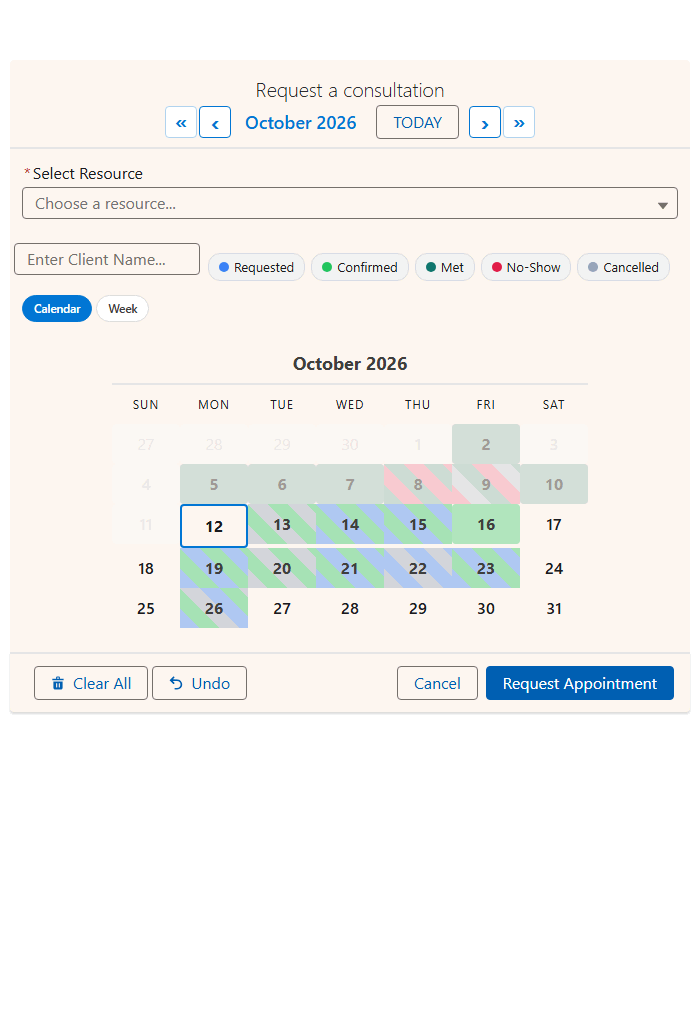
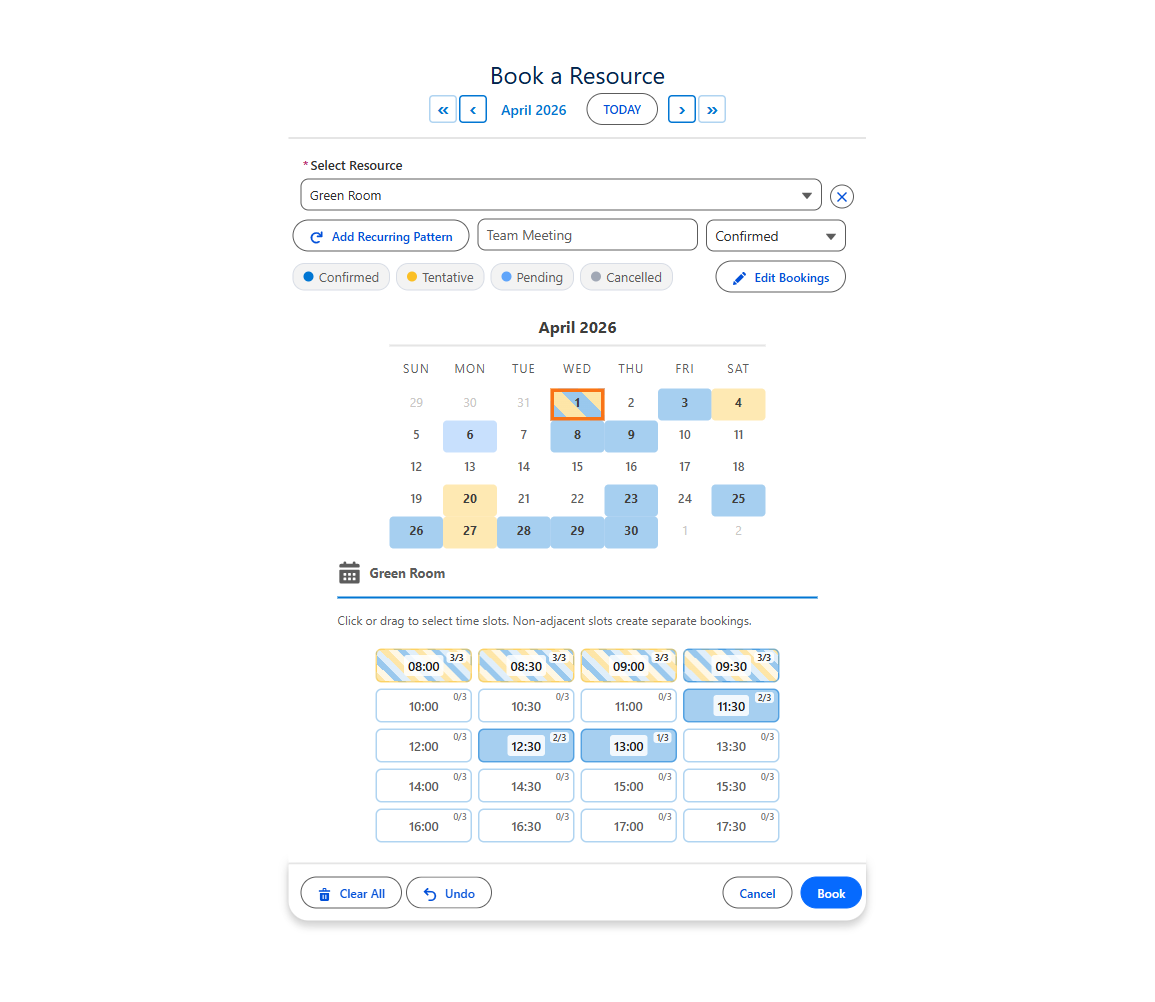
Book a slot in the live demo
The demo books advisors on a public Salesforce site. Rooms use the same Booking component, with the room as the resource.
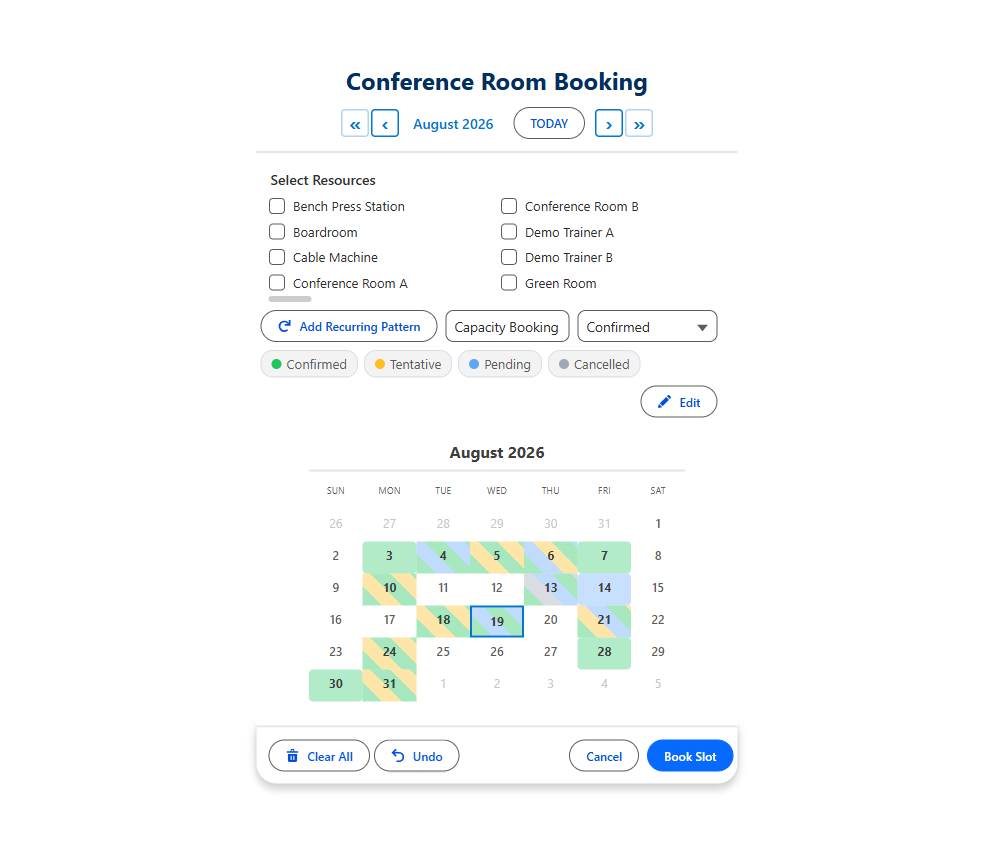
Meeting room booking in Salesforce, in four clicks
Your rooms are already records. MultiDatePick turns them into a booking calendar, and every booking saves on your own object.
- 1Pick a room
- 2Pick one or many days
- 3Click open slots
- 4Book: records saved
| Room task | Standard Salesforce | With MultiDatePick |
|---|---|---|
| One room, four afternoons | Four records by hand | Four clicks, one save |
| Is it free? | Run a report first | Taken slots on the grid |
| Room open 9 to 5 | Nothing stops 7pm | Hours from the room |
| Training needs three rooms | Three bookings | Tick three rooms, book once |
| Closed for maintenance | A note somewhere | Day greys out |
A room scheduling calendar for every room at once
Past three or four rooms, a month grid stops helping. Switch views and the same bookings answer the facilities questions.
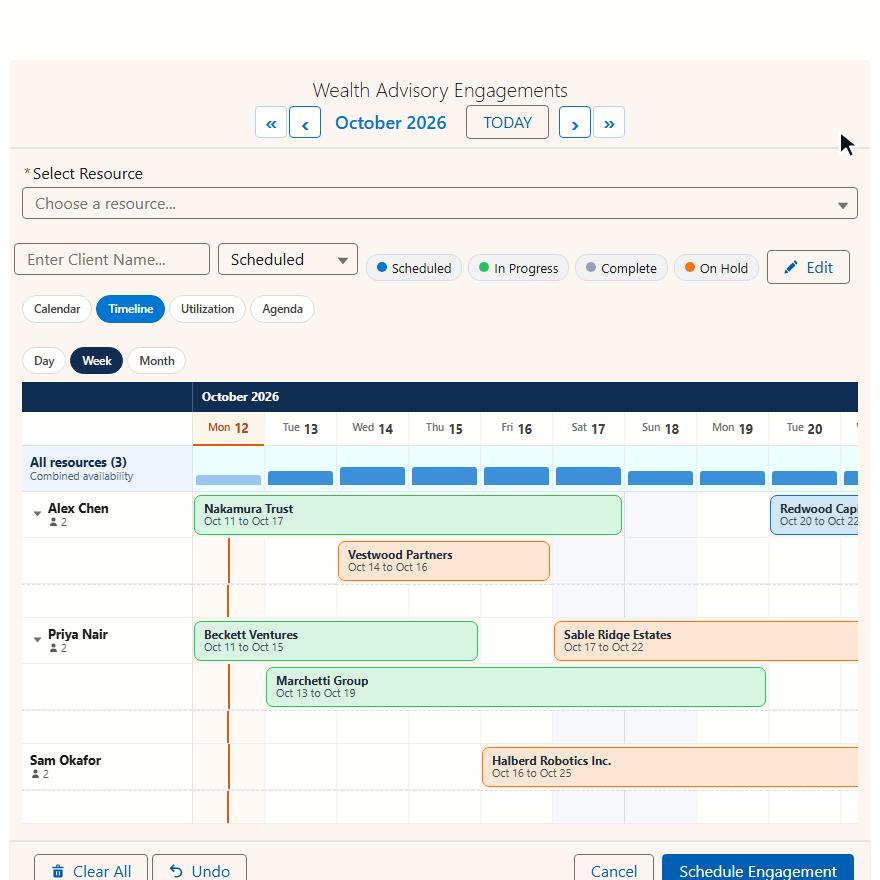
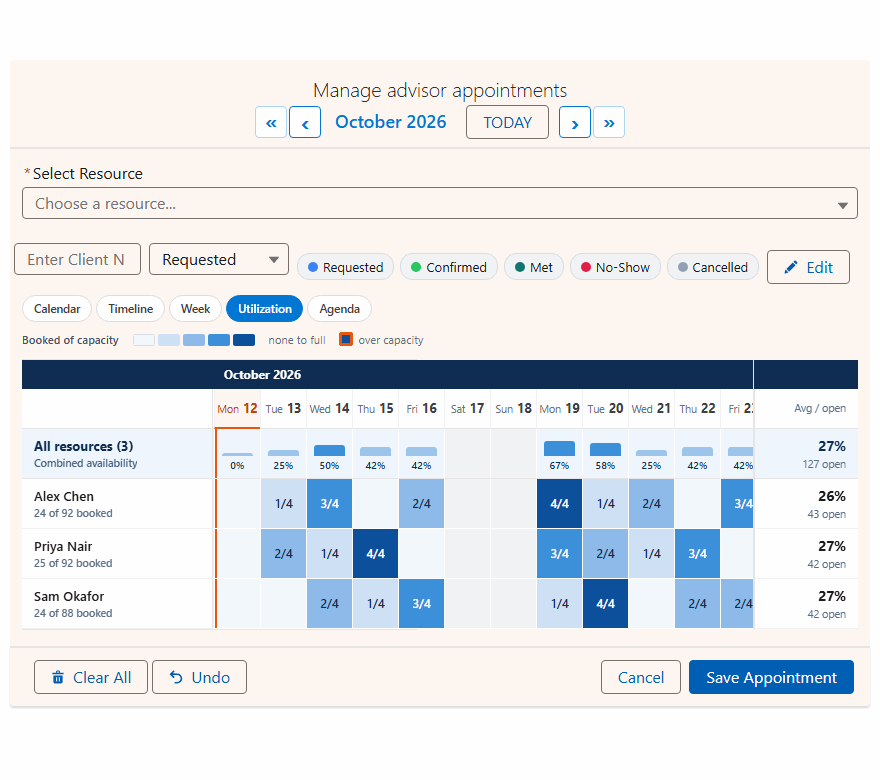
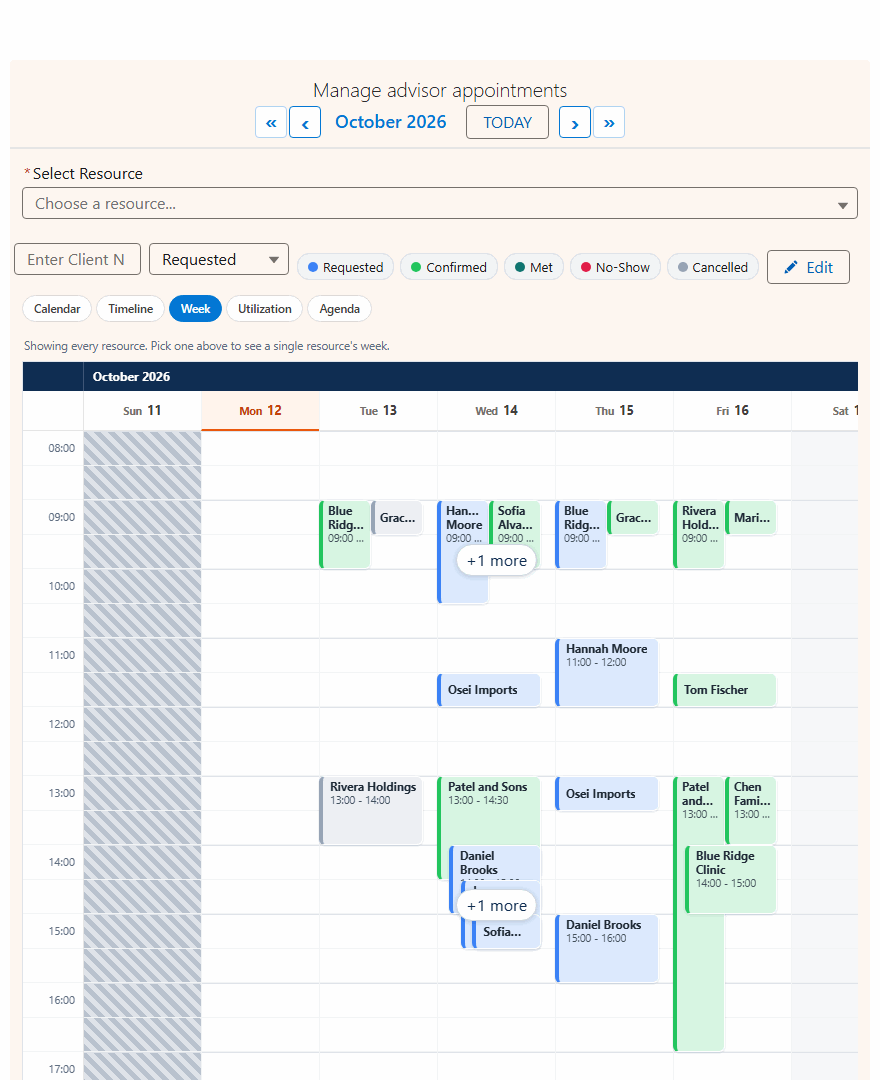
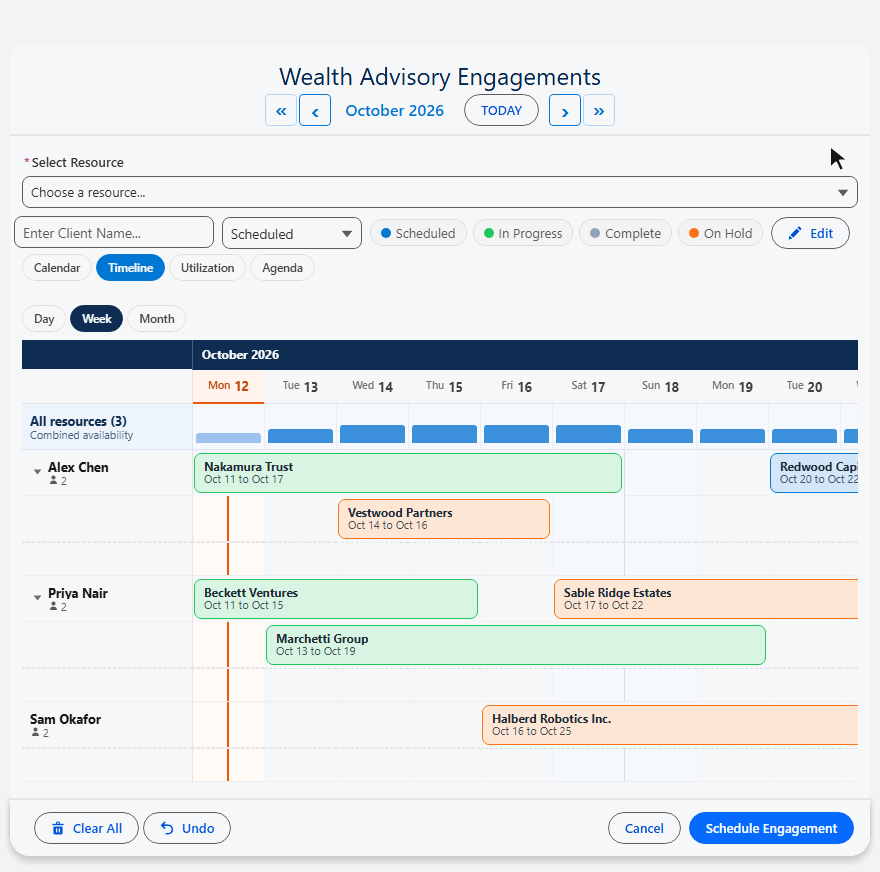
Eighty rooms? Max View Resources draws the busiest rooms first, and Timeline Window (Days) sets how many days fit on screen (14 by default).
Deep dives: the Salesforce timeline view and the utilization heatmap.
Desk booking in Salesforce: the same component
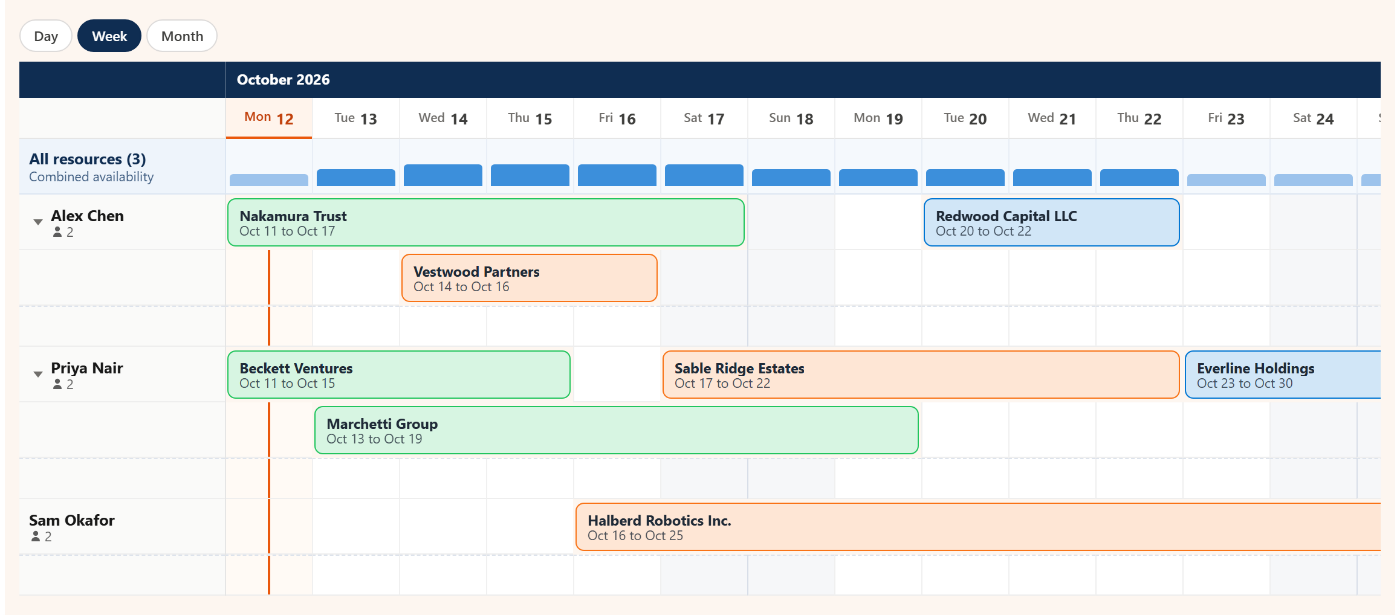
A meeting room takes one booking per slot. A desk zone takes many. One setting is the difference.
- One booking per slot
- Conflict Behavior: Block
- Time slots inside room hours
- Book several rooms at once
- Capacity Field on the zone
- Live 3/8 style badges
- Full-day mode, no time grid
- Closes when the zone is full
Start from a config
The Config Library has 40+ ready configs. Import one into the Setup Wizard, map your own objects from dropdowns, and save.
Meeting Room Booking
Rooms with live capacity and status colors.
- Conflict BehaviorBlock
- Time Slot Interval30 minutes
- Hide Bookings With StatusCancelled
- Available ViewsCalendar, Timeline, Week, Utilization
Desk Hoteling
Full-day desks with seats left per zone.
- Disable Time Slot GridOn
- Capacity FieldSeats on the zone
- Show Availability CountOn
- ViewTimeline
Active Conference Rooms
Only active conference rooms in the picker.
- Resource Filter FieldActive, Type
- Resource Filter Valuetrue; Conference Room
- Allow Booking Multiple ResourcesOn
- Capacity AggregationCombined
Closures by the hour? Start from Time-Aware Resource Closures: part-day closures, for one room or a whole region.
Then drop it on a page or a Screen Flow and set Config Name. On App, Home and Experience pages, also set Static Parent Record Id. Step by step: Getting Started.
Salesforce room booking questions
Short answers to what people search.
Can you book conference rooms in Salesforce?
Not out of the box. Standard Salesforce has no room booking control. MultiDatePick Booking adds one: keep your rooms as records on any object, and people pick a room, pick one or many dates, click open time slots and book. Each booking saves as a record on your own booking object.
How do I stop two people booking the same meeting room?
Set Conflict Behavior to Block. Taken slots are drawn as taken and cannot be clicked, and every save is checked again against existing bookings, so a clash never saves.
Can I do desk booking or desk hoteling in Salesforce?
Yes. Make each desk zone a resource with a Capacity Field and turn on Show Availability Count, so people see how many desks are left until the zone is full. Disable Time Slot Grid (Full-Day Mode) books desks for the whole day. The Desk Hoteling config in the Config Library is a ready starting point.
Can I see every room's schedule on one screen?
Yes. The Timeline view puts every room down the side and dates across the top, with multi-day holds drawn as one bar. The Utilization view shows how full each room is per day as a heatmap, and the Week view shows the day by hour.
Can one booking reserve several rooms at once?
Yes. Turn on Allow Booking Multiple Resources and people tick several rooms for the same slot in one action. Capacity Aggregation decides how capacity adds up across the rooms.
Can each room have its own hours and closures?
Yes. Business Hours Start Field and Business Hours End Field read each room's hours from the room record. Blocked dates come from your own closure records, for a whole day or part of a day, and for every room or just one.
Where can people book a room from?
Anywhere you place the Booking component: a record page, an App or Home page, a Screen Flow, or an Experience Cloud site page. On App, Home and Experience pages, set Config Name and Static Parent Record Id.
How much does MultiDatePick cost?
$20 per user per month for every component and feature, with a 30-day free trial and no card required. It is 100% Salesforce native and coming soon to the Salesforce AppExchange.
Room and desk booking, without another tool
Coming soon to the Salesforce AppExchange. Try the live demo now, or tell us where to send the launch note.
$20/user/month, 30-day free trial, no card required. Passed AppExchange Security Review. 100% Salesforce native.