Config Library
41 ready-to-import configs for every common scheduling scenario, each with its views already chosen. Copy the JSON into the Setup Wizard, or copy a ready-made Screen Flow. Field names map to your org in a click.
New here? Start with the install & setup guide →
How importing a config works
These sample configs are built against MultiDatePick's bundled demo objects (Schedule__c, Event__c, Resource__c). Your org will almost always use its own objects and field names. That's expected and supported.
- Copy JSON on any card below.
- Paste it into the Setup Wizard's Import tab (App Launcher, MultiDatePick Setup Wizard, Import).
- Map the fields: if any objects or fields referenced in the JSON don't exist in your org, the wizard will surface a Smart Field Mapping panel listing every missing reference with a dropdown of your org's matching objects/fields. Pick the replacement for each and click Apply & Deploy.
No code, no XML editing. The wizard rewrites the config with your selections before the metadata deploy, so the imported config lands ready to drop on a record page in your org. If everything already matches (e.g. you're cloning between sandboxes), the mapping step is skipped automatically.
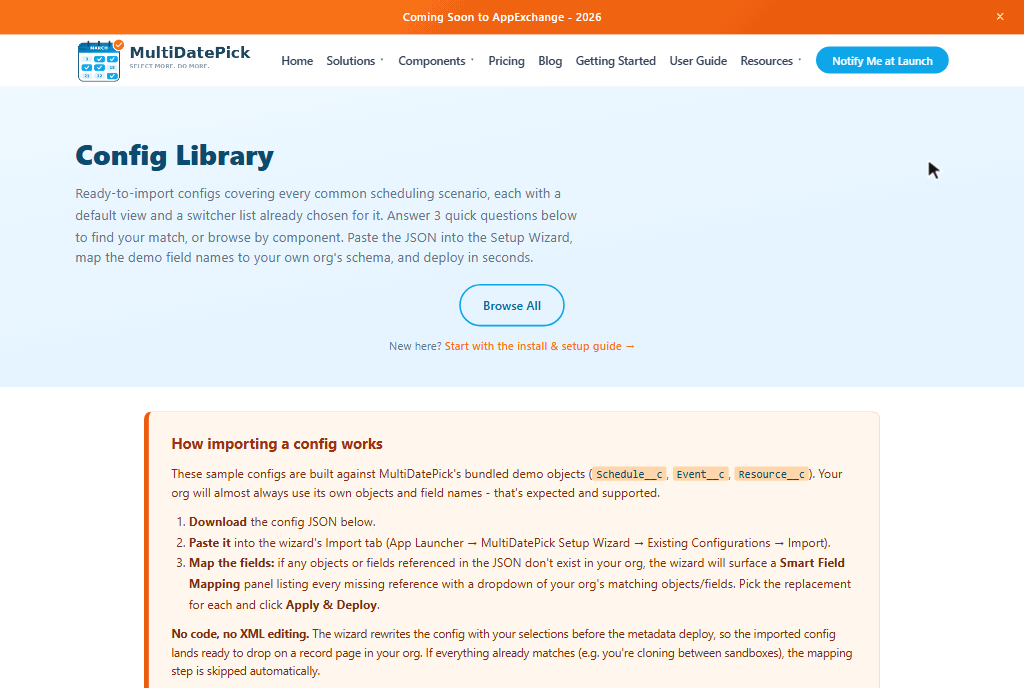
No config here that fits? Build one in the wizard.
Every object and field is a dropdown filtered to your org, so a working config takes a few minutes and no API names.
Want it in a Screen Flow? Copy Flow XML.
Every config also comes as a ready-made Screen Flow: copy it, save it into a flow file, deploy it, activate it. Step by step.

One config, five ways to look at it
Every config below sets a default View and an Available Views list. The data, the fields and the save behavior stay identical: only the layout changes. Users switch with the pills above the calendar, and you decide which ones they get.
Month grid
The default. A month at a time, status colors per day, click or drag to pick dates. Best when the question is "what is happening on the 14th".
Resources down, dates across
Two weeks by default so every booking has room for its name. Multi-day bookings draw as one bar. Busy resources collapse to a single row you can expand.
Day by hour
Seven days across, your business hours down. Drag horizontally, vertically, or both to select a block of time across several days at once.
Capacity heatmap
Percentage of capacity used per resource per day, colored green through red. Needs a Capacity Field to show percentages rather than raw counts.
Read onlyChronological list
The next 60 days as a flat, scannable list with times and statuses. Good for a handover, a daily brief, or a mobile screen.
Read only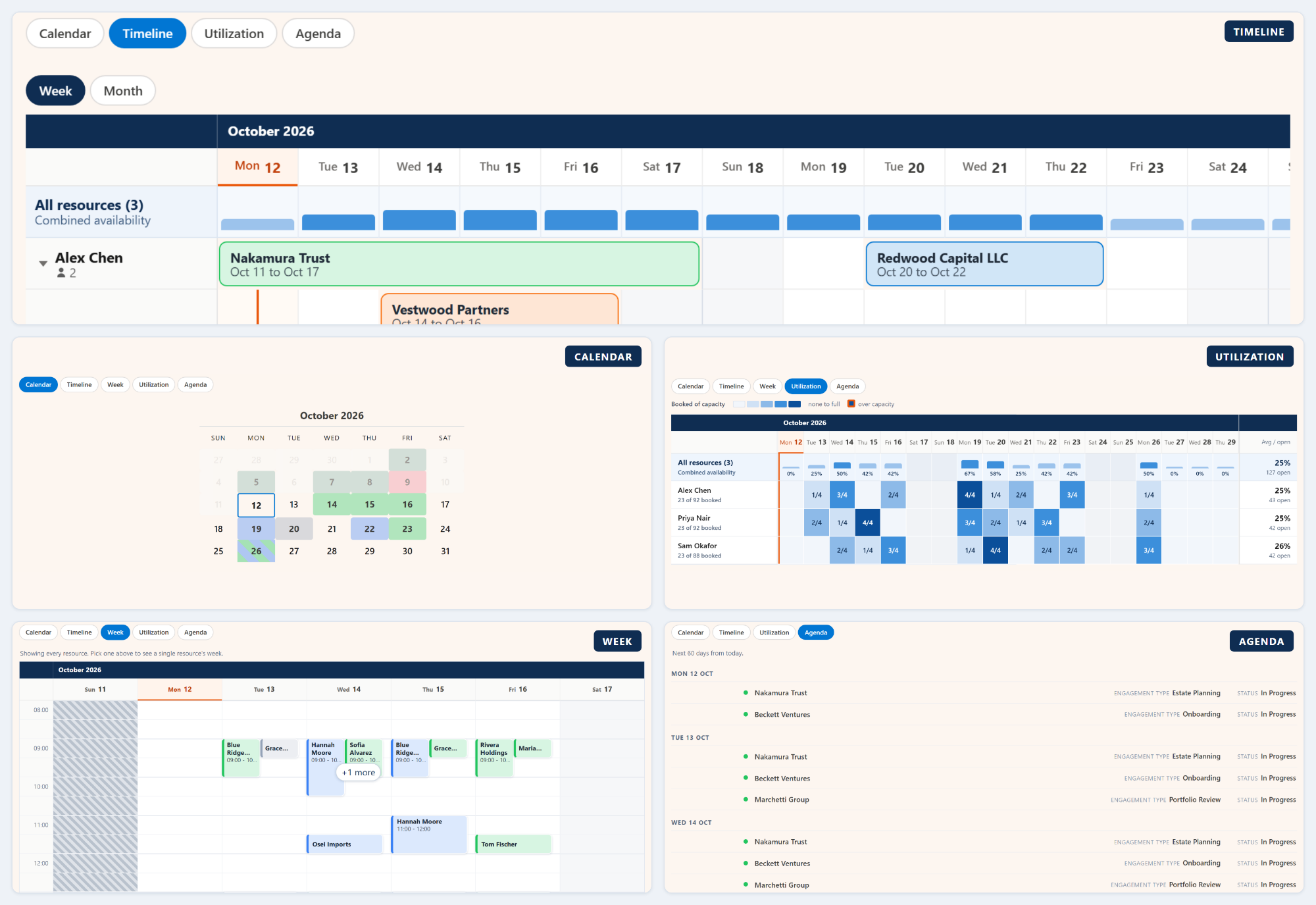
Find your config
Answer the 3 questions to narrow the list. They are the same questions the in-org Setup Wizard asks. Skip any question to keep that dimension open.
New to importing? See the 3-step walkthrough →
Date Selection Configurations
Configs for Date: multi-date selection without time slots. Best for tracking dates, marking availability, and scheduling events.
Employee Time-Off Request
Employees select PTO or vacation days on a calendar. Consecutive dates are consolidated into a single record with start and end dates. Recurring patterns let users select "every Friday" or bi-weekly schedules.
- End Date Field API Name one record per range
endDateField - Status Colors Pending/Approved/Rejected
statusColors - Show Recurring Pattern Button
showRecurringPattern - Two-Month View
twoMonthView - Enable Edit Mode
enableEditMode - Week Starts on Monday
weekStartsOnMonday - Selectable Statuses (Status Picker) Pending only (self-service)
selectableStatuses - Second Picklist Field Leave_Type__c
secondStatusField
Facility Blackout Dates
Administrators mark facility closure or blackout dates. Existing closures are preloaded in read-only mode so they can't be accidentally removed. Status colors distinguish between active, planned, and resolved closures.
Schedule__c table as the bookings themselves. Records in that table block selection on their date. Point Blocked Dates Object at a different object if you'd rather separate closures from bookings.
- End Date Field API Name one record per range
endDateField - Existing Dates Mode read only
preloadMode - Blocked Dates Object
blockedDatesSourceObject - Status Colors Active/Planned/Resolved
statusColors - Two-Month View
twoMonthView
Student Absence Tracking
Teachers or administrators record student absences. Past dates are allowed so absences can be logged retroactively. Status colors categorize each absence as excused, unexcused, medical, or pending review.
- Allow Past Dates on
allowPastDates - Status Colors Excused/Unexcused/Medical/Pending
statusColors - Max Dates Allowed 20
maxSelections - Two-Month View
twoMonthView - Enable Edit Mode
enableEditMode - Week Starts on Monday
weekStartsOnMonday - Selectable Statuses (Status Picker) Pending only (self-service)
selectableStatuses - Second Picklist Field Reason__c
secondStatusField
Court & Hearing Dates
Legal teams schedule hearing dates for cases. Multi-day hearings use date range consolidation. Cancelled dates are hidden from the calendar. Status colors track each hearing's progress from scheduled to completed.
- End Date Field API Name one record per range
endDateField - Status Colors Scheduled/Continued/Completed/Cancelled
statusColors - Hide Records With Status Cancelled
hideBookingsWithStatus - Max Dates Allowed 10
maxSelections - Enable Edit Mode
enableEditMode - Second Picklist Field Hearing_Type__c
secondStatusField
Content Publishing Calendar
Marketing teams plan content publishing schedules linked to campaigns. Holidays and blackout dates block content scheduling on closed days. Hover tooltips show the title, channel, and author for each scheduled date.
Schedule__c table by default. Records flagged in that table block selection. Swap Blocked Dates Object for your own holidays object (e.g. Company_Holiday__c) if you keep closures separately.
- Blocked Dates Object Schedule__c
blockedDatesSourceObject - Status Colors Draft/Scheduled/Published/Cancelled
statusColors - Hide Records With Status
hideBookingsWithStatus - Hover Popover Fields Title/Channel/Author
hoverFields - Show Recurring Pattern Button
showRecurringPattern - Two-Month View
twoMonthView - Second Picklist Field Channel__c
secondStatusField
Volunteer Availability
Volunteers mark the dates they're available. Date range consolidation means a week of availability becomes one record instead of five. Recurring patterns let volunteers say "every Saturday" through the end of the quarter.
- End Date Field API Name one record per range
endDateField - Show Recurring Pattern Button
showRecurringPattern - Two-Month View
twoMonthView - Enable Edit Mode
enableEditMode - Week Starts on Monday
weekStartsOnMonday - Selectable Statuses (Status Picker) Pending only (self-service)
selectableStatuses
Compliance Audit Schedule
Compliance teams schedule audit dates for accounts. Multi-day audits use date range consolidation. Hover tooltips show the assigned auditor and audit type at a glance. Status colors track progress from planned through completion or failure.
- End Date Field API Name one record per range
endDateField - Status Colors Planned/In Progress/Completed/Failed
statusColors - Hover Popover Fields Auditor/Audit_Type
hoverFields - Max Dates Allowed 12
maxSelections - Enable Edit Mode
enableEditMode - Two-Month View
twoMonthView - Second Picklist Field Audit_Type__c
secondStatusField
On-Call Rotation
Managers assign on-call coverage across a team. Recurring patterns make it easy to set weekly rotations. Status colors distinguish primary, secondary, and backup roles at a glance on the calendar.
- Show Recurring Pattern Button
showRecurringPattern - Status Colors Primary/Secondary/Backup
statusColors - Two-Month View
twoMonthView - Enable Edit Mode
enableEditMode - Week Starts on Monday
weekStartsOnMonday - Selectable Statuses (Status Picker) Pending only (self-service)
selectableStatuses
Conference Multi-Day Pass
Attendees pick the days they'll attend a multi-day conference. Adjacent days collapse into a single pass record with a start date and end date. A 3-day attendee gets one pass record. Non-adjacent picks (e.g. only Day 1 + Day 3) each get their own record.
- End Date Field API Name one record per range
endDateField - Two-Month View
twoMonthView - Show Selection Summary
showSelectedSummary - Status Colors Issued/Pending/Refunded
statusColors - Hide Records With Status Refunded
hideBookingsWithStatus - Enable Edit Mode
enableEditMode
Office Closure Calendar
A dedicated closure manager. An office or facility manager picks the dates the office is closed (holidays, planned closures, weather days, maintenance windows) and saves them as a flat list of records that other MultiDatePick configs can respect as blocked dates.
Holiday Aware Appointment Booking: the records this config writes (with Status__c = Cancelled) are picked up by the appointment booker via three settings: Blocked Dates Object + Blocked Dates Filter Field + Blocked Dates Filter Value. Multiple blocker categories (holidays, maintenance, equipment-only) can share the same table. Each consumer calendar picks which category applies.
- End Date Field API Name for multi-day ranges
endDateField - Default Record Name Office Closed
defaultRecordName - Two-Month View
twoMonthView - Enable Edit Mode
enableEditMode - Show Recurring Pattern Button
showRecurringPattern
Date & Time Configurations
Configs for Date Time: date selection with per-date time assignment. Best for appointments, shifts, sessions, and anything that needs start/end times.
Interview Scheduling
Recruiters schedule multi-round interviews across several days. 30-minute slots with conflict detection prevent double-booking. Consolidated time span merges adjacent slots into a single block.
- Time Interval (Minutes) 30 min
timeInterval - Conflict Behavior block
conflictBehavior - Consolidate Time Span
consolidateTimeSpan - Group Time Slots by Period
groupTimeSlotsByPeriod - Max Dates Allowed 5
maxSelections - Enable Edit Mode
enableEditMode - Conflict Look-Ahead Days 90
conflictLookAheadDays - Status Field + Second Picklist Field Round__c
statusField, secondStatusField
Shift Scheduling
Operations managers build shift schedules across a team. Extended hours (6 AM to 10 PM) cover all shift types. Recurring patterns enable weekly rotation templates. Different times per date let managers mix morning and evening shifts.
- Time Interval (Minutes) 60 min
timeInterval - Earliest Time 06:00 / Latest Time 22:00
minTime, maxTime - Allow Different Times Per Date
allowDifferentTimes - Show Recurring Pattern Button
showRecurringPattern - Consolidate Time Span
consolidateTimeSpan - Status Colors Scheduled/Swap Requested/Open
statusColors - Two-Month View
twoMonthView
Appointment Booking
Service businesses schedule client appointments with conflict prevention. Status colors show confirmed, pending, and cancelled slots at a glance. Hover tooltips reveal appointment type and notes without clicking.
- Time Interval (Minutes) 30 min
timeInterval - Conflict Behavior block
conflictBehavior - Consolidate Time Span
consolidateTimeSpan - Group Time Slots by Period
groupTimeSlotsByPeriod - Status Colors Confirmed/Pending/Cancelled/No Show
statusColors - Hide Records With Status Cancelled
hideBookingsWithStatus - Status Color Display grid
statusColorDisplay - Hover Popover Fields Type/Notes
hoverFields
Assign Time Blocks to a Single-Day Record
For a record that already represents a specific day, such as an Event with an event-date field, drop the picker right on the record page and assign time slots without the calendar. The date is read from the record, so the user just opens the day, picks the time blocks, and the slots auto-save back to the record.
Event_Date__c on the host record); set an explicit Time Grid Date instead, or omit both to fall back to today. Best on a record page where the date is already known.
- Time Grid Only on
timeGridOnly - Time Grid Date Field Event_Date__c
timeGridDateField - Time Interval (Minutes) 30 min
timeInterval - Group Time Slots by Period
groupTimeSlotsByPeriod - Consolidate Time Span
consolidateTimeSpan - Conflict Behavior block
conflictBehavior - Status Colors Status__c
statusColors - Hide Records With Status Cancelled
hideBookingsWithStatus - Enable Edit Mode
enableEditMode
Maintenance Windows
IT teams schedule overnight maintenance windows for assets and infrastructure. Conflict behavior is set to "allow" instead of "block", so teams can intentionally overlap maintenance if needed. Hover fields show change number, description, and impact assessment.
- Time Interval (Minutes) 60 min
timeInterval - Earliest Time 22:00 / Latest Time 06:00 (overnight)
minTime, maxTime - Conflict Behavior allow
conflictBehavior - End Date Field API Name multi-day windows
endDateField - Status Colors Planned/In Progress/Completed/Failed
statusColors - Status Color Display grid
statusColorDisplay - Hover Popover Fields Description/Impact/Change_Number
hoverFields - Conflict Look-Ahead Days 180
conflictLookAheadDays - Second Picklist Field Reason__c
secondStatusField
Property Showings
Real estate agents schedule property showings. Different times per date let agents block different windows for different properties. Hover tooltips show the assigned agent and buyer name without opening the record.
- Time Interval (Minutes) 30 min
timeInterval - Earliest Time 09:00 / Latest Time 19:00
minTime, maxTime - Allow Different Times Per Date
allowDifferentTimes - Conflict Behavior block
conflictBehavior - Group Time Slots by Period
groupTimeSlotsByPeriod - Max Dates Allowed 10
maxSelections - Status Colors Scheduled/Confirmed/Cancelled/Completed
statusColors - Hover Popover Fields Agent/Buyer_Name
hoverFields
Office Hours
Professors or advisors publish their office hours on a calendar. 15-minute slots provide granular scheduling. Recurring patterns let instructors set "Mon/Wed/Fri 2-4 PM" for the entire semester in one click.
- Time Interval (Minutes) 15 min
timeInterval - Group Time Slots by Period
groupTimeSlotsByPeriod - Consolidate Time Span
consolidateTimeSpan - Show Recurring Pattern Button
showRecurringPattern - Two-Month View
twoMonthView - Week Starts on Monday
weekStartsOnMonday - Conflict Behavior block
conflictBehavior
Exam Scheduling
Academic departments schedule exam sessions for courses. Conflict detection prevents scheduling two exams in the same slot. Status colors track progress from scheduled through completion. Hover shows assigned room and proctor.
- Time Interval (Minutes) 60 min
timeInterval - Conflict Behavior block
conflictBehavior - Consolidate Time Span
consolidateTimeSpan - Group Time Slots by Period
groupTimeSlotsByPeriod - Max Dates Allowed 4
maxSelections - Status Colors Scheduled/In Progress/Completed/Rescheduled
statusColors - Status Color Display grid
statusColorDisplay - Hover Popover Fields Room/Proctor
hoverFields - Conflict Look-Ahead Days 120
conflictLookAheadDays
Compliance Rest Periods
For shifts with mandated rest periods (DOT, healthcare, manufacturing). The shift saves as one parent record covering the full envelope; required rest periods become child sub-block records that auditors can review. 15-minute granularity for fine-grained rest tracking.
Sub_Block__c object. No extra schema setup required. Point Sub-Block Object API Name at your own child object if you'd rather use a custom name.
- Consolidate Time Span
consolidateTimeSpan - Sub-Block Object API Name Sub_Block__c
subBlockObjectApiName - Sub-Block Button Label Mark as Rest
subBlockModeButtonLabel - Time Interval (Minutes) 15 min
timeInterval - Status Colors Compliant/Review/Flagged
statusColors - Allow Past Dates
allowPastDates
Holiday Aware Appointment Booking
End-user appointment picker that automatically greys out dates the office is closed. Reads its block list from Office Closure Calendar records via Blocked Dates Object, Blocked Dates Filter Field and Blocked Dates Filter Value, so customers can only book on days that are actually open.
Office Closure Calendar: the manager-facing closures config writes Status__c = Cancelled records into Schedule__c. This config reads them with Blocked Dates Filter Field set to Status__c and Blocked Dates Filter Value set to Cancelled, and hides them from its own view with Hide Bookings With Status set to Cancelled so users only see real appointments.
- Blocked Dates Object Schedule__c
blockedDatesSourceObject - Blocked Dates Filter Field Status__c
blockedDatesFilterField - Blocked Dates Filter Value Cancelled
blockedDatesFilterValue - Hide Records With Status Cancelled
hideBookingsWithStatus - Conflict Behavior block
conflictBehavior - Consolidate Time Span
consolidateTimeSpan - Time Interval (Minutes) 30 min
timeInterval - Selectable Statuses (Status Picker) Pending only (customer books)
selectableStatuses
Resource Booking Configurations
Configs for Booking: date and time selection with resource management. Best for rooms, equipment, people, facilities, and anything with availability or capacity limits.
Meeting Room Booking
Employees reserve conference rooms with live capacity badges. Status colors distinguish confirmed, pending, and cancelled bookings. Cancelled bookings are hidden from the grid and don't count toward capacity.
- Capacity Field
capacityField - Show Availability Count
showAvailabilityCount - Status Colors Confirmed/Pending/Cancelled
statusColors - Hide Bookings With Status Cancelled
hideBookingsWithStatus - Status Color Display grid
statusColorDisplay - Group Time Slots by Period
groupTimeSlotsByPeriod - Conflict Behavior block
conflictBehavior - Enable Edit Mode
enableEditMode
Time-Aware Resource Closures
Resource booking where closures can be partial-day (block specific hours, not the whole day) and per-resource (close just one resource, leaving the rest bookable). Reads closures from a dedicated Office Closure object, scoped per location via the resource + region filters.
Office_Closure__c records with a Closure_Date__c, optional Closure_Start_Time__c + Closure_End_Time__c (omit both for a whole-day close), a Region__c tag, and an optional Resource__c lookup (set = that resource only; blank = all resources in the region).
- Blocked Dates Start Time Field Closure_Start_Time__c
blockedDatesStartTimeField - Blocked Dates End Time Field Closure_End_Time__c
blockedDatesEndTimeField - Blocked Dates Resource Field Resource__c
blockedDatesResourceField - Blocked Dates Filter Field Region__c
blockedDatesFilterField - Resource Filter Field (optional) Region__c
resourceFilterField - Conflict Behavior block
conflictBehavior
Equipment Checkout
IT or AV teams manage shared equipment reservations. 60-minute slots cover typical checkout durations. Business hours fields ensure equipment is only bookable during operating hours.
- Time Slot Interval (Minutes) 60 min
timeInterval - Business Hours Start Field / Business Hours End Field
businessHoursStartField, businessHoursEndField - Conflict Behavior block
conflictBehavior - Enable Edit Mode
enableEditMode
Desk Hoteling
Employees reserve shared desks in a hybrid workplace. The time slot grid is disabled, so desks are booked for the full day. Capacity tracking shows how many seats remain at shared tables. Two-month view helps plan weeks ahead.
- Disable Time Slot Grid (Full-Day Mode) (full-day booking)
disableTimeSlotGrid - Capacity Field
capacityField - Show Availability Count
showAvailabilityCount - Status Colors Reserved/Checked In/Cancelled
statusColors - Hide Bookings With Status Cancelled
hideBookingsWithStatus - Two-Month View
twoMonthView - Enable Edit Mode
enableEditMode
Lab & Studio Booking
Research labs, recording studios, or maker spaces with capacity limits. Status colors distinguish between reserved, in-use, and maintenance slots. Hover tooltips show the purpose and equipment needed for each booking.
- Capacity Field
capacityField - Show Availability Count
showAvailabilityCount - Business Hours Start Field / Business Hours End Field
businessHoursStartField, businessHoursEndField - Status Colors Reserved/In Use/Available/Maintenance
statusColors - Hide Bookings With Status Maintenance
hideBookingsWithStatus - Status Color Display grid
statusColorDisplay - Hover Popover Fields Purpose/Equipment_Needed
hoverFields - Group Time Slots by Period
groupTimeSlotsByPeriod
Vehicle & Fleet Reservation
Fleet managers handle vehicle checkout for field teams. Extended hours (6 AM to 8 PM) accommodate early departures and late returns. Consolidated time span merges adjacent slots into a single booking block. Hover shows purpose and destination.
- Time Slot Interval (Minutes) 60 min
timeInterval - Earliest Time 06:00 / Latest Time 20:00
minTime, maxTime - Consolidate Time Span
consolidateTimeSpan - Status Colors Reserved/In Transit/Returned/Cancelled
statusColors - Hide Bookings With Status Cancelled
hideBookingsWithStatus - Status Color Display grid
statusColorDisplay - Hover Popover Fields Purpose/Destination
hoverFields - Group Time Slots by Period
groupTimeSlotsByPeriod
Therapist Scheduling
Healthcare practices schedule therapy sessions per therapist. Recurring patterns let patients book a standing weekly session. Cancelled bookings are hidden from the grid. Availability badges show each therapist's open slots.
- Show Availability Count
showAvailabilityCount - Show Recurring Pattern Button
showRecurringPattern - Status Colors Confirmed/Pending/Cancelled/No Show
statusColors - Hide Bookings With Status Cancelled
hideBookingsWithStatus - Status Color Display grid
statusColorDisplay - Hover Popover Fields Session_Type/Notes
hoverFields - Business Hours Start Field / Business Hours End Field
businessHoursStartField, businessHoursEndField - Enable Edit Mode
enableEditMode - Selectable Statuses (Status Picker) Pending only (client books)
selectableStatuses
Athletic Facility Booking
Gyms, courts, and fields with capacity limits. Extended hours (6 AM to 10 PM) cover early-morning and evening sessions. Multiple resources enabled so members can book a court and a batting cage in one flow.
- Capacity Field
capacityField - Show Availability Count
showAvailabilityCount - Allow Booking Multiple Resources
allowMultipleResources - Earliest Time 06:00 / Latest Time 22:00
minTime, maxTime - Status Colors Reserved/Walk-In/Cancelled
statusColors - Hide Bookings With Status Cancelled
hideBookingsWithStatus - Status Color Display grid
statusColorDisplay - Group Time Slots by Period
groupTimeSlotsByPeriod
Multi-Site Workshop
A trainer leads ONE session that runs simultaneously across linked rooms (overflow seating, hybrid sites, livestream studios). With Capacity Aggregation set to Distinct, picking 4 rooms for a 2 PM session shows 1/MAX-cap: one event across four rooms, so the count tracks distinct sessions rather than per-room inventory.
- Capacity Field
capacityField - Capacity Aggregation (multi-resource) Distinct
capacityAggregation - Allow Booking Multiple Resources
allowMultipleResources - Earliest Time 08:00 / Latest Time 18:00
minTime, maxTime - Status Colors Confirmed/Tentative/Cancelled
statusColors - Hide Bookings With Status Cancelled
hideBookingsWithStatus - Enable Edit Mode
enableEditMode
Active Conference Rooms (Filtered Picker)
Showcases Resource Filter Field + Resource Filter Value with the multi-field AND syntax. The picker shows only resources where Active__c = true AND Resource_Type__c = 'Conference Room'. The semicolon separator combines both filters; admins can swap in any field/value pair from the resource object.
; between fields = AND, , between values = OR. Field count on each side of ; must match. Examples: Resource_Type__c=Conference Room · Building__c=North,South (OR) · Resource_Type__c;Building__c=Conference Room;North,South (AND with OR inside the second field).
- Resource Filter Field (optional) Active__c;Resource_Type__c
resourceFilterField - Resource Filter Value (optional) true;Conference Room
resourceFilterValue - Capacity Field
capacityField - Allow Booking Multiple Resources
allowMultipleResources - Status Colors Confirmed/Pending/Cancelled
statusColors - Hide Bookings With Status Cancelled
hideBookingsWithStatus - Enable Edit Mode
enableEditMode
Catering Equipment Bundle
Reserve multiple independent pieces of equipment (ovens, warmers, serving stations, beverage carts) for the same event. Each item has its own capacity, and Capacity Aggregation set to Combined sums everything, so 3 ovens used out of 5 oven inventory + 2 warmers used out of 4 reads as 5/9 across the bundle.
- Capacity Field
capacityField - Capacity Aggregation (multi-resource) Combined
capacityAggregation - Allow Booking Multiple Resources
allowMultipleResources - Time Slot Interval (Minutes) 30
timeInterval - Earliest Time 07:00 / Latest Time 21:00
minTime, maxTime - Status Colors Confirmed/Pending/Cancelled
statusColors - Hide Bookings With Status Cancelled
hideBookingsWithStatus - Enable Edit Mode
enableEditMode
Salon & Spa Booking
Clients book appointments with specific stylists or therapists. Auto-jump takes users straight to the first available slot. Both cancelled and no-show bookings are hidden from the grid. Hover shows service type, estimated duration, and notes.
- Time Slot Interval (Minutes) 30 min
timeInterval - Auto-Jump to First Available Date
autoJumpToFirstAvailable - Consolidate Time Span
consolidateTimeSpan - Show Availability Count
showAvailabilityCount - Status Colors Booked/Walk-In/Cancelled/No Show
statusColors - Hide Bookings With Status Cancelled & No Show
hideBookingsWithStatus - Status Color Display grid
statusColorDisplay - Hover Popover Fields Service/Duration/Notes
hoverFields - Selectable Statuses (Status Picker) Booked only (customer books)
selectableStatuses
Multi-Day Vehicle Rental
Customers reserve a vehicle for multiple consecutive days. Adjacent days collapse into a single reservation record per vehicle. A Mon to Fri rental creates one record (start: Mon, end: Fri) instead of five separate daily records. No time slots since the rental spans full days.
- End Date Field one record per range
endDateField - Disable Time Slot Grid (Full-Day Mode) full-day mode
disableTimeSlotGrid - Conflict Behavior block
conflictBehavior - Status Colors Confirmed/Pending/Returned/Cancelled
statusColors - Hide Bookings With Status Cancelled
hideBookingsWithStatus - Two-Month View
twoMonthView - Enable Edit Mode
enableEditMode
Trainer Day With Breaks
Trainers book a full day on a resource (room, vehicle, equipment). The day saves as one parent record from the first slot to the last; lunch and breaks become child sub-block records. Click "Mark as Break" to flag a slot manually, or just leave gaps and they auto-detect.
Sub_Block__c child object stores break records linked to the parent Schedule via Sub-Block Parent Lookup Field. No extra schema setup required: both objects ship in the package.
- Consolidate Time Span
consolidateTimeSpan - Sub-Block Object API Name Sub_Block__c
subBlockObjectApiName - Sub-Block Parent Lookup Field Schedule__c
subBlockParentLookupField - Sub-Block Button Label Mark as Break
subBlockModeButtonLabel - Show Sub-Block Toggle Button
showSubBlockButton - Status Colors Confirmed/Tentative/Pending/Cancelled
statusColors - Enable Edit Mode
enableEditMode
Field Service Visit With Travel
Field technicians schedule visits where on-site time and travel-between-stops both matter. The visit envelope saves as one parent record; gaps between picked slots become child sub-block records labeled as travel. Track on-site time vs. drive time separately on the same booking.
- Consolidate Time Span
consolidateTimeSpan - Sub-Block Object API Name Sub_Block__c
subBlockObjectApiName - Sub-Block Button Label Mark as Travel
subBlockModeButtonLabel - Conflict Behavior block
conflictBehavior - Status Colors Confirmed/Dispatched/Completed/Cancelled
statusColors - Hover Popover Fields Notes
hoverFields - Enable Edit Mode
enableEditMode - Second Picklist Field Visit_Type__c
secondStatusField
Bulk Site Booking
Dispatchers batch-assign technicians and vehicles across 20+ job sites in one pass. Some sites are already at capacity. With Conflict Behavior set to skip, the save quietly books the open sites and skips the full ones instead of failing the whole batch. Allow Booking Multiple Resources shows the site list as checkboxes with combined capacity counts.
block would reject the entire assignment the moment ONE site is full. Skip saves what it can: open sites get booked and full sites are reported back as skipped, so a dispatcher never re-runs the whole batch over a single conflict.
- Conflict Behavior skip
conflictBehavior - Allow Booking Multiple Resources
allowMultipleResources - Capacity Field
capacityField - Capacity Aggregation (multi-resource) Combined
capacityAggregation - Show Availability Count
showAvailabilityCount - Earliest Time 06:00 / Latest Time 18:00
minTime, maxTime - Status Colors Assigned/Dispatched/Cancelled
statusColors - Hide Bookings With Status Cancelled
hideBookingsWithStatus - Enable Edit Mode
enableEditMode
Training Batch Enrollment
Enroll a learner across a multi-week course where each session has a seat cap and some are already full. With Conflict Behavior set to skip, batch-selecting sessions enrolls in every open one and skips the at-capacity sessions in one save. Two-Month View spans the schedule and combined capacity counts show seats left per session.
block would force them to deselect each full session by hand before the save would go through.
- Conflict Behavior skip
conflictBehavior - Allow Booking Multiple Resources
allowMultipleResources - Capacity Field
capacityField - Capacity Aggregation (multi-resource) Combined
capacityAggregation - Show Availability Count
showAvailabilityCount - Two-Month View
twoMonthView - Earliest Time 08:00 / Latest Time 17:00
minTime, maxTime - Status Colors Enrolled/Waitlisted/Cancelled
statusColors - Hide Bookings With Status Cancelled
hideBookingsWithStatus - Enable Edit Mode
enableEditMode
Team Capacity Planning
Point the resource lookup at User and the component becomes people scheduling rather than room booking. Opens on the Utilization heatmap so a manager sees who is over capacity before assigning anything, then switches to Timeline for the month per person or Week to place work at a specific hour.
User with Resource Filter Field IsActive set to true. Capacity has no standard equivalent on User, so add a custom Daily_Capacity__c field or the heatmap shows counts instead of percentages. Business Hours Start Field and Business Hours End Field on User drive per-person working hours in the Week grid.
- Resource Object API Name User
resourceObjectApiName - Capacity Field Daily_Capacity__c
capacityField - Allow Booking Multiple Resources
allowMultipleResources - Business Hours Start Field / Business Hours End Field
businessHoursStartField, businessHoursEndField - Conflict Behavior allow
conflictBehavior - Hover Popover Fields
hoverFields
Staff Shift Roster
Two weeks of dates across the top, staff down the side. Opens on Timeline because the question a shift manager asks is who is working when, not what is happening on the 14th. Week places a shift at an exact hour with conflict blocking on; Agenda gives a chronological read for a shift handover.
- Resource Object API Name User
resourceObjectApiName - Second Picklist Field Shift_Type__c
secondStatusField - Selectable Statuses (Status Picker) Confirmed/Tentative/Open
selectableStatuses - Consolidate Time Span
consolidateTimeSpan - Conflict Behavior block
conflictBehavior - Week Starts on Monday
weekStartsOnMonday
Resource Board (Read Only)
A wall display or an exec summary. Every offered view is read only or read first, edit mode is off so nobody books from it by accident, and past dates are allowed so the board can look backwards as well as forwards.
false. Timeline stays available because a 30 day window of every resource is the most useful single screen on a wall, but nothing here saves a record.
- Enable Edit Mode off
enableEditMode - Allow Past Dates on
allowPastDates - Capacity Field
capacityField - Allow Booking Multiple Resources
allowMultipleResources - Hover Popover Fields
hoverFields
Advisor Appointment Booking
The person is the resource. Every advisor, rep, consultant or account manager becomes a bookable row, so a client meeting is scheduled against a real Salesforce user rather than a room. Opens on Week because a 30 minute appointment is a time-of-day question; Timeline answers who has room this week, and Agenda is the chronological read for a morning huddle.
User, filtered by a custom Is_Advisor__c checkbox so the picker holds advisors rather than every active user in the org. Business Hours Start Field and Business Hours End Field on User give each person their own working day, so the Week grid draws the hours they actually work. Conflict Behavior is block, because a person can never be double booked.
- Resource Object API Name User
resourceObjectApiName - Resource Filter Field (optional) Is_Advisor__c
resourceFilterField - Booking Resource Field
bookingResourceField - Second Picklist Field Meeting_Type__c
secondStatusField - Conflict Behavior block
conflictBehavior - Blocked Dates Object
blockedDatesSourceObject - Hover Popover Fields
hoverFields
Object & Field Mapping
Each config references object and field API names that you'll need to replace with your own. Use the diagrams below to see which fields map to which objects.
Sub-Block Use Cases
When Consolidate Time Span is enabled, gaps between selected time slots are automatically detected and saved as separate records on a child object. Users can also manually mark slots as sub-blocks.
- Shift scheduling with breaks: Employee selects 8 AM to 5 PM; the 12 to 1 PM lunch gap auto-creates a record on a Break__c object
- Travel itineraries: User blocks travel windows; layovers between flights become Travel_Leg__c records
- Training schedules: Instructor selects teaching blocks; free periods between sessions save as Available_Slot__c records
- Work schedules with appointments: Manager defines work hours; gaps for meetings or appointments auto-save to an Appointment__c object
lookup
Config not behaving? See Troubleshooting for every setup message with a screenshot and a fix.
Pick a config. Be live in minutes.
See MultiDatePick running in the live demo, or get notified the day MultiDatePick arrives on the Salesforce AppExchange.
Don't see your use case? Email Support@MultiDatePick.com and we'll help you build it.