
Salesforce Campaign Dates: Every Event Day on One Calendar
A Campaign has one start date and one end date. Your tour, webinar series or volunteer program has many. Put them all on the Campaign record, each one a real record with a status, without writing Apex.
"How do I add more than one date to a Salesforce Campaign?" "Where do I track each stop of the roadshow?" "Which webinar sessions are confirmed?" A Campaign only knows when it starts and ends. Everything in between ends up in a spreadsheet or a long description field.
MultiDatePick puts a calendar on the Campaign record page. Click the days, save, and each one becomes its own child record linked to the Campaign, colored by status. It works on Campaigns the same way it works on any object: by configuration. No Apex required.
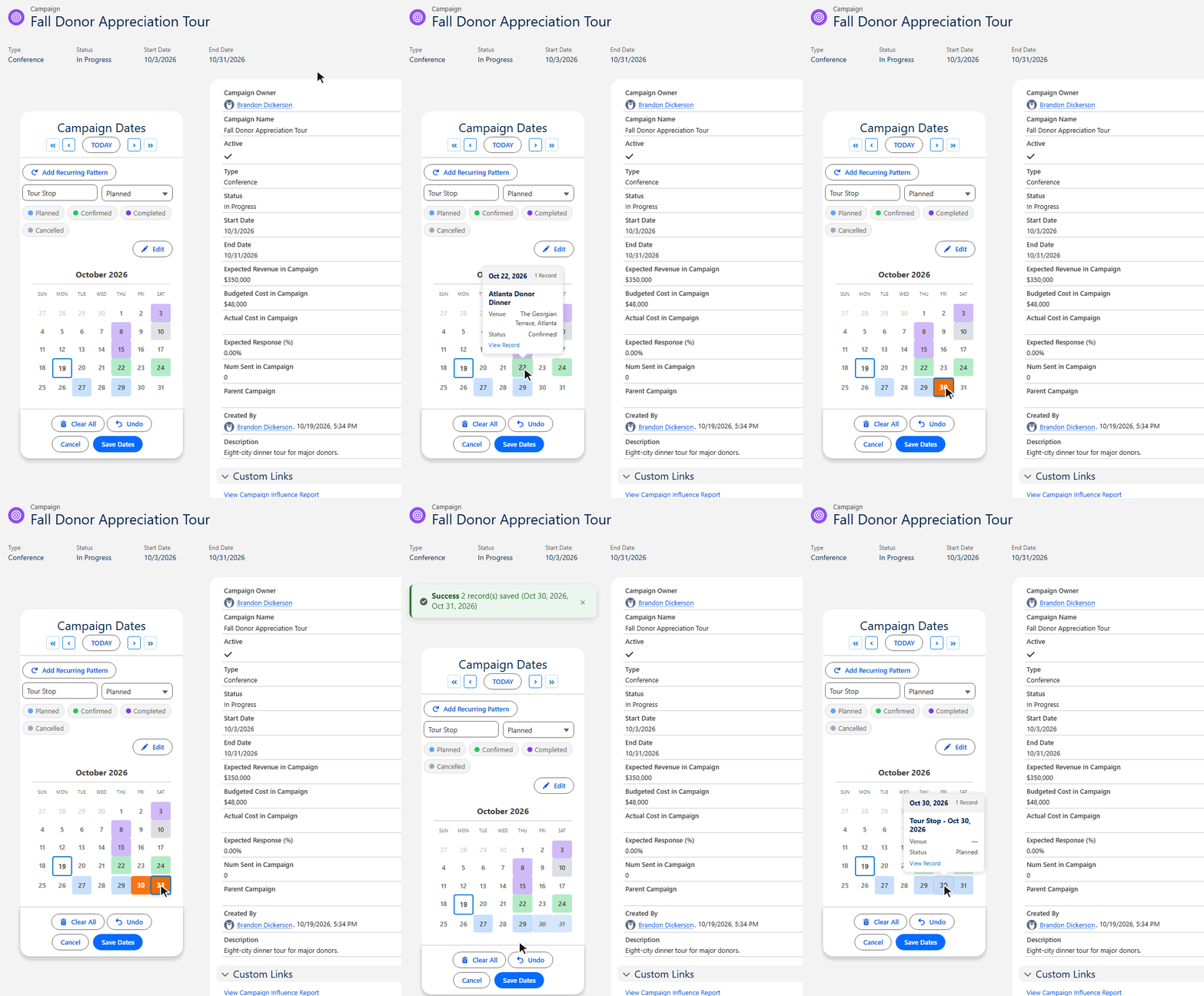
What you get on the Campaign page
Every date at a glance
All of the Campaign's dates load onto the calendar when the record opens. No related list to scroll.
Status colors
Planned, Confirmed, Completed, Cancelled: each status gets its own color, and the pills above the calendar filter by status.
Hover for details
Point at a date to see the record behind it, such as the stop name, venue and status, with a link to open it.
Recurring patterns
Every Tuesday for eight weeks is one pattern and one click. Handy for webinar series and send schedules.
Edit mode
Select several dates, then change their status, move them to another day, or delete them in one step.
Real records
Each date is a child record with a lookup to the Campaign. Report on it, build flows on it, share it like anything else.
Set it up in three steps
The components are object-agnostic. They do not know or care that the parent is a Campaign; they need a child object to save into and a lookup that points back. That is the whole integration.
- Create the child object. In Object Manager, create a custom object such as Campaign Date. Give it a Lookup field to Campaign and a Date field. Add a Status picklist (Planned, Confirmed, Completed, Cancelled) and any detail fields you want on hover, such as Venue.
- Run the Setup Wizard. Open the MultiDatePick Setup Wizard tab and configure the Dates component. Pick Campaign Date as the object, the Campaign lookup as the relationship field and your Date field. On Status & Display, choose the status field, a color per value and the hover fields. Save the config under a name like
Campaign_Dates. - Drop the component on the Campaign page. Open any Campaign, click Edit Page, drag the MultiDatePick Dates component onto the layout and enter the config name in Config Name. Save and activate. Every Campaign now has its calendar.
Need times as well as days, like a webinar at 11:00 and a repeat at 3:00? Use the Date Time component instead and add Start and End Time fields to the child object. The steps are the same.
Prefer a Screen Flow?
The same config works inside Flow. Add the Dates component to a screen and set Config Name; every setting comes from the config, with no checkboxes to set in Flow Builder. Pass the Campaign Id into Parent Record Id and the component saves the child records itself. Leave it blank if you would rather loop the Selected Dates output and create the records your own way. The multiple dates in a Screen Flow post walks through both patterns.
What teams track on Campaigns
Anything a Campaign does on more than one day fits the same child object:
The settings that shape it
Each one is a field in the Setup Wizard and a property on the component, so nothing here needs code:
| Setting | What it does | API name |
|---|---|---|
| Child Object API Name | The child object each date is saved to, such as Campaign_Date__c. | relatedObjectApiName |
| Relationship Field API Name | The lookup on that object that points to Campaign. The component fills it from the record page. | relationshipFieldApiName |
| Date Field API Name | The Date field that holds each picked day. | dateFieldApiName |
| Status Field and Status Colors | The status picklist and a color per value, such as Confirmed:#22C55E. | statusField, statusColors |
| Hover Popover Fields | The fields shown when you point at a date, such as name, venue and status. | hoverFields |
| Show Recurring Pattern Button | Shows the Add Recurring Pattern button for weekly or monthly runs. | showRecurringPattern |
| Enable Edit Mode | Shows the Edit button for changing status, moving or deleting several dates at once. | enableEditMode |
| Config Name | The config saved by the Setup Wizard. Set this and leave the rest blank. | configName |
Questions people ask
Can a Salesforce Campaign have multiple dates?
A standard Campaign has one Start Date and one End Date. To track every day of a tour, webinar series or volunteer program, add a small child object with a lookup to Campaign and put the MultiDatePick Dates component on the Campaign record page. Every date you click is saved as its own child record.
Do I need Apex or a developer to add dates to Campaigns?
No. The child object and its fields are point-and-click in Object Manager, the Setup Wizard writes the calendar configuration, and the component goes on the page in Lightning App Builder. There is no Campaign-specific code to write or install.
Where are the Campaign dates stored?
In your own custom object, for example Campaign Date, with one record per date and a lookup to the Campaign. They are ordinary Salesforce records, so list views, reports, flows and sharing all work on them as usual.
Can each Campaign date have its own status?
Yes. Add a picklist such as Planned, Confirmed, Completed and Cancelled, choose a color for each value, and the calendar paints every date in its status color. Edit mode lets you select several dates and change their status, move them, or delete them in one step.
Can I use it in a Screen Flow instead of the record page?
Yes. Add the Dates component to a flow screen and set Config Name to the config you saved in the Setup Wizard. Pass the Campaign Id into Parent Record Id and the component saves the child records itself, or leave it blank and loop the Selected Dates output.
Every Campaign date, on the Campaign.
Click dates in the live demo, or start from a ready-made config in the Config Library.
- $20/user/month, every feature
- 30-day free trial, no card
- 100% native Salesforce
- No Apex
- Coming soon to the Salesforce AppExchange