
App Pages, Home Pages & Experience Sites
MultiDatePick works on every Lightning surface, not just record pages. The trick is one property: Static Parent Record Id.
Why these surfaces are different
MultiDatePick saves the dates you pick as records on a related object, each one linked back to a parent record. The component just needs to know which parent.
- On a record page (e.g. an Event record), Salesforce automatically hands the component the current record's Id (the
recordId). Nothing extra to configure. - On an App Page, Home Page, or Experience Site, there is no "current record." Salesforce passes nothing. With no parent, the component has nowhere to save, so it hides the Save button by design rather than show one that fails on click.
Find Static Parent Record Id in the property panel after you drag MultiDatePick onto an App Page or Home Page in Lightning App Builder, or onto a page in Experience Builder.
Static Parent Record Id vs. a Flow: when to use which
Static Parent Record Id points the component at one fixed parent, so every visitor sees the same record. That is perfect for some cases and wrong for others. When the record needs to change per user or per visit, drive it from a Screen Flow instead. Drop the component on a Flow screen and bind its Parent Record Id to a variable the Flow resolves at runtime.
Use Static Parent Record Id when the record is the same for everybody
- A public booking page: a guest-facing "request an appointment" page where every booking attaches to the same parent record (one office, location, or resource). A fixed Id is exactly right.
- One org-wide calendar: a single "Company Closures" record, or one shared resource everyone books, that never changes per user.
- A fixed dashboard anchor on an App or Home page that always points at the same master record.
Rule of thumb: reach for Static Parent Record Id when the answer to "whose record is this?" is "the same one for everybody."
Use a Flow when the record is chosen at runtime
- Per-user records: each person sees only their own (for example, every contractor lands on their own PTO calendar). The Flow does a Get Records where the owner or a linked Contact =
{!$User.Id}, stores the Id, and passes it to the component. - URL-driven: a Flow input variable reads
?id=…from the link, so one page serves many records. This works for guests too, with no login. - Pick-first: screen 1 lets the user search or choose (an employee, a room, a client); screen 2 shows that record's calendar.
$User) resolution does not apply. Either share one record through Static Parent Record Id, or drive it from a URL parameter through a Flow. True per-user calendars need logged-in users.Setup in one minute
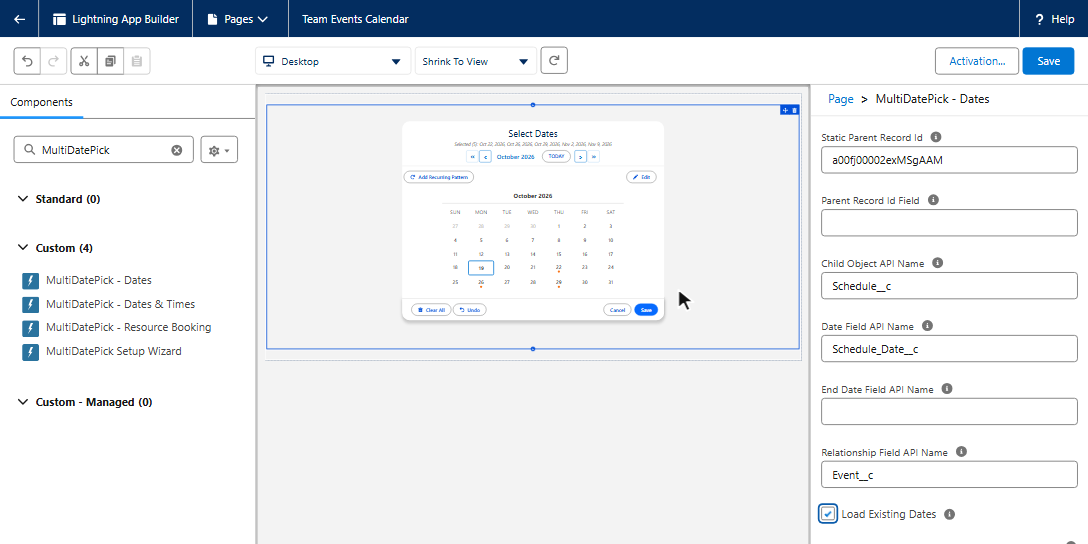
What makes the Save button appear
All four, or Save stays hidden:
| # | Property (builder label) | Record Page | App / Home / Experience |
|---|---|---|---|
| 1 | Parent record | Automatic (recordId) | Static Parent Record Id |
| 2 | Child Object API Name | Required | Required |
| 3 | Date Field API Name | Required | Required |
| 4 | Relationship Field API Name | Required | Required |
Set Config Name to a Setup Wizard config and it fills 2 to 4 for you.
Where to place it
| Surface | Build it in | Make it live | Who needs access |
|---|---|---|---|
| App Page | Lightning App Builder, New, App Page | Activate and add it to one or more apps (it becomes a tab) | MultiDatePick - User permission set |
| Home Page | Lightning App Builder, New, Home Page | Activate as the org default, or per app in App Manager, Pages | MultiDatePick - User permission set |
| Experience Site | Experience Builder, under Custom Components | Publish the site | Member profile (or guest user): read and create on the object and fields, plus a sharing rule. Public sites: guest checklist |
Home Page tip: set Existing Dates Mode to readonly for a read-only "what's scheduled" view.
Public guest sites: the five-step checklist
A public Experience Cloud page lets anyone book without logging in. Do all five before you test as a guest. Steps 4 and 5 are the two most often missed. See it working on the live demo, a public guest site.
| # | Step | What to set |
|---|---|---|
| 1 | Object permissions | Give the site guest user Read, and Create if guests submit, on each object the component uses. Guests can never Edit or Delete. That is a Salesforce guest license rule for every app, so keep edit and cancel on pages behind a login. |
| 2 | Field-level security | Read on every field the calendar shows. Edit on every field it writes, including status, time and relationship fields. Include the resource business hours and closure fields too. |
| 3 | Guest sharing rule | A Read sharing rule for the guest user, so guests can see the records. The object's external org-wide default must be Private for the rule to apply. A rule deployed as metadata needs one click on Recalculate in Sharing Settings. |
| 4 | Apex class access | Grant the guest profile or a guest permission set access to the MultiDatePickController class. The calendar loads its data through it. |
| 5 | Publish and activate | Publishing and activating are separate steps. Guests only see an activated site. |
Two org settings guests also need
| Setting | Why |
|---|---|
| Default record owner | Guests cannot own records, so Salesforce assigns every guest booking to a default owner. Set it in Experience Workspaces, Administration, Preferences. |
| Read access to referenced records | A booking that points at a resource or parent needs guest Read on that record, or the save fails with a cross-reference error. Use a custom object for anything guests book against: guest access to Contacts and Accounts is heavily restricted. |
Planning a public booking page? Self-service booking on a Salesforce Experience Cloud site covers what guests can do and which view to show them.
Six patterns that live off the record page
| Pattern | Surface | Component | Add |
|---|---|---|---|
| Internal booking hub ("Book a Room") | App Page | Booking | Capacity Field for live "3/10" availability |
| Customer self-service scheduling | Experience Site | Booking or Date Time | A Flow when each customer's own Case or Order is the parent |
| Personal availability / time off | Home Page | Dates | Status Colors: Pending vs. Approved at a glance |
| Event & cohort registration | Experience Site or App Page | Date Time | Max Dates Allowed caps sessions per person |
| Volunteer & shift sign-up | Experience Site | Booking | Capacity Field for "spots left", Status Colors for Open vs. Full |
| Project milestones | App Page | Dates or Date Time | Status Colors (Planned, In Progress, Done) and Two-Month View |
Troubleshooting
| Symptom | Fix |
|---|---|
| Save never appears | One of the four is empty. Off a record page it is usually Static Parent Record Id. |
| Calendar loads, saving fails | No object access. Assign the MultiDatePick - User permission set; on a site, give the member or guest profile read and create. |
| "Field does not exist" on save | API name typo. Copy it from Setup, Object Manager. A namespace prefix is only for another package's objects (e.g. acme__Visit_Date__c). |
| Site members can't see their records | Add a sharing rule (or loosen org-wide defaults) on the child object. |
| Saved dates vanish on refresh | Keep Load Existing Dates on (it is on by default). |
| Static Parent Record Id "isn't valid" | Use a real 15 or 18 character Id of the parent object, the one the Relationship Field points to. |
Something else? Troubleshooting has every setup message with a screenshot and a fix.
Have another issue that's not covered here?
Email your questions here. Happy to help.