
Five Calendar Views, One Salesforce Component
A month grid is the wrong shape for half the scheduling questions people actually ask. Here is why we added four more views, and how choosing between them became a config field instead of a rebuild.
Every calendar starts as a month grid, because that is what the word makes you picture. Then people start asking questions it cannot answer. "Who is free Thursday afternoon?" "Is Room 4 booked solid next week?" "Which technician is over capacity?" The grid holds all of that data. It just makes you hunt for it.
MultiDatePick now renders the same records five ways. One component, one set of field mappings, one save path, and a View setting that changes the layout.
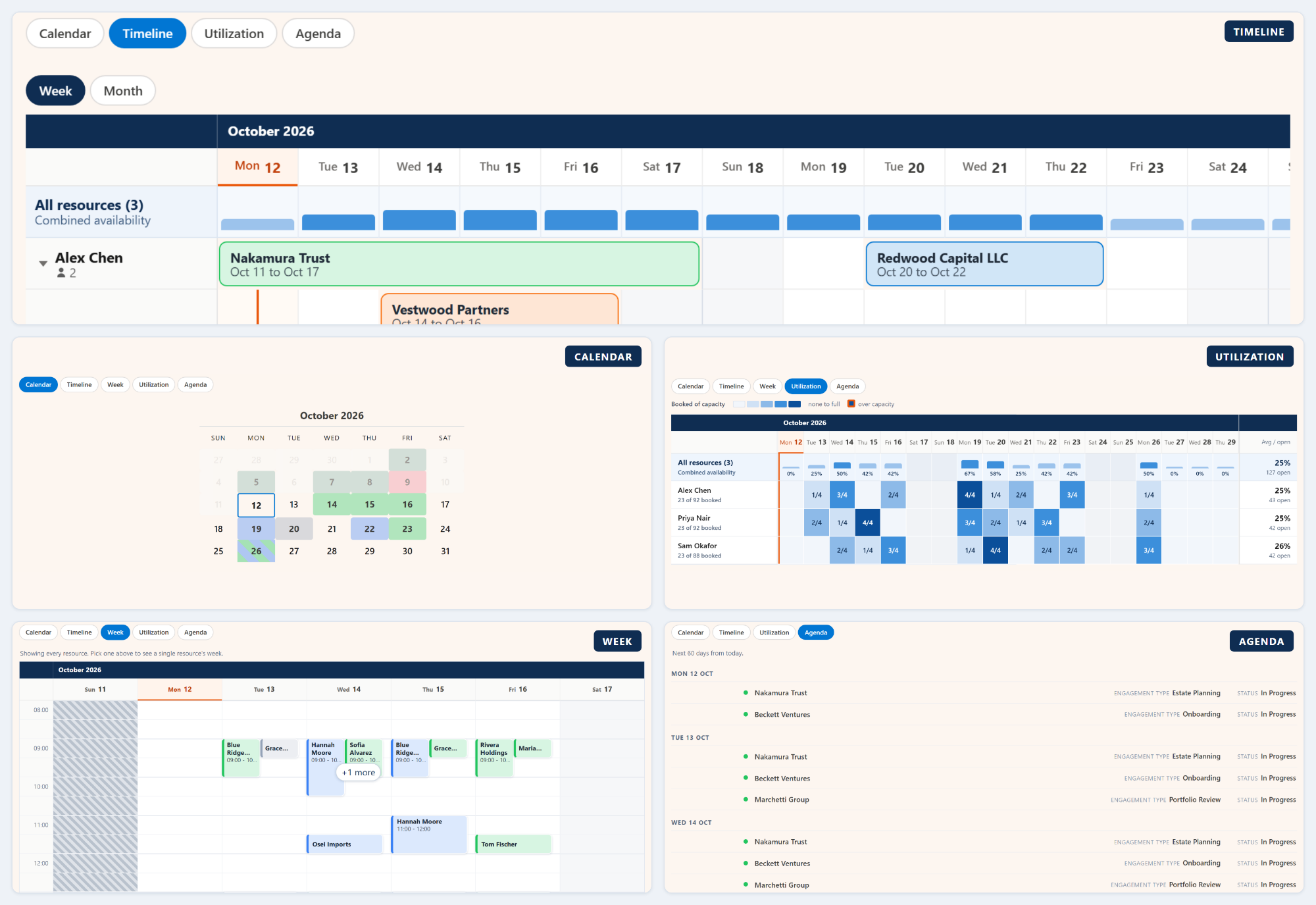
The five views, and the question each one answers
Each view is built for one question. Same records underneath, drawn the way that question needs.
What is happening on the 14th?
A month at a time, each day filled with the status of what is booked on it. Days that mix statuses get diagonal stripes. The default, and still the right answer most of the time.
Interactive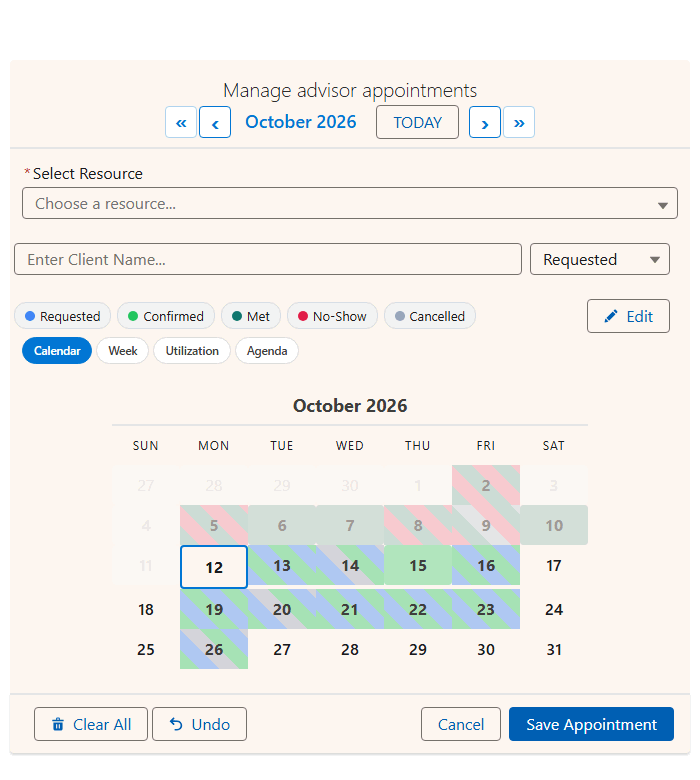
Which resource is free, and when?
Resources down the side, dates across the top. A booking that spans three days draws as one bar, overlapping bookings stack into lanes, and a capacity strip shows how full each day is. Zoom from a single day to a whole month, and drag a bar to move or stretch it. More on the Timeline view.
Interactive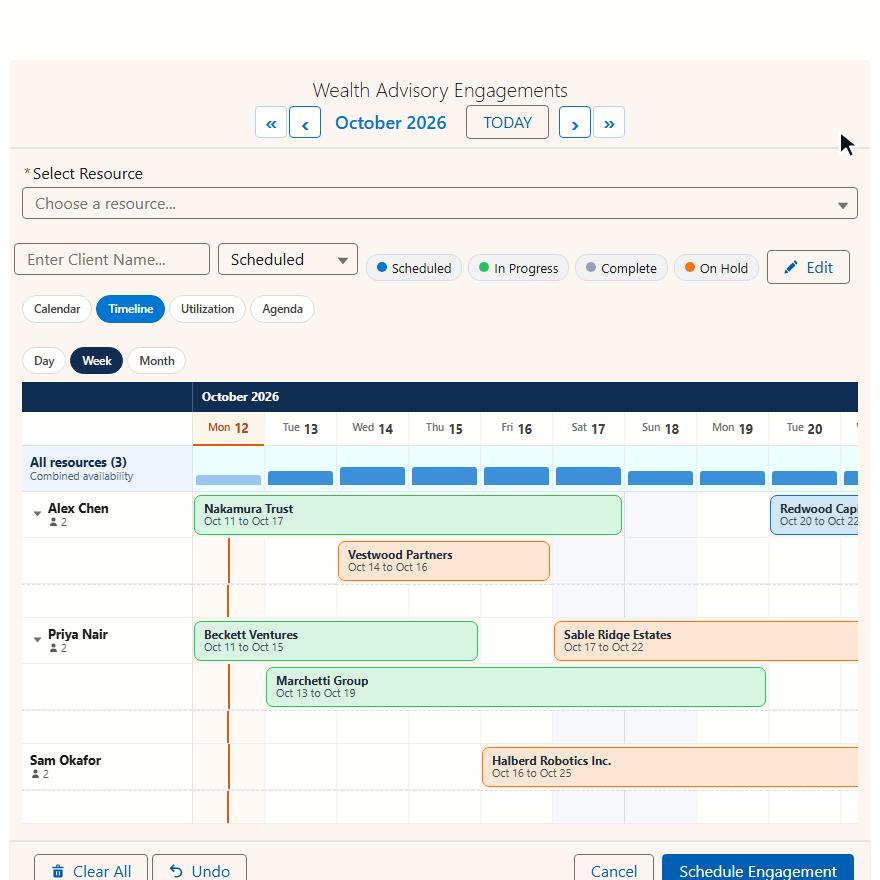
Who is free Thursday at 2pm?
Seven days across, business hours down, each booking sized to its real length. Bookings that overlap sit side by side in their own status colors, and the strip beside them stays open so you can add one more.
Interactive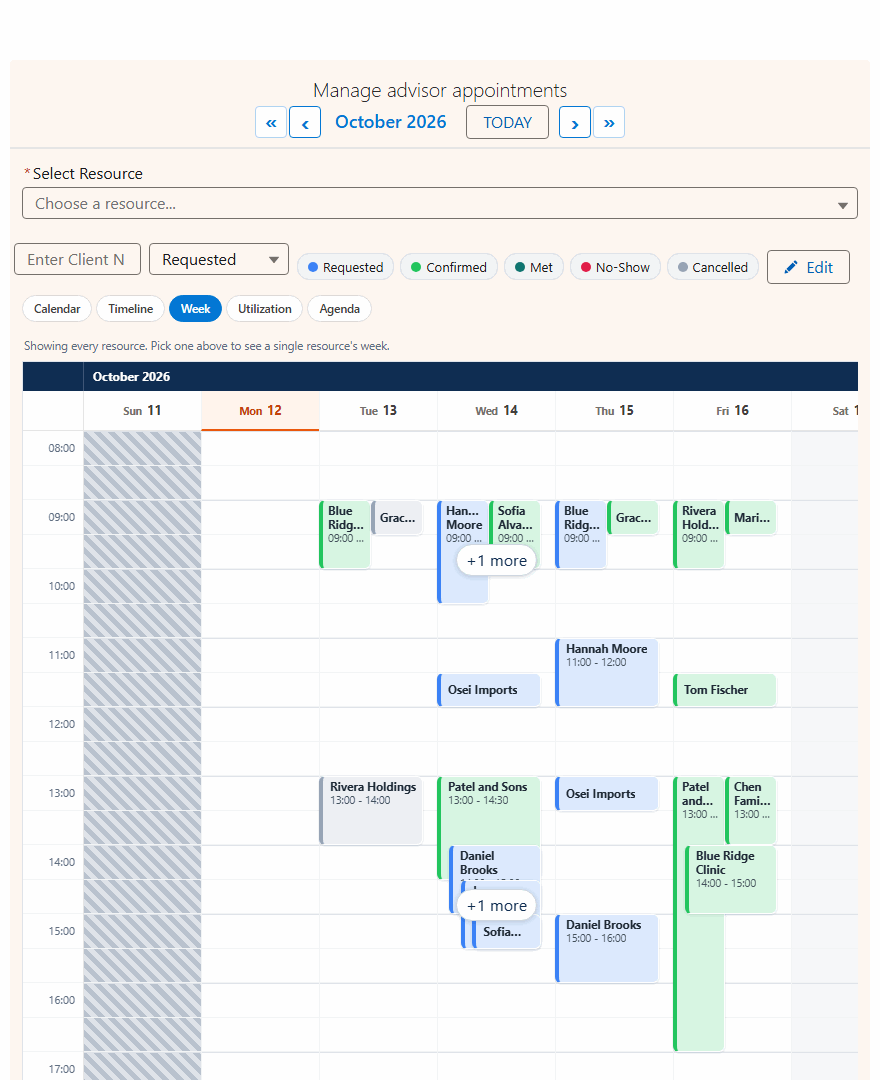
Who is over capacity?
Booked against capacity, per resource per day, on one blue scale. Overbooked days get an orange ring, and a combined row sums the team. Click any cell to drop into that resource's week. More on the utilization heatmap.
Read only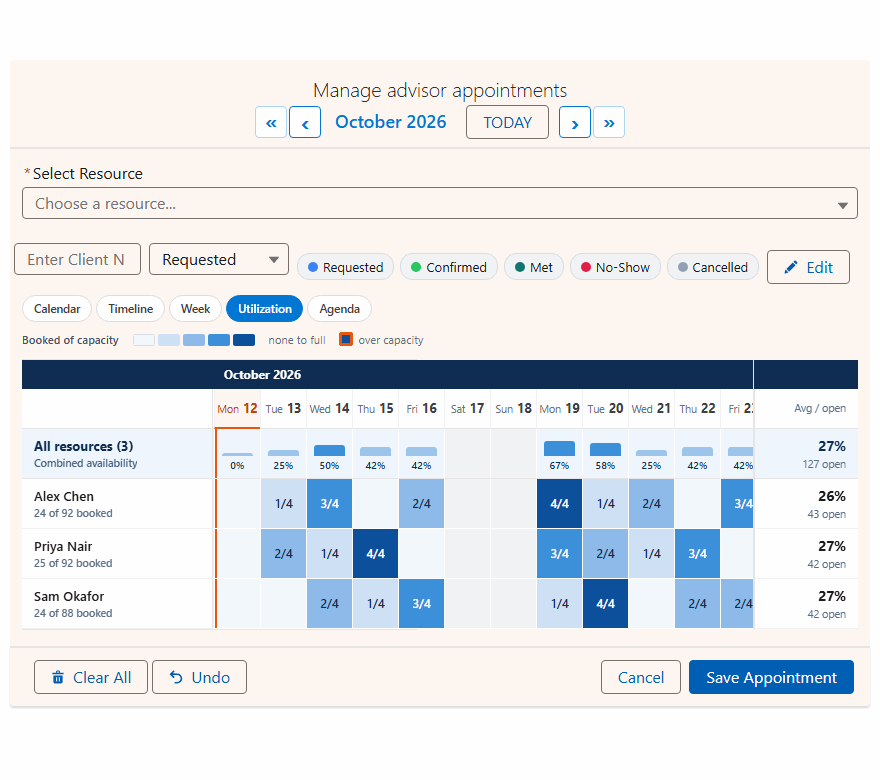
What is next?
A flat list of the next 60 days, grouped by date, with the times, statuses and fields you pick. Reads well on a phone and in a shift handover.
Read only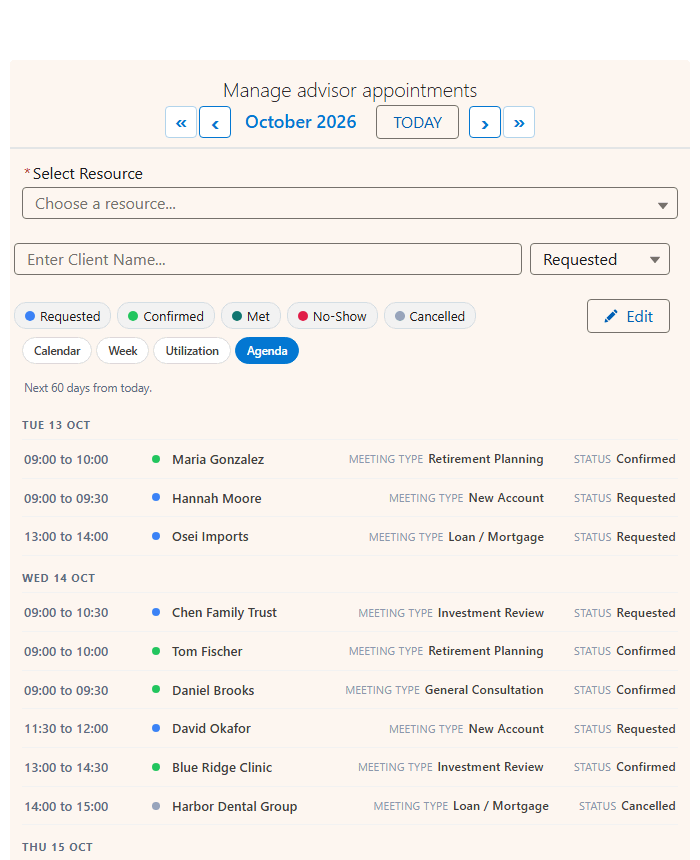
Utilization and Agenda are read only by design: they answer a question rather than take a booking. The other three are fully interactive.
Five views, one definition of a booking
The usual version of this story ends with a second component: its own fields, its own save logic, its own bugs. Here all five views read the same records through the same field mappings, honor the same conflict rules and blocked dates, and write through the same save path. Switching from Calendar to Timeline cannot change what a booking means, because there is only one definition of a booking.
Two settings control it:
View
Which layout the component opens on: Calendar, Timeline, Week, Utilization or Agenda.
Available Views
The views the switcher offers. Leave it blank to offer all five, or narrow it to the two that make sense for this page.
So one component becomes three different tools. A recruiter's Interview Scheduling page opens on Week, because interviews are a time-of-day problem. A facilities manager's Room Booking page opens on Calendar with Timeline and Utilization alongside, because rooms are a capacity problem. A wall display opens on Agenda and offers nothing writable at all.
Choose the view per placement
An org-wide calendar setting is close to useless, because one company is not asking one question. Sales wants next week. Operations wants next quarter. A shift manager wants today, by the hour. Finance wants a utilization number.
View is set on each placement of the component. Put MultiDatePick on four record pages, a Flow screen, a Home page and a public Experience Cloud site, and each can be a different view of the same objects. No second install, no field mappings to keep in sync.
Timeline has two settings of its own:
| Setting | What it does | API name |
|---|---|---|
| Timeline Window (Days) | How many days are on screen at once. Defaults to 14. A full month of columns leaves each booking about twenty pixels wide and clips every label, so the window exists to keep the view readable. Set it to 0 if you want the whole month. | timelineWindowDays |
| Max View Resources | How many resource rows to draw, busiest first. Keeps a list of eighty rooms from turning the view into a wall. | maxViewResources |
When one resource has several overlapping bookings, its row collapses to a single strip with a count, and expands on click into one lane per booking. Density becomes something the user chooses rather than something the data inflicts on them.
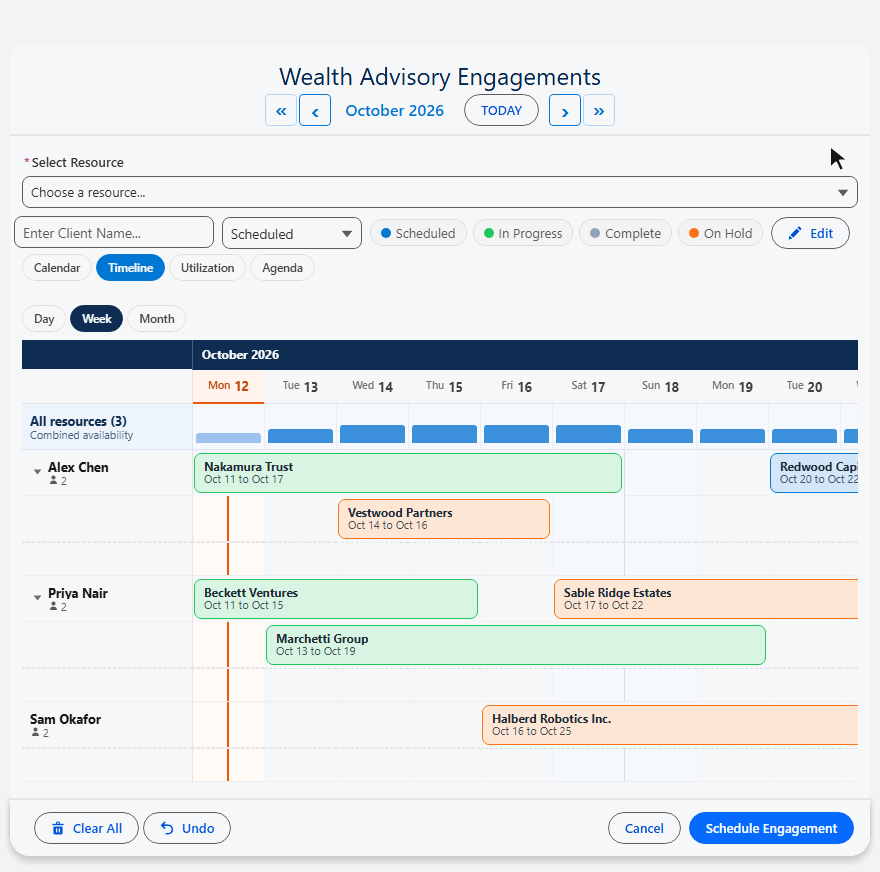
Point the resource lookup at User and it becomes people scheduling
The resource lookup points at any object. Rooms gives you room booking. Equipment gives you checkout. Point it at User and every view above becomes a staffing tool: Timeline is a roster, Week is a shift grid, Utilization is a team capacity dashboard. Managers ask "who is over capacity" about people far more often than about rooms.
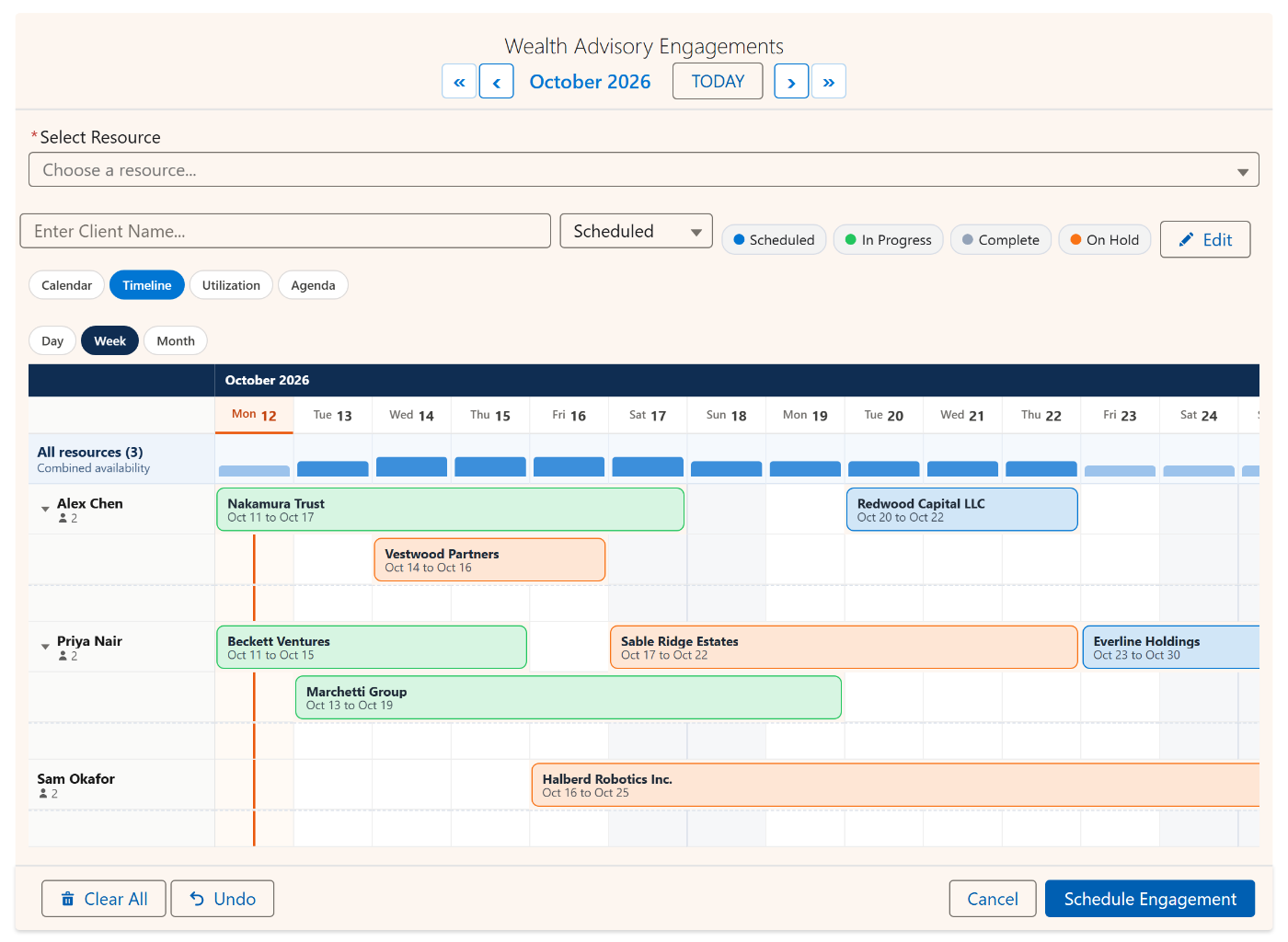
There are two ready-made configs for exactly this in the library: Team Capacity Planning, which opens on the Utilization heatmap, and Staff Shift Roster, which opens on Timeline. Both use User as the resource.
Every config in the library now ships with a view already chosen
Picking a default view is a judgment call, and it is easier to copy one than to make one. So every config in the Config Library now specifies both a default view and a switcher list, chosen for what each config is actually for:
Import any of them, remap the field names to your own schema, and the view choice comes along with it.
One component. Five views. No second install.
Switch between all five views in the live demo, or see which view each scenario opens on in the Config Library.
- $20/user/month, every feature
- 30-day free trial, no card
- 100% native Salesforce
- No Apex
- Coming soon to the Salesforce AppExchange