
The Salesforce Timeline View: Every Resource and Booking on One Screen
Rooms, people, equipment or projects down the side, dates across the top, and every booking drawn as one bar. A resource timeline for any Salesforce object, set up without code.
"Which room is free next Tuesday?" "Who on the team has capacity this week?" "When does the van come back?" Each of those is a question about many resources across many days, and a month calendar answers it one resource at a time. A timeline answers it in one look.
MultiDatePick's Timeline view puts every resource on its own row and every booking on a bar that runs exactly as long as the booking does. It reads your own Salesforce objects, saves through the same path as the rest of the component, and is one config field away from any placement.
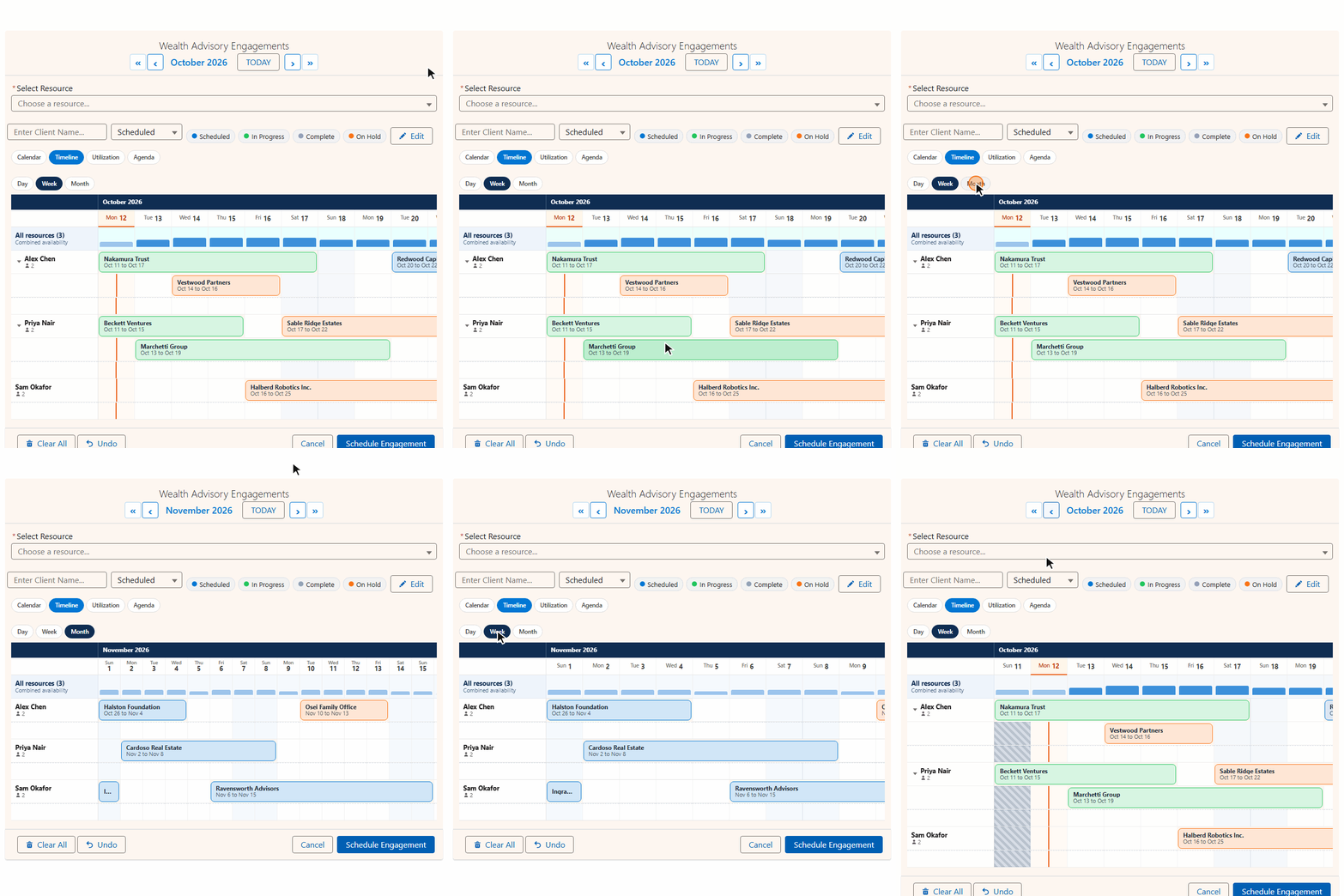
What the timeline does that a calendar cannot
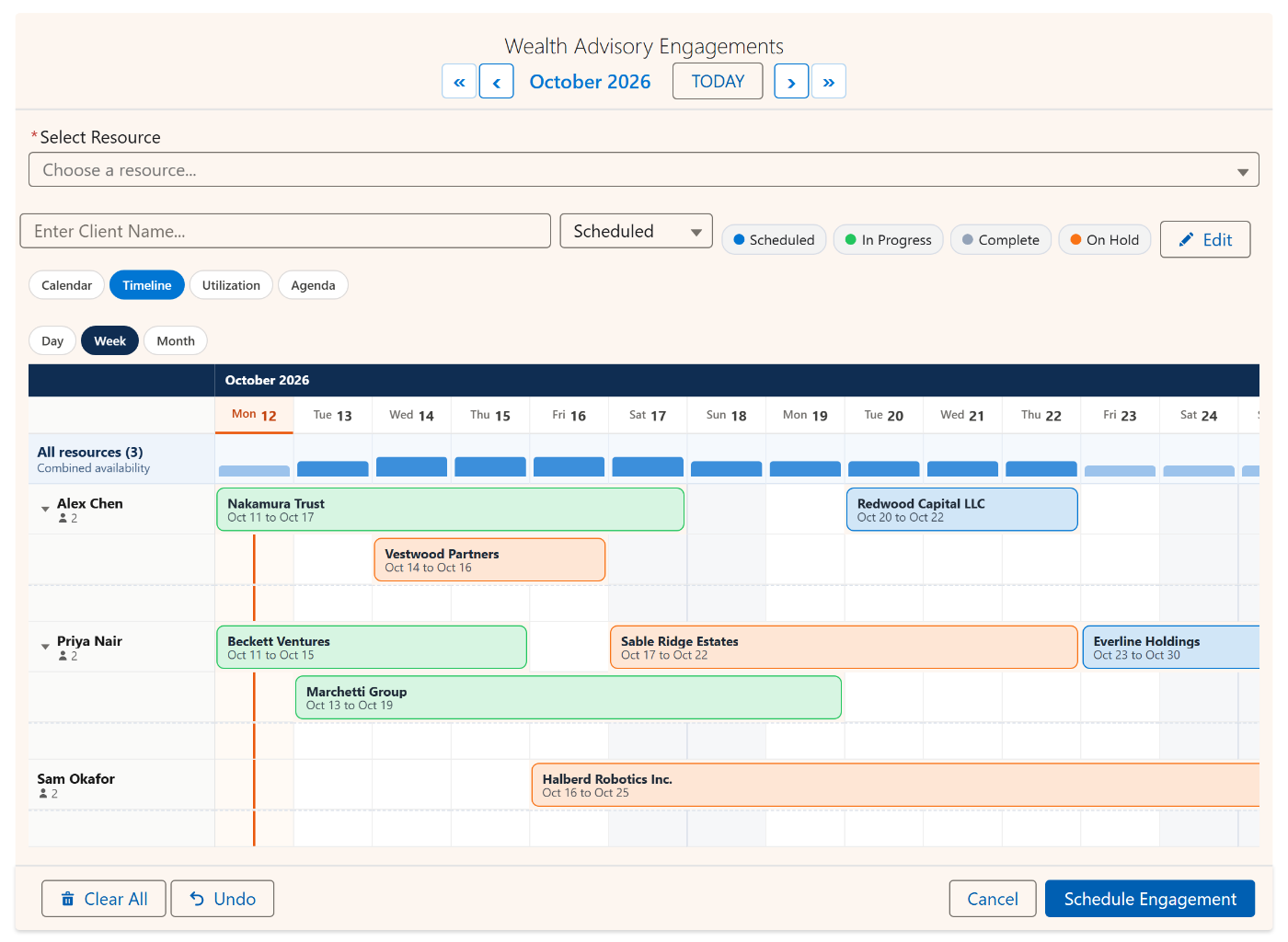
One bar per booking
A booking that runs Monday to Friday is one continuous bar, not five cells, so length is visible at a glance.
Lanes for overlaps
Overlapping bookings on a resource stack into lanes. A busy day collapses to a count you expand in place.
Capacity strip
A strip above each group shows how full every day is against the resources' combined capacity.
Day, Week and Month zoom
Hours across for today, two weeks for planning, a month for the long view. One click between them.
Drag to reschedule
Slide a bar to move it, pull an edge to stretch it. It saves on release and stays where you put it.
Book from the grid
Drag across empty days on a resource's row to select them, then book. The row picks the resource for you.
Drag to reschedule, stretch to extend
Plans change, and changing one should not mean opening a record, editing two date fields and saving. On the timeline you grab the bar. Pull its right edge and the booking runs longer; grab the middle and it slides to other days. The bar shows the dates it will land on while you drag, saves the moment you let go, and stays in its lane with a brief highlight so you can see exactly what changed.
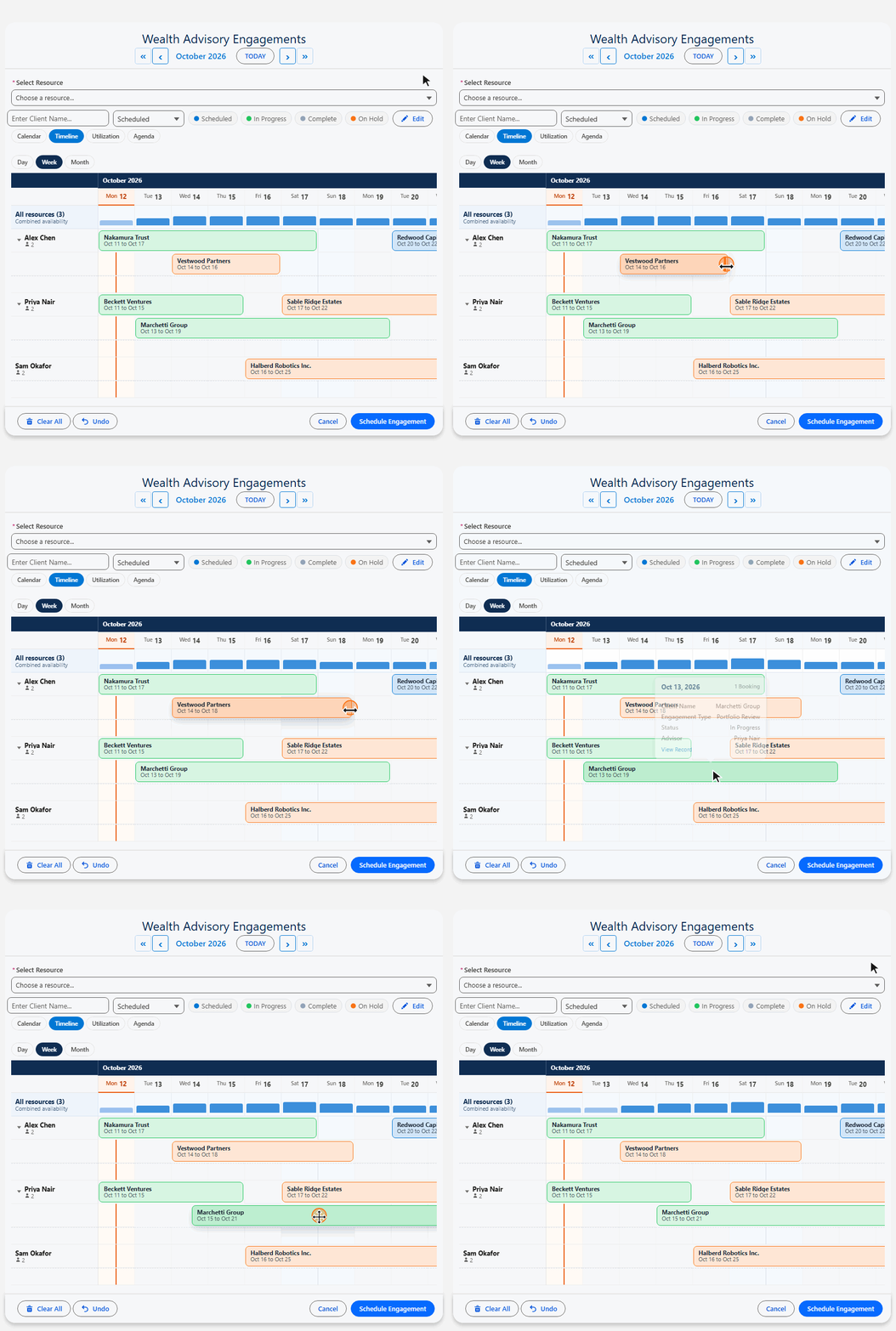
Switch to Day zoom and the columns become hours. The same gestures then move and stretch a booking's start and end times, so a meeting that runs over is one drag to fix.
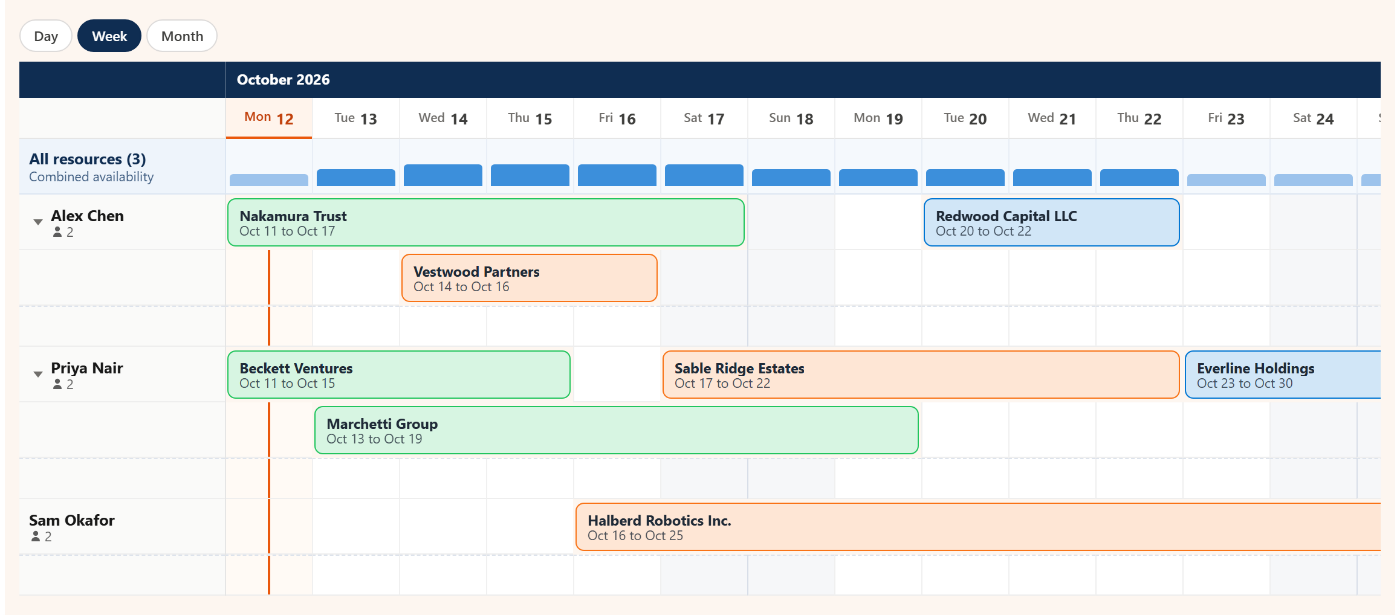
Capacity you can see, not calculate
Above the rows, a capacity strip shades every day by how much of the resources' combined capacity is booked, so the crunch weeks stand out before anyone asks. Group rows by a picklist or lookup (building, team, region) and each group gets its own strip. When one resource has several bookings on the same day, they stack into lanes; a day with more than a few collapses to a count that expands in place when you click it.
Who uses a Salesforce timeline
The resource can be any object, so the same view fits very different teams:
The settings that shape it
Every one of these is a property on the component and a field in the Setup Wizard, so nothing here needs code:
| Property | What it does |
|---|---|
| view | Set to timeline to open on it, or list it in availableViews to offer it in the switcher. |
| timelineZoom | The zoom it opens on: day (hours across), week or month. Users switch with the pills. |
| timelineWindowDays | How many days are on screen at once. Two weeks is the default; a whole month of columns gets cramped. |
| timelineGroupByField | A picklist or lookup on the resource that groups rows under collapsible headings, each with its own capacity strip. |
| maxViewResources | Draw only this many rows, busiest first. Everything still counts toward capacity. |
| resourceViewFilter | Show every resource, or only the ones with bookings in the window. |
| capacityField | A number on the resource. The capacity strip and lane count read against it. |
| enableEditMode | Turns on drag to move and stretch bookings, and bulk edits from the Edit panel. |
Questions people ask
Does Salesforce have a timeline view for resources?
Not as a standard Lightning component for your own objects. Calendars in Salesforce show one person's events, and Gantt-style charts usually mean an add-on built for projects. MultiDatePick adds a resource timeline that reads any custom or standard object: pick the object that holds bookings and the object that holds resources, and every resource becomes a row.
Can I drag bookings on the timeline to reschedule them?
Yes. With Edit Mode on, grab the middle of a bar to move it to other days or either edge to change its start or end. The bar shows its new dates while you drag and saves when you let go. In Day zoom the same gestures move and stretch the booking's start and end times.
Can the rows be people instead of rooms?
Yes. The resource can be any object, including User. Point it at User and the timeline becomes a staff roster: each person a row, their shifts, visits or assignments as bars.
How do I stop a long list of resources turning into a wall of rows?
Set Max View Resources to draw only the busiest rows, group rows under a picklist or lookup with Group Timeline By, and choose whether rows show all resources or only ones with bookings. Every resource still counts toward capacity; the settings only change what is drawn.
Does the timeline work on Experience Cloud sites and record pages?
Yes. It is one of five views in the same component, so it runs anywhere the component does: record pages, app and home pages, Flow screens and Experience Cloud sites.
A resource timeline for the objects you already have.
Browse ready-made configs for rooms, fleet, rosters and more, or try the live demo.
Browse the Config Library Try the Live DemoComing to AppExchange in 2026. One plan, every feature included.