Booking
The most advanced resource booking component for Salesforce. Book rooms, equipment, vehicles, or people across multiple dates with a visual time-slot grid, conflict detection on save, capacity tracking with live availability badges, status colors, and inline edit mode.
Overview
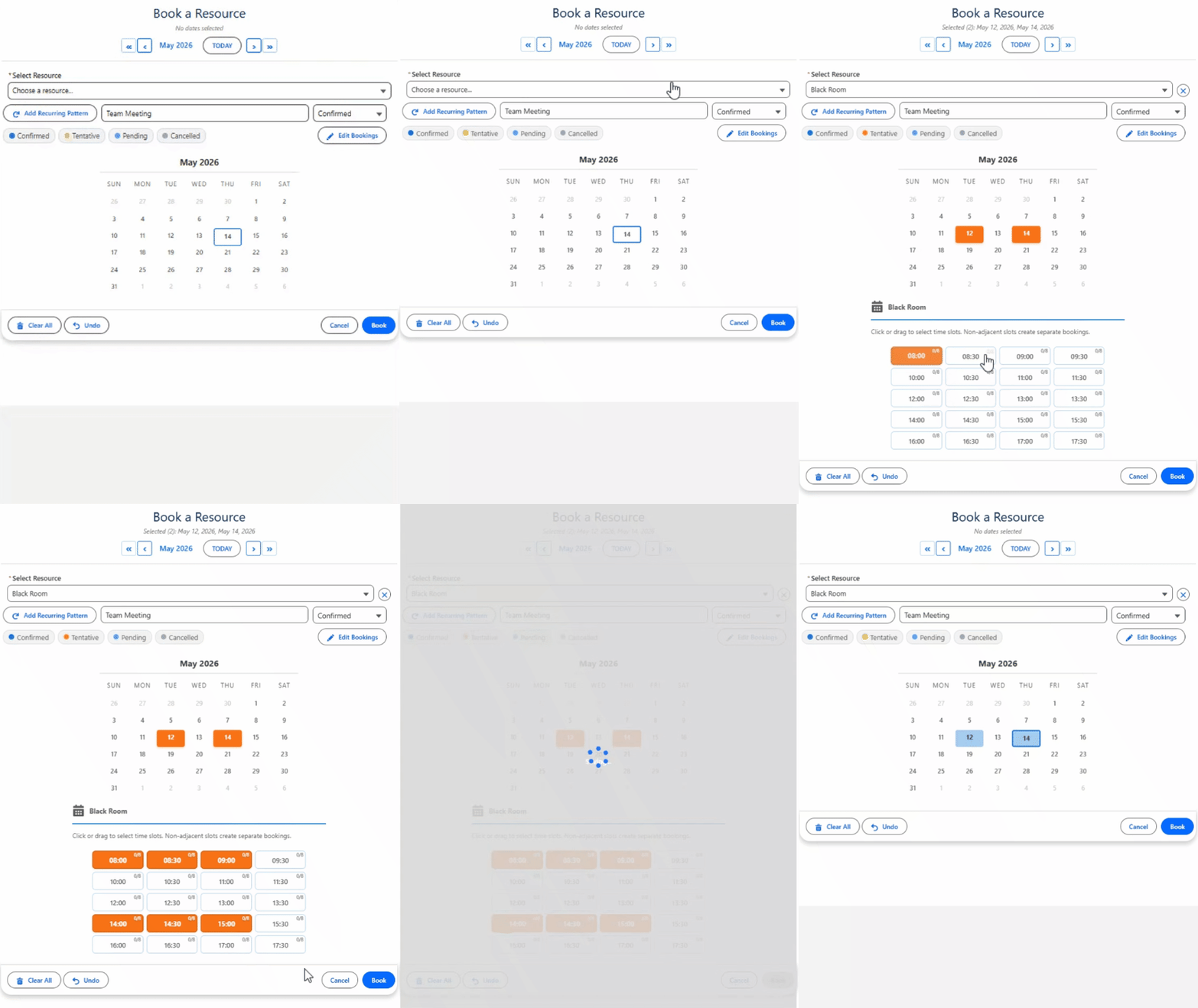
Booking is the most advanced component in the MultiDatePick suite. It combines the calendar with a resource selection panel and a visual time-slot grid. Users pick a resource (or multiple resources), select dates, and then click available time slots to create bookings. The component queries your resource object for available items, checks for existing bookings on save to detect conflicts, and creates booking records automatically.
Capacity mode supports multiple bookings per time slot — perfect for training rooms, class enrollments, and hot-desk pools. Live badges show "3/10" fill counts. Status colors distinguish bookings by any picklist values you define — Confirmed, Tentative, Cancelled, or anything else. Edit mode lets users modify, reassign, or delete existing bookings inline. Business hours are pulled from each resource record, so different resources can have different availability windows.
On This Page
Object & Field Mapping
When configuring this component on a Lightning Page or via the Setup Wizard, these are the object and field API names you'll need to provide.
lookup
Filter the resources shown in the picker by ANY field type on your resource object — including multiple fields combined
Don't show every resource record to every user. resourceFilterField + resourceFilterValue let you scope the picker to exactly the resources you want.
- Checkbox (Boolean) — value is
trueorfalse. Wizard renders a True/False dropdown. - Picklist — single or multi-value. Wizard renders a dual-listbox of the field's actual picklist entries; multiple selections are saved comma-separated and treated as
IN. - Text / Long Text — exact-match string. Use comma for multiple values (
IN). - Number — exact numeric value (or comma-separated list).
- Lookup (Id reference) — paste record Ids; comma-separated for multiple.
- Multi-field AND — semicolon-separated field names with matching value count (e.g.
Active__c;Type__c+true;Conference Room).
| Use case | Field Type | Filter Field | Filter Value |
|---|---|---|---|
| Only active resources | Boolean | Active__c | true |
| Only ground-floor rooms | Text | Floor__c | Ground Floor |
| North or South building | Picklist | Building__c | North,South |
| Capacity = 12 or 16 | Number | Capacity__c | 12,16 |
| Specific Owner record | Lookup | OwnerId | 005xx00000ABC123 |
| Two fields combined (AND) | Multi · AND | Type__c;Building__c | Conference Room;North,South |
Separators: , = OR within one field (IN clause). ; = AND across multiple fields. Field counts on each side of ; must match.
Once you pick the Resource Filter Field in the wizard, the Filter Value input switches to the right control automatically — a True/False dropdown for Booleans, a multi-select dual-listbox of real picklist values for Picklists, and a free-text input for Text / Number / Lookup or the multi-field ; form. No more guessing the right syntax.
Use Cases for Booking
The Booking component is ideal for any scenario where a shared resource needs to be reserved on specific dates and times, with conflict detection and optional capacity tracking. Here are 15 real-world use cases.
1. Conference Room Booking
Reserve conference rooms across multiple dates and time slots. The booking grid shows live room availability. businessHoursStartField and businessHoursEndField pull availability from each room record — so a boardroom open 7 AM to 7 PM and a huddle room open 8 AM to 5 PM each show their own hours. allowMultipleResources lets users compare availability across rooms.
2. Training Enrollment
Employees enroll in training sessions by selecting a course, choosing dates, and picking time slots. capacityField points to Max_Participants__c on the course record — capacity tracking shows how many seats remain per session. Status colors distinguish Enrolled, Waitlisted, and Cancelled. showAvailabilityCount displays live "3/10" badges.
3. Desk Hoteling
Employees reserve hot desks by selecting a desk resource and choosing dates with 1-hour time blocks. Capacity badges show desk availability — when a shared desk hits its limit, the slot shows as full. Status colors distinguish Reserved, Checked In, and Cancelled. twoMonthView helps employees plan hybrid schedules weeks in advance. enableEditMode lets employees modify or cancel reservations.
4. Vehicle & Fleet Reservation
Reserve company vehicles for specific dates and time ranges. The booking grid shows which vehicles are available. allowMultipleResources lets fleet managers compare availability across the entire fleet. bookingResourceField links each reservation to the vehicle. hoverFields shows vehicle details (Make, Model, License Plate) on hover.
5. Therapist & Counselor Scheduling
Clients book sessions with a specific therapist (the resource). timeInterval = 60 shows 1-hour session blocks. businessHoursStartField pulls each therapist's available hours. statusColorDisplay=grid shows which slots are Booked vs. Available. enableEditMode lets clients reschedule by moving to a new date/time.
6. Classroom & Seminar Room Allocation
Schools allocate classrooms for courses and events. capacityField tracks room capacity (e.g., 30 seats). Capacity badges show how many courses are scheduled in each slot. disableTimeSlotGrid can be turned ON for full-day bookings where time doesn't matter — just the date and the room.
7. Coworking Space Booking
Members book desks, private offices, or meeting pods. capacityField handles shared spaces (e.g., a 4-person pod shows "2/4" availability). enableEditMode lets members cancel or shorten their booking. hideBookingsWithStatus = 'Cancelled' removes cancelled bookings from the grid and capacity counts.
8. Hotel & Property Management
Property managers handle room reservations. disableTimeSlotGrid turns off time selection for full-night stays — just pick dates and the room. capacityField handles room types with multiple units (e.g., 5 Standard Kings). endDateField consolidates multi-night stays into single check-in/check-out records.
9. Field Service Technician Scheduling
Dispatchers assign jobs to technicians (the resource) across dates and time windows. allowMultipleResources lets dispatchers compare a team of 25+ techs at once. conflictBehavior = 'block' prevents double-booking a tech. resourceFilterField = 'Active__c' hides inactive techs. Capacity tracking handles techs who can do multiple jobs per slot.
10. Service Truck & Vehicle Dispatch
Match jobs to trucks based on time window and capacity. resourceFilterField = 'Vehicle_Type__c;Region__c' with paired values like 'Service Truck;North' filters trucks by type AND region. businessHoursStartField pulls each truck's shift window. capacityField caps how many stops fit in one slot.
11. Event Venue & Aquarium Space Booking
Venues with multiple event spaces (galleries, halls, tents) handle bookings per space. capacityField tracks attendee capacity. endDateField handles multi-day setups + tear-downs as one record. statusColorDisplay = 'both' shows the booking calendar AND time grid color-coded by Confirmed / Tentative Hold / Block / Move-in.
12. Photography / Recording Studio Booking
Creative resources (studios, photographers, gear) get booked by clients. timeInterval = 60 sets hourly blocks. businessHoursStartField and businessHoursEndField let each studio expose its own hours. preloadMode = 'readonly' shows existing bookings on a public community page so clients see availability before requesting.
13. Sports Field & Court Reservations
Community sports facilities — soccer fields, tennis courts, basketball courts. allowMultipleResources lets leagues book multiple courts for tournament days. capacityField tracks how many teams share a multi-court facility. maxDate blocks bookings further out than allowed (e.g., max 30 days advance).
14. Doctor & Medical Appointment Booking
Patient-facing booking on a community / portal page — pick doctor, date, and 15-minute slot. resourceFilterField = 'Specialty__c' lets the page filter doctors by the specialty selected. timeInterval = 15 for granular slots. Pair with FLS-restricted user (community) to keep patients in their own record scope.
15. EV Charging Bay Reservations
Reserve charging stations for fleet electric vehicles. Each bay is a resource. businessHoursStartField handles bays restricted to certain hours. capacityAggregation = 'Combined' when bookings are flexible across bays; 'Distinct' when each car uses one specific bay. hoverFields shows charging speed (Level 2, DC Fast) on hover so users pick the right bay.
Specifications
At-a-glance facts about the Booking component for evaluators, architects, and admins.
| Supported Salesforce editions | Enterprise, Unlimited, Performance, and Developer |
|---|---|
| Salesforce API version | 63.0 |
| Supported surfaces | Screen Flow, Lightning Record Page, Lightning App Page, Lightning Home Page, Experience Site |
| Languages | 9 — English, Spanish, French, German, Italian, Japanese, Hindi, Brazilian Portuguese, Chinese Simplified |
| Time-slot intervals | Configurable — any minute interval (15 / 30 / 60 typical) |
| Time Grid Only mode | timeGridOnly hides the calendar and shows just the time grid for a single implied date (from timeGridDate, timeGridDateField, or today) |
| Resource selection | Single-resource dropdown or multi-resource checkboxes (allowMultipleResources); resource filter via resourceFilterField + resourceFilterValue with , (OR/IN) and ; (AND) separators |
| Capacity & conflicts | Live X/Y capacity badges per slot; capacityAggregation Combined or Distinct; bulk conflict-check on save; conflictBehavior block, skip, or allow over conflictLookAheadDays window |
| Configurable properties | 60+ — including status colors, hover popover fields, inline edit mode, business hours per resource, and hideBookingsWithStatus to exclude cancellations from grid and capacity counts |
| Setup | No-code Setup Wizard, Lightning App Builder, or Flow Builder |
Lightning Page Setup
What You Need First
The Booking component requires two objects: a Resource object (what gets booked) and a Booking object (where reservations are stored).
Resource Object (e.g. Meeting_Room__c):
| Field | Type | Purpose |
|---|---|---|
Name | Text (standard) | Display name shown in the resource dropdown |
Business_Hours_Start__c | Time | When the resource becomes available each day |
Business_Hours_End__c | Time | When the resource stops being available |
Capacity__c | Number | Optional — max bookings per time slot (for capacity mode) |
Active__c (or any field) | Any | Optional — any field you want to use as a filter to limit which resources appear in the picker. Set resourceFilterField to the field API name and resourceFilterValue to the desired value(s). Supports Checkbox, Picklist, Text, Number, and Lookup. See the resource filter section above for full syntax. |
Booking Object (e.g. Room_Booking__c):
| Field | Type | Purpose |
|---|---|---|
Booking_Date__c | Date | The date of the reservation |
End_Date__c | Date | Optional — stores the end date when adjacent dates are consolidated into one record |
Start_Time__c | Time | When the booking starts |
End_Time__c | Time | When the booking ends |
Meeting_Room__c | Lookup (to Resource) | Which resource is booked |
Contact__c | Lookup (to Parent) | Links to the parent record |
Status__c | Picklist | Optional — for status color coding |
recordId is passed automatically on Record Pages. For App Pages, Home Pages, or Experience Sites, use staticRecordId. Create a few resource records so the dropdown has items to show.Drop It In
Drag the Booking component onto your page in App Builder and configure:
Resource Object Settings
resourceObjectApiName— the resource object, e.g.Meeting_Room__cresourceNameField— display name field, usuallyNamebusinessHoursStartField— e.g.Business_Hours_Start__cbusinessHoursEndField— e.g.Business_Hours_End__ccapacityField— optional capacity field, e.g.Capacity__ccapacityAggregation— picklist:Combined(default) orDistinct. Controls how X/Y occupancy is computed when multiple resources are selected. Combined sums bookings AND capacities across resources — best when each resource is independent inventory (4 records across 4 rooms with capacity 5 each = 4/20). Distinct counts the MAX bookings on any single resource and uses the MAX single-resource capacity — so the same event booked across multiple resources counts as ONE (4 records across 4 rooms = 1/5), while multiple bookings on one resource still count separately (3 bookings on one room = 3). Best when one logical event spans multiple resources simultaneously. Recommended pairing: useconflictBehavior = 'block'with Distinct so the event only commits when all of its resources are free —skipwould partially book it (run the event in only the open resources).allowMultipleResources— ON to let users book multiple resources at onceresourceFilterField— optional. API name of a field on the resource object used to limit which resources appear in the picker. Pair withresourceFilterValue. Supported field types: Checkbox (Boolean), Picklist, Text, Long Text, Number, and Lookup. Use;to combine multiple fields (AND). Examples:Active__c,Type__c;Building__cresourceFilterValue— optional. Value(s) the filter field must equal.,between values within ONE field = OR (IN clause);;between values = AND across multiple fields. Booleans usetrue/false. Examples:true,Conference Room,North,South,Conference Room;North,South(Type = Conference Room AND Building IN North or South). The Setup Wizard auto-renders the matching control for the picked field — True/False dropdown for Booleans, dual-listbox for Picklists, free text for the rest.
Booking Object Settings
resourceBookingObject— the booking object, e.g.Room_Booking__cbookingDateField— the Date field, e.g.Booking_Date__cbookingStartTimeField— e.g.Start_Time__cbookingEndTimeField— e.g.End_Time__cbookingResourceField— lookup to the resource, e.g.Meeting_Room__crelationshipFieldApiName— lookup to the parent, e.g.Contact__c
Or use the Setup Wizard:
configName— e.g.Training_EnrollmentorDesk_Hoteling
What Comes Out
Summary View After Save
By default the booking UI stays expanded after Book. To collapse it into a small summary card after the user books (and let them click to re-expand), set both:
| Property | Value | Effect |
|---|---|---|
showInline | true | Renders the booking UI inline on the page instead of a popup modal. |
showDoneButtonInline | true | Shows a Done button that collapses the booking UI to a summary card listing the booked slots. Click the card to re-expand. |
Useful on record pages where the booking widget should step out of the way once a reservation has been made.
Flow Setup
What You Need First
Same two objects as the Record Page section above (Resource + Booking). Create these Flow variables:
| Variable Name | Type | Collection? | Notes |
|---|---|---|---|
{!bookingSuccessCount} | Number | No | How many booking records were successfully created |
{!bookingConflictDates} | Text | Yes | Dates where bookings failed due to conflicts |
Drop It In
Add a Screen element in Flow Builder, drag the Booking component onto it, and configure the same Resource and Booking Object settings as above, plus:
bookingSuccessCount(Output) — wire to{!bookingSuccessCount}bookingConflictDates(Output) — wire to{!bookingConflictDates}
What Comes Out
{!bookingSuccessCount} to show a confirmation message like "Successfully booked 3 time slots." Use {!bookingConflictDates} in a Decision element to notify the user about dates that couldn't be booked.All Properties Reference
Configuration
| Property | Type | Default | Description |
|---|---|---|---|
configName | String | — | Name of a saved Config Custom Metadata record. Loads all settings from that record. |
Display Properties
Shared display properties (inherited from the base, also documented on the Date page; on Booking the label and modalTitle defaults are "Book Resource"):
| Property | Type | Default | Description |
|---|---|---|---|
label | String | Select Dates | Text shown on the button that opens the date picker. |
modalTitle | String | Select Dates | Title displayed at the top of the calendar modal. |
showInline | Boolean | false | When ON, the calendar is always visible without needing to click a button. |
twoMonthView | Boolean | false | When ON, shows two months side-by-side for wider date range visibility. |
calendarSize | String | medium | Controls calendar size: small, medium, or large. |
dayHeaderFormat | String | 3 | Day header length: 3 = SUN MON TUE, 2 = SU MO TU, 1 = S M T. |
weekStartsOnMonday | Boolean | false | When ON, the calendar week begins on Monday instead of Sunday. |
showRecurringPattern | Boolean | true | When ON, shows the "Add Recurring Pattern" button with day selection, week intervals, and monthly occurrence filters. |
showSelectedSummary | Boolean | true | When ON, displays a summary showing how many dates are selected and their date ranges. |
showDoneButtonInline | Boolean | true | When ON, shows a Done button that collapses the calendar to a summary view. |
required | Boolean | false | When ON, at least one date must be selected before the Flow can advance. |
Resource Configuration
| Property | Type | Default | Description |
|---|---|---|---|
resourceObjectApiName | String | — | API name of the object storing your bookable resources (e.g. Meeting_Room__c). |
resourceNameField | String | Name | Field containing the resource's display name. |
businessHoursStartField | String | — | Time field defining when the resource becomes available each day. |
businessHoursEndField | String | — | Time field defining when the resource stops being available. |
capacityField | String | — | Number field on the resource defining max concurrent bookings per time slot. When set, enables capacity mode with live "3/10" badges. |
allowMultipleResources | Boolean | false | When ON, users can select and book multiple resources at once. |
showAvailabilityCount | Boolean | true | When ON with capacityField, shows live availability badges on time slots. |
Booking Record Configuration
| Property | Type | Default | Description |
|---|---|---|---|
resourceBookingObject | String | — | API name of the object where booking records are created. |
bookingDateField | String | — | Date field on the booking object. |
bookingResourceField | String | — | Lookup field pointing to the resource being booked. |
bookingStartTimeField | String | — | Time field for the booking start time. |
bookingEndTimeField | String | — | Time field for the booking end time. |
relationshipFieldApiName | String | — | Lookup field linking each booking to the parent record. |
resourceBookButtonLabel | String | Book | Custom label for the Book button, e.g. "Reserve" or "Schedule". |
Time Slot Configuration
| Property | Type | Default | Description |
|---|---|---|---|
timeInterval | Integer | 30 | Size of each bookable time slot in minutes (any integer; 15, 30, 60 typical). |
disableTimeSlotGrid | Boolean | false | When ON, hides the time grid entirely — bookings are date-only (useful for full-day reservations like hotel rooms). |
allowDifferentTimes | Boolean | false | When ON, each date gets its own time slot grid instead of sharing one. |
groupTimeSlotsByPeriod | Boolean | false | When ON, groups time slots into Morning, Afternoon, and Evening sections. |
Time Grid Only Mode
When the host record already implies the date, you can hide the calendar entirely and show only the time-slot grid for that single implied date. Users pick their slots and the bookings auto-save to the host record (the same record-page click-to-save behavior). Use it on a record that is a specific day — for example an Event or Day record, or a record whose date lives in a field.
| Property | Type | Default | Description |
|---|---|---|---|
timeGridOnly | Boolean | false | When ON, the calendar is hidden and only the time-slot grid is shown, for a single implied date. The user picks slots and bookings save to the host record. |
timeGridDate | String | — | Optional explicit ISO date (YYYY-MM-DD) to use as the implied date for the grid. |
timeGridDateField | String | — | Optional API name of a Date field on the host record to read the implied date from. |
Implied-date priority: timeGridDate (explicit) → timeGridDateField (host-record field) → today (fallback). Configurable via the Setup Wizard (Step 3), Lightning App Builder, or Flow.
Conflict Detection
| Property | Type | Default | Description |
|---|---|---|---|
conflictLookAheadDays | Integer | 360 | Days ahead to scan for both availability badges (e.g. "3/5 days available") and booking conflicts on save. One setting controls both windows. Reduce for performance on high-volume booking objects. |
conflictBehavior | String | block | block (default) — conflicting slots are unclickable. skip — for batch / multi-date selection: the user picks many dates/slots at once and the component saves the open ones, skipping the taken ones. Before saving, an inline banner names the exact dates that will be skipped; after saving, the success message lists what was skipped (also returned in bookingConflictDates). Best for "grab whatever's still open" across many dates. (For a single date, block already prevents picking a taken slot, so skip's value is the multi-date batch case.) allow — no conflict checking; overlap permitted. |
Status & Visual Properties
| Property | Type | Default | Description |
|---|---|---|---|
statusField | String | — | API name of a status field on the booking object for color coding. |
showSuccessToast | Boolean | false | Draw a success/error toast inside the component. Needed on Experience sites, where the standard Salesforce toast does not appear; also works on record pages (replaces the standard toast). |
successToastMessage | String | — | Optional custom message shown on a successful save. Leave blank to use the default message. |
allowWholeDayNoTimes | Boolean | false | A date selected with no time slots saves as a whole-day record (blocks or books the entire day). Dates where you pick slots still save as timed records. |
statusColors | String | — | Comma-separated mapping: Confirmed:green,Pending:orange,Cancelled:red. |
statusColorDisplay | String | both | Where status colors appear: grid (time slots only), calendar (date cells only), or both. |
hideBookingsWithStatus | String | — | Records with this status are hidden from the grid AND excluded from capacity counts. E.g. Cancelled. |
statusFieldLabel | String | — | Custom display label for the status field in edit mode. |
secondStatusField | String | — | Optional second picklist the user chooses on save (e.g. Reason__c), alongside statusField. Use it when records need two categorizations (e.g. a lifecycle status and a reason/type). It is not color-coded — statusField owns the calendar colors. Add it to hoverFields to show it in the tooltip and edit list. Works in Flow, App Builder, and Experience sites. |
secondStatusFieldLabel | String | — | Custom label for the second picklist dropdown. If blank, auto-generated from the field API name. |
selectableSecondStatuses | String | — | Comma-separated whitelist of values the second picklist may set. Leave blank to allow all. When exactly one value is listed it is auto-applied and the picker is hidden. |
hoverFields | String | — | Comma-separated field API names for tooltip on hover over booked slots. |
Edit Mode Properties
Edit Mode opens a panel below the calendar where users can click dates to load their booking records, then bulk-update status, move to a new date, change times, or reassign a resource — all in a single Apply Changes click. The capacity-aware conflict check blocks moves that won't fit; reassign uses the same conflict detection as the booking flow. Two-click confirm protects deletes.
| Property | Type | Default | Description |
|---|---|---|---|
enableEditMode | Boolean | true | When ON, an Edit Bookings button appears next to the calendar. Clicking it reveals the bulk edit panel. |
editButtonLabel | String | Edit Bookings | Custom label for the Edit Bookings button. |
editRecordDisplay | String | name, status, time, resource | Comma-separated keywords that set which details show for each record in the Edit Mode list, and in what order. Valid keywords: name, status, time, date, resource — rendered left-to-right in the order you list them, so time, name, status leads each row with the time. Defaults to name, status, time, resource for Booking. time and resource only carry data in the time-based and booking components; unrecognized keywords are ignored, so use only those five. |
Record Name Properties
| Property | Type | Default | Description |
|---|---|---|---|
recordNameField | String | — | Text field on the booking object for a descriptive record name. |
defaultRecordName | String | — | Default record name, e.g. "Room Booking". |
appendDateTimeToName | Boolean | true | When ON, appends date and time to the record name. |
Constraint Properties
Shared from Date: maxSelections, allowPastDates (default: false), minDate, maxDate, disabledDates, defaultDates, availableDates, autoJumpToFirstAvailable.
Click-to-Save Properties
| Property | Type | Default | Description |
|---|---|---|---|
saveButtonLabel | String | Save | Text on the save button. |
preloadExistingDates | Boolean | true | When ON, queries and displays existing booking records on the time grid. |
preloadMode | String | editable | editable or readonly. |
staticRecordId | String | — | Hardcoded parent record ID for App Pages, Home Pages, and Experience Sites. |
parentRecordIdField | String | — | Alternative parent record linking field. |
endDateField | String | — | End Date field for consolidating adjacent date selections into ranges. |
blockedDatesSourceObject | String | — | Object to query for blocked/unavailable dates. |
blockedDatesDateField | String | — | Date field on the blocked dates object. |
blockedDatesFilterField | String | — | Optional filter field on the blocked dates object. |
Sub-Block Properties (Consolidate Time Span)
When consolidateTimeSpan is ON, the whole selection collapses into a single parent booking spanning the first slot through the last. Gaps between selected slots become child records on the sub-block object. Use for trainer day-bookings, vehicle reservations with travel time, or shifts with mandated breaks — situations where the resource stays held through the gap. Do not enable for conference-room-style use cases where the room should release between meetings.
| Property | Type | Default | Description |
|---|---|---|---|
consolidateTimeSpan | Boolean | false | Master toggle. When ON, all selected slots collapse into one parent booking; gaps save as sub-block child records. |
subBlockObjectApiName | String | — | API name of the child object that stores sub-block records (e.g. Sub_Block__c). |
subBlockParentLookupField | String | — | Lookup field on the sub-block object pointing back to the parent booking. |
subBlockDateField | String | — | Date field on the sub-block object. |
subBlockStartTimeField | String | — | Start Time field on the sub-block object. |
subBlockEndTimeField | String | — | End Time field on the sub-block object. |
subBlockNameField | String | — | Optional Name field on the sub-block object — populated with the value of subBlockModeButtonLabel for every sub-block created. |
subBlockModeButtonLabel | String | — | Optional label for a manual "Mark as Sub-Block" toggle. Example: Mark as Break, Mark as Travel. |
showSubBlockButton | Boolean | false | Shows the manual toggle in the time grid header. Requires subBlockModeButtonLabel. |
Output Properties (Read-Only)
| Property | Type | Description |
|---|---|---|
bookingSuccessCount | Integer | Number of booking records successfully created. |
bookingConflictDates | String[] | Dates where bookings could not be created due to conflicts. |