
Salesforce Add to Calendar: Send Bookings Straight to Outlook, Google and Apple Calendar
A booking saved in Salesforce is only half done until it is in the person's own calendar. Add to Calendar finishes the job: one click after Save, and the appointment is in Outlook, Google or Apple Calendar.
"Can Salesforce send the booking to my Outlook?" "How do customers get the appointment into Google Calendar?" "Why do people forget meetings they booked themselves?" The booking is safe in Salesforce, but sometimes the person's day lives in their own calendar, and nothing carries it across.
MultiDatePick closes that gap. Turn on Show Add to Calendar After Saving and every successful save offers an Add to Calendar button. One click downloads a calendar file with an event for each record just saved: the right date and time, the room or person, the status. It works on record pages, app pages, Screen Flows and public Experience Cloud booking pages.
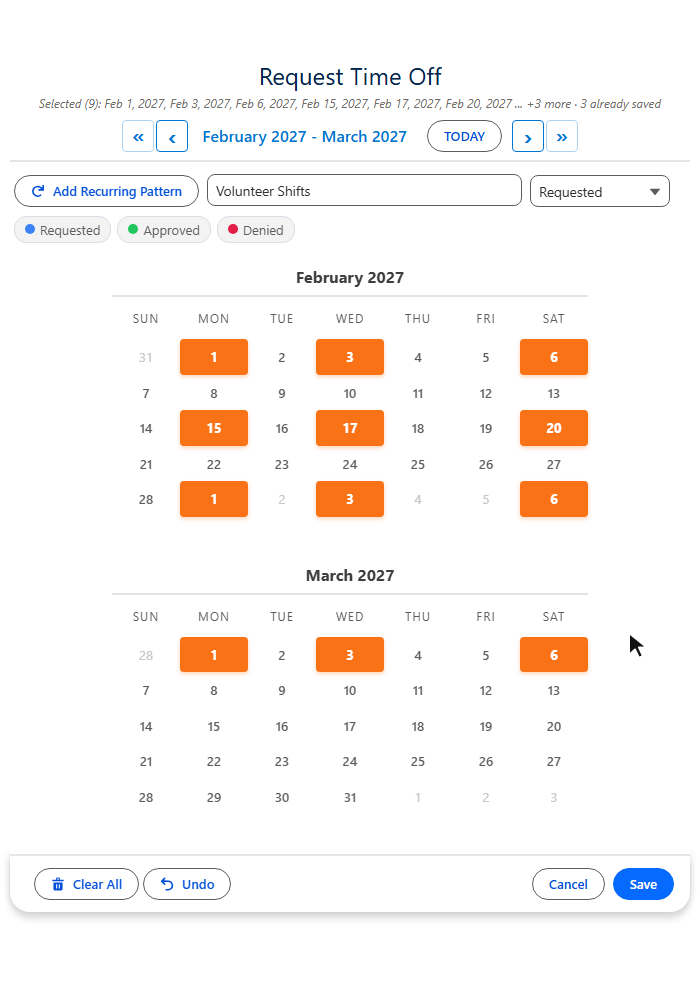
That is the recording above. A Custom Days pattern picks Monday, Wednesday and Saturday every other week from February 1 to March 6, one Save creates 9 time-off records, and the file that downloads holds 9 all-day events, one for each date. A month of leave, a semester of sessions or a season of shifts lands in the calendar in one click, not one per date.
What Add to Calendar gives the person who booked
One file for everything saved
Book five dates or twenty slots in one save and the file holds an event for each, so one click adds them all.
The right times
Timed bookings keep their start and end. Date-only records, such as time off, arrive as all-day events.
Where and what
The resource becomes the event's location and the status its description, so a room or advisor shows up in the invite.
Built for guests too
The file is made in the browser, so public Experience Cloud booking pages get it with no extra access.
Nothing to install
No connected app, no OAuth, no callouts. Your data stays in Salesforce until the person downloads their own file.
Every calendar
A standard .ics file opens in Outlook, Google Calendar and Apple Calendar. One booking can also go straight to Google.
Why a calendar file, and not a calendar sync
Syncing Salesforce with Outlook or Google means a connected app, OAuth consent for every user, and data flowing out of your org to a third party, which is exactly what a security review asks about. A calendar file needs none of that. The event is built in the browser from the booking just saved, and nothing leaves Salesforce until the person downloads it. MultiDatePick stays 100% native.
The trade-off is fair and simple: it is a one-time file, not a live link. If a booking moves later, the person downloads a new file. Each event carries the Salesforce record Id as its unique ID, so calendars that match on ID treat the new file as the same booking instead of a duplicate.
What goes into each calendar event
| Calendar field | Filled from Salesforce |
|---|---|
| Event title | The record name, or the calendar title when the record has none |
| Start and end | The saved date and times. Date-only records become all-day events; a range becomes one event across it |
| Location | The resource: the room, advisor, vehicle or desk |
| Description | The status, such as Requested or Confirmed |
| Unique ID | The Salesforce record Id, so a calendar knows a re-download is the same booking |
Times land as the wall-clock times that were booked, so a 10:00 consultation shows at 10:00.
Turn it on in two minutes
- Open the component or config. In Lightning App Builder, Experience Builder or a Flow screen, select the MultiDatePick component. Or edit the config in the Setup Wizard.
- Check Show Add to Calendar After Saving. It is off by default, so nothing changes until you choose it.
- On a public site, also check Show In-Component Toast so guests see the save confirmation and the button together. The Experience Cloud booking guide covers the rest of a guest page.
- Save and book something. The Add to Calendar bar appears under the confirmation and stays until it is closed or the next save.
Where teams use it
Questions people ask
Does Salesforce have an Add to Calendar button for bookings?
Not for records on your own objects. Salesforce Events can sync to Outlook or Google through Einstein Activity Capture, but a booking saved as a custom record has no way to reach the person's own calendar. MultiDatePick adds an Add to Calendar button that appears after every save and hands the person a calendar file for exactly what they booked.
Does it work with Outlook, Google Calendar and Apple Calendar?
Yes. The button downloads a standard .ics calendar file, the format every major calendar opens: Outlook on Windows and Mac, Google Calendar, Apple Calendar on Mac, iPhone and iPad, and most others. When a browser cannot create the file, a single booking gets an Add to Google Calendar link instead.
Does it work for Experience Cloud guests on a public booking page?
Yes. The file is built in the visitor's browser, so a guest who books from a public Experience Cloud page gets the same Add to Calendar button as a signed-in user. Nothing about the guest's access changes.
If the booking changes later, does the calendar event update?
No. Add to Calendar hands over a one-time file, not a live sync, so a booking that moves later needs a fresh file. Each event carries the Salesforce record Id as its unique ID, so a calendar that supports updates by ID recognizes the new file as the same booking rather than a second one.
Does any data leave Salesforce?
Only the file the person chooses to download. There is no connected app, no outbound callout and no third-party calendar service; MultiDatePick stays 100% native. The file holds the booking's name, date, times, resource and status, and nothing else.
Do I need Apex or a developer to turn it on?
No. It is one checkbox, Show Add to Calendar After Saving, on the component in Lightning App Builder, Experience Builder or a Flow screen, or on the config in the Setup Wizard.
Book it in Salesforce. Keep it in their calendar.
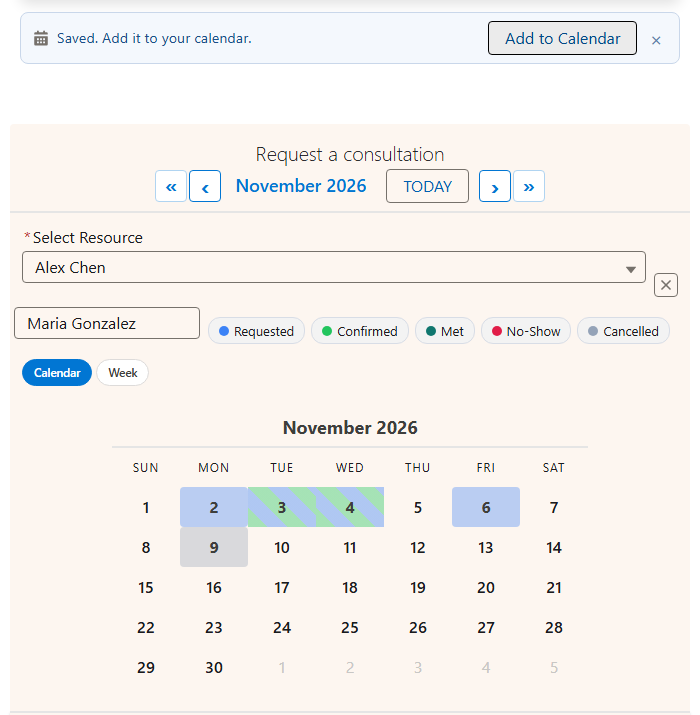
Request a consultation in the live demo and add it to your own calendar, or start from a ready-made booking config in the Config Library.
- $20/user/month, every feature
- 30-day free trial, no card
- 100% native Salesforce
- No Apex
- Coming soon to the Salesforce AppExchange