Salesforce Flow Loops: Create a Record for Every Date or Shift
One screen, many records. The loop pattern every Screen Flow builder needs, with three starter flows to copy: shifts, days off and date ranges.
A recruiter needs to add twelve shifts to a job. A manager approves a week off. An event planner books a three-day workshop and a follow-up day. Each one is a single decision on a single screen, and each one should become several records.
Screen Flow has no element that says "create one record per date". You build it from three standard pieces: a loop, an assignment and one save. This post walks through that pattern and gives you three working flows built on it.
The pattern comes from a recruiting build on TalentRover, where recruiters had to add a run of shifts to a job. Entering them one record at a time took longer than the scheduling itself. Picking the days and hours once and letting a loop write the shifts fixed that, and it works the same for any object.
The pattern in five elements
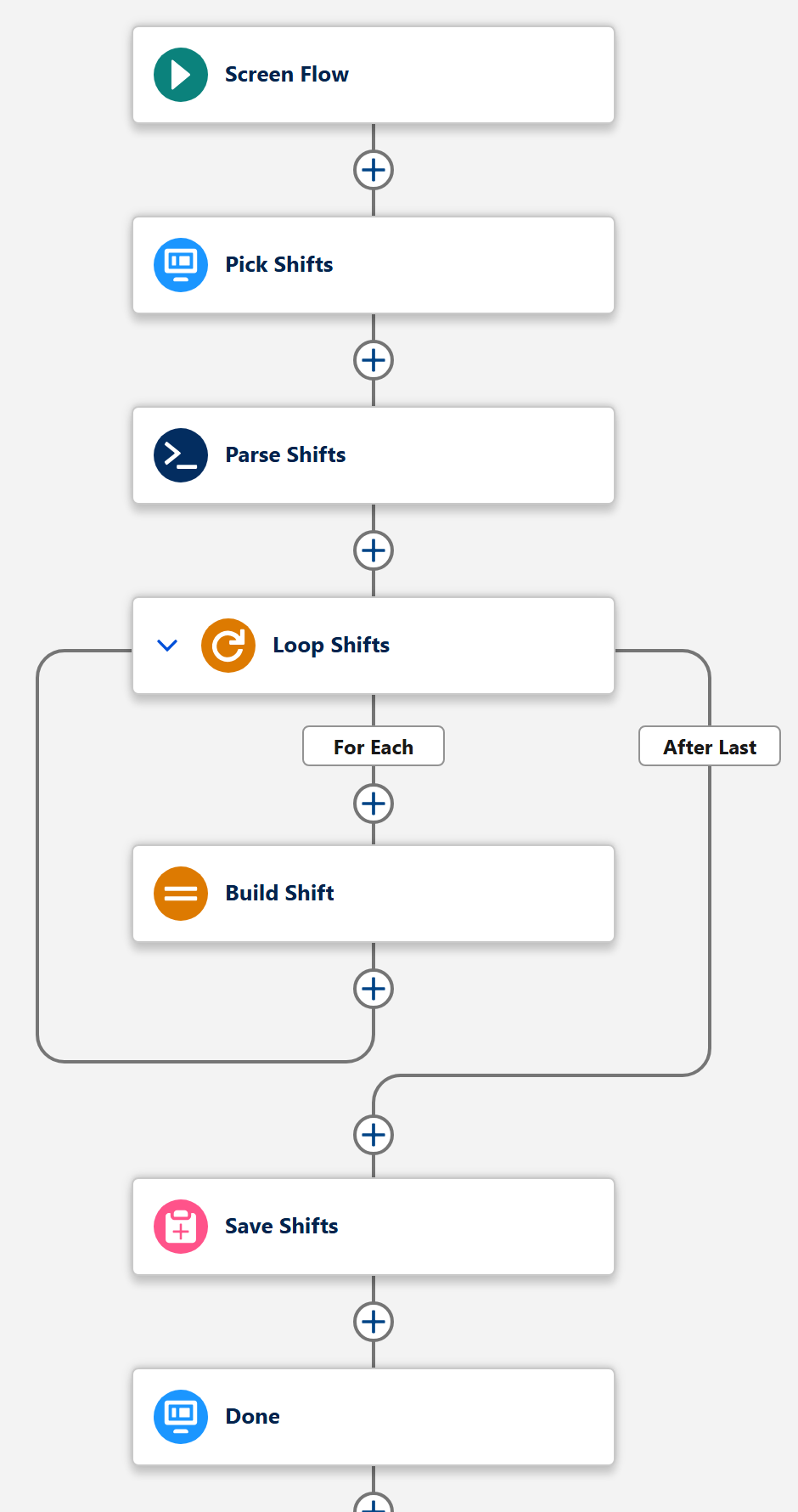
- Screen. A MultiDatePick calendar where the user picks every date, and times if you need them, at once.
- Parse. The
Parse Date Entries from JSONaction turns the picks into a list Flow can loop through. - Loop. A Loop element walks the list, one entry at a time.
- Assignment. Inside the loop: copy the entry's date and times onto a record variable, then add that record to a record collection.
- Create Records. After the loop, one Create Records saves the whole collection.
Why the save goes after the loop
It is tempting to drop a Create Records inside the loop: one pass, one record. It works for three dates and breaks for thirty. Every Create Records is a separate database save, and Salesforce allows 150 of them in a transaction, shared with every trigger and flow those saves set off. A save inside the loop spends one per date.
Building a collection and saving it once spends one save in total, whatever the user picked. It is also faster, and it either saves everything or nothing, so a failure never leaves half the shifts behind.
| Create Records inside the loop | Collection, saved after the loop | |
|---|---|---|
| Saves for 30 dates | 30 | 1 |
| Limit risk | Grows with every date picked | None from the loop |
| On an error | Some records saved, some not | All or nothing |
Use case: add shifts to a job
The recruiter opens the flow from the job, picks the shift days on the calendar and the hours on the time grid, and clicks Next. The flow writes one shift per day, linked to the job.
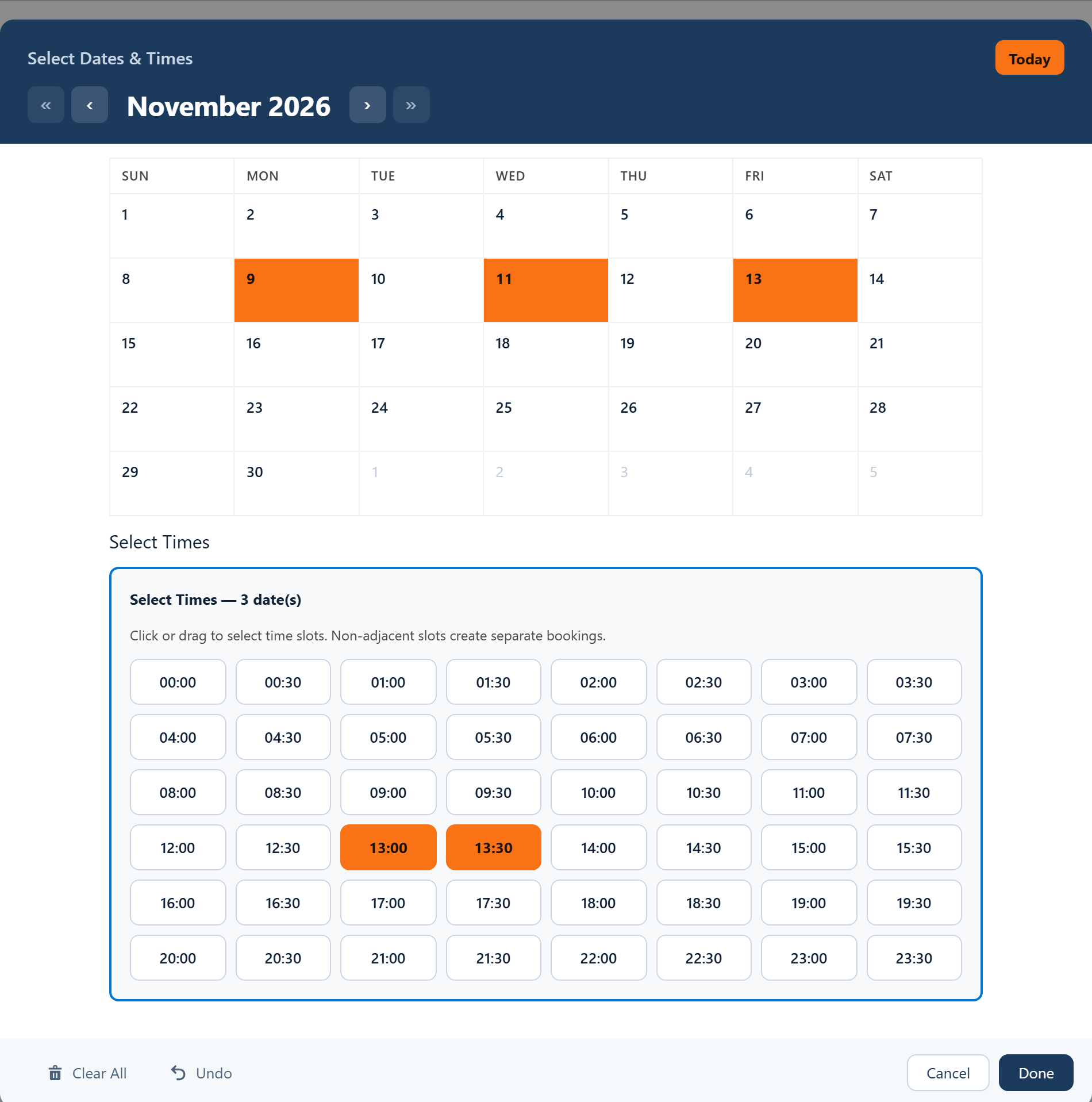
The calendar hands the picks to the flow as JSON in its selectedDatesWithTimesJson output. Flow cannot read JSON, which is where the parser comes in. Each entry it returns has these fields:
| Field | Type | Holds |
|---|---|---|
fromDate | Date | The shift's day |
toDate | Date | The same day for a shift; the last day for a range |
startTime | Time | The first picked slot |
endTime | Time | The end of the last picked slot |
Adjacent slots make one shift, so 13:00 and 13:30 become 13:00 to 14:00. Picking two separate blocks on a day, say a morning and an afternoon, gives two entries and two shifts for that day.
Starter flow: Add Shifts
Pick days and hours, then save one shift per block, linked to the record the flow is launched from. MDP_Starter_Add_Shifts.flow-meta.xml
Use case: one record for every day off
Time off is usually tracked per day: payroll counts days, and a half-approved request has to be split by day anyway. Here you do not even need the parser. The Date component also outputs selectedDates, a plain text list with every picked day, ranges spelled out day by day.
Loop through that list directly. The only catch is that each item is text such as 2026-11-09, so a one-line formula, DATEVALUE({!Loop_Days}), turns it into a date before the assignment copies it onto the record.
Starter flow: Record per Day
Pick days and ranges, then save one record for every single day, no parser needed. MDP_Starter_Record_Per_Day.flow-meta.xml
Use case: one record per date range
Some things span days but are one thing: a three-day workshop, an equipment rental, a site visit that runs Monday to Wednesday. Those want one record with a start date and an end date, not three.
That is the selectedDateRangesJson output. The calendar joins adjacent days into a single range, so picking the 9th, 10th and 11th gives one entry from the 9th to the 11th. Parse it, loop, and copy fromDate and toDate onto the start and end fields.
Starter flow: Record per Range
Pick dates and ranges, then save one record per range with its start and end date. MDP_Starter_Record_Per_Range.flow-meta.xml
bookingSuccessCount and which dates clashed in bookingConflictDates.
Use a starter flow in your org
The starter flows save to the Schedule and Event objects that come with MultiDatePick, so they deploy as they are and run straight after install. Swap in your own objects once you have seen them work.
- Copy or download the flow's XML above.
- Deploy it from VS Code. Deploy a Flow with VS Code walks through it step by step.
- Open it in Flow Builder and click the calendar on the first screen. Type the Config Name of a config you saved in the Setup Wizard, or one you imported from the Config Library, to give it your settings.
- Point it at your objects, if you are not using Schedule and Event: change the record variable's object and the fields in the assignment.
- Activate it and add it to the record page with the Flow component or as an action. It reads the record's Id from its
recordIdvariable.
Mistakes that cost an afternoon
- Saving inside the loop. Fine in a test with three dates, a limit error in production with forty.
- Forgetting to add the record to the collection. The assignment needs two parts: set the fields, then Add the record variable to the collection. Without the second, the save at the end has nothing to save.
- Assigning text to a date field. The
selectedDateslist is text. Wrap each item inDATEVALUE()first. - Leaving Output As JSON off. The JSON outputs are only filled when the calendar's Output As JSON setting is on. The starter flows turn it on.
- Launching from the wrong place. The flow links each record to
recordId. Run it from the job, event or person the records belong to, or the link stays empty.
Questions people ask
How do I create multiple records from one Salesforce Screen Flow?
Collect the choices on one screen, loop through them, and in the loop use an Assignment to fill a record variable and add it to a record collection. After the loop, one Create Records element saves the whole collection.
Should Create Records go inside a Flow loop?
No. A Create Records inside a loop saves once per item, and a transaction allows 150 such saves, so a long list fails and every list runs slower. Build a record collection in the loop and save it once after the loop ends.
How do I loop through JSON in Salesforce Flow?
Flow cannot read JSON on its own. Turn it into a collection first: MultiDatePick includes an action, Parse Date Entries from JSON, that turns the calendar's JSON output into a list of entries with fromDate, toDate, startTime and endTime, which a Loop element can walk.
How do I add multiple shifts to a job in Salesforce?
Put a date and time picker on a Screen Flow launched from the job record, let the recruiter pick the shift days and hours, parse the picks into a list, and loop over it to build one shift record per day, linked to the job. Save them all in one Create Records after the loop.
Do I need Apex to loop through picked dates?
No. The parsing action ships with MultiDatePick, and the loop, assignment and save are standard Flow elements. For whole days you do not even need the action: the calendar also outputs a plain list of picked days.
One screen, every record it should make.
Copy a starter flow above, or try the calendar first in the live demo.
- $20/user/month, every feature
- 30-day free trial, no card
- 100% native Salesforce
- No Apex
- Coming soon to the Salesforce AppExchange